
Comme les versions précédentes, Android 15 apporte des modifications de comportement pouvant affecter votre application. Les modifications de comportement suivantes s'appliquent exclusivement aux applications qui ciblent Android 15 ou version ultérieure. Si votre application cible Android 15 ou une version ultérieure, vous devez la modifier pour qu'elle prenne en charge ces comportements, le cas échéant.
Veillez également à consulter la liste des modifications de comportement qui affectent toutes les applications exécutées sur Android 15, quel que soit le targetSdkVersion de votre application.
Fonctionnalité de base
Android 15 modifie ou étend diverses fonctionnalités de base du système Android.
Modifications apportées aux services de premier plan
Nous apportons les modifications suivantes aux services de premier plan avec Android 15.
- Comportement de délai avant expiration du service de premier plan de synchronisation des données
- Nouveau type de service de premier plan de traitement multimédia
- Restrictions concernant les broadcast receivers
BOOT_COMPLETEDqui lancent des services de premier plan - Restrictions concernant le démarrage des services de premier plan lorsqu'une application détient l'autorisation
SYSTEM_ALERT_WINDOW
Comportement du délai avant expiration du service de premier plan de synchronisation des données
Android 15 introduit un nouveau comportement de délai avant expiration dans dataSync pour les applications ciblant Android 15 (niveau d'API 35) ou version ultérieure. Ce comportement s'applique également au nouveau type de service de premier plan mediaProcessing.
Le système autorise les services dataSync d'une application à s'exécuter pendant un total de six heures sur une période de 24 heures, après quoi le système appelle la méthode Service.onTimeout(int, int) du service en cours d'exécution (introduite dans Android 15). À ce stade, le service dispose de quelques secondes pour appeler Service.stopSelf(). Lorsque Service.onTimeout() est appelé, le service n'est plus considéré comme un service de premier plan. Si le service n'appelle pas Service.stopSelf(), le système génère une exception interne. L'exception est enregistrée dans Logcat avec le message suivant:
Fatal Exception: android.app.RemoteServiceException: "A foreground service of
type dataSync did not stop within its timeout: [component name]"
Pour éviter les problèmes liés à ce changement de comportement, vous pouvez effectuer l'une ou plusieurs des opérations suivantes:
- Demandez à votre service d'implémenter la nouvelle méthode
Service.onTimeout(int, int). Lorsque votre application reçoit le rappel, veillez à appelerstopSelf()dans un délai de quelques secondes. (Si vous n'arrêtez pas immédiatement l'application, le système génère une erreur.) - Assurez-vous que les services
dataSyncde votre application ne s'exécutent pas pendant plus de six heures au total sur une période de 24 heures (sauf si l'utilisateur interagit avec l'application, ce qui réinitialise le minuteur). - Ne démarrez les services de premier plan
dataSyncqu'en raison d'une interaction directe avec l'utilisateur. Étant donné que votre application est au premier plan au démarrage du service, votre service dispose de six heures complètes après le passage de l'application en arrière-plan. - Au lieu d'utiliser un service de premier plan
dataSync, utilisez une API de remplacement.
Si les services de premier plan dataSync de votre application ont été exécutés pendant six heures au cours des 24 dernières heures, vous ne pouvez pas démarrer un autre service de premier plan dataSync sauf si l'utilisateur a mis votre application au premier plan (ce qui réinitialise le minuteur). Si vous essayez de démarrer un autre service de premier plan dataSync, le système génère une erreur ForegroundServiceStartNotAllowedException avec un message d'erreur du type "Time limit already expired for premier service type dataSync" (La limite de temps est déjà épuisée pour le type de service de premier plan dataSync).
Tests
Pour tester le comportement de votre application, vous pouvez activer les délais avant expiration de la synchronisation des données, même si votre application ne cible pas Android 15 (à condition qu'elle s'exécute sur un appareil Android 15). Pour activer les délais avant expiration, exécutez la commande adb suivante:
adb shell am compat enable FGS_INTRODUCE_TIME_LIMITS your-package-name
Vous pouvez également ajuster le délai avant expiration pour tester plus facilement le comportement de votre application une fois la limite atteinte. Pour définir un nouveau délai avant expiration, exécutez la commande adb suivante:
adb shell device_config put activity_manager data_sync_fgs_timeout_duration duration-in-milliseconds
Nouveau type de service de premier plan de traitement multimédia
Android 15 introduit un nouveau type de service de premier plan, mediaProcessing. Ce type de service convient aux opérations telles que le transcodage de fichiers multimédias. Par exemple, une application multimédia peut télécharger un fichier audio et avoir besoin de le convertir dans un autre format avant de le lire. Vous pouvez utiliser un service de premier plan mediaProcessing pour vous assurer que la conversion se poursuit même lorsque l'application est en arrière-plan.
Le système autorise les services mediaProcessing d'une application à s'exécuter pendant un total de six heures sur une période de 24 heures, après quoi le système appelle la méthode Service.onTimeout(int, int) du service en cours d'exécution (introduite dans Android 15). À ce stade, le service dispose de quelques secondes pour appeler Service.stopSelf(). Si le service n'appelle pas Service.stopSelf(), le système génère une exception interne. L'exception est enregistrée dans Logcat avec le message suivant:
Fatal Exception: android.app.RemoteServiceException: "A foreground service of
type mediaProcessing did not stop within its timeout: [component name]"
Pour éviter cette exception, vous pouvez effectuer l'une des opérations suivantes:
- Demandez à votre service d'implémenter la nouvelle méthode
Service.onTimeout(int, int). Lorsque votre application reçoit le rappel, veillez à appelerstopSelf()dans un délai de quelques secondes. (Si vous n'arrêtez pas immédiatement l'application, le système génère une erreur.) - Assurez-vous que les services
mediaProcessingde votre application ne s'exécutent pas pendant plus de six heures au total sur une période de 24 heures (sauf si l'utilisateur interagit avec l'application, ce qui réinitialise le minuteur). - Ne démarrez les services de premier plan
mediaProcessingqu'en raison d'une interaction directe avec l'utilisateur. Étant donné que votre application est au premier plan au démarrage du service, votre service dispose de six heures complètes après le passage de l'application en arrière-plan. - Au lieu d'utiliser un service de premier plan
mediaProcessing, utilisez une API alternative, comme WorkManager.
Si les services de premier plan mediaProcessing de votre application ont fonctionné pendant six heures au cours des dernières 24 heures, vous ne pouvez pas démarrer un autre service de premier plan mediaProcessing sauf si l'utilisateur a mis votre application au premier plan (ce qui réinitialise le minuteur). Si vous essayez de démarrer un autre service de premier plan mediaProcessing, le système génère ForegroundServiceStartNotAllowedException avec un message d'erreur tel que "Le délai est déjà écoulé pour le type de service de premier plan mediaProcessing".
Pour en savoir plus sur le type de service mediaProcessing, consultez la section Modifications apportées aux types de services de premier plan pour Android 15: traitement multimédia.
Tests
Pour tester le comportement de votre application, vous pouvez activer les délais avant expiration du traitement multimédia même si votre application ne cible pas Android 15 (à condition qu'elle s'exécute sur un appareil Android 15). Pour activer les délais avant expiration, exécutez la commande adb suivante:
adb shell am compat enable FGS_INTRODUCE_TIME_LIMITS your-package-name
Vous pouvez également ajuster la période de délai avant expiration pour tester plus facilement le comportement de votre application lorsque la limite est atteinte. Pour définir un nouveau délai avant expiration, exécutez la commande adb suivante:
adb shell device_config put activity_manager media_processing_fgs_timeout_duration duration-in-milliseconds
Restrictions concernant les broadcast receivers BOOT_COMPLETED qui lancent des services de premier plan
De nouvelles restrictions s'appliquent au lancement de BOOT_COMPLETED broadcast receivers
services de premier plan. Les broadcast receivers BOOT_COMPLETED ne sont pas autorisés à lancer les types de services de premier plan suivants :
dataSynccameramediaPlaybackphoneCallmediaProjectionmicrophone(cette restriction est en place pour le pays suivant :microphone) Android 14)
Si un récepteur BOOT_COMPLETED tente de lancer l'un de ces types de premier plan
le système génère ForegroundServiceStartNotAllowedException.
Tests
Pour tester le comportement de votre application, vous pouvez activer ces nouvelles restrictions même si votre
L'application ne cible pas Android 15 (tant qu'elle est exécutée sur un appareil équipé d'Android 15).
appareil). Exécutez la commande adb suivante:
adb shell am compat enable FGS_BOOT_COMPLETED_RESTRICTIONS your-package-name
Pour envoyer une diffusion BOOT_COMPLETED sans redémarrer l'appareil :
exécutez la commande adb suivante:
adb shell am broadcast -a android.intent.action.BOOT_COMPLETED your-package-name
Restrictions concernant le démarrage des services de premier plan lorsqu'une application détient l'autorisation SYSTEM_ALERT_WINDOW
Auparavant, si une application détenait l'autorisation SYSTEM_ALERT_WINDOW, elle pouvait lancer un service de premier plan même si elle était actuellement en arrière-plan (comme indiqué dans la section Exclusions des restrictions de démarrage en arrière-plan).
Si une application cible Android 15, cette exemption est désormais plus restreinte. L'application doit désormais disposer de l'autorisation SYSTEM_ALERT_WINDOW et également d'une fenêtre de superposition visible. Autrement dit, l'application doit d'abord lancer une fenêtre TYPE_APPLICATION_OVERLAY et la fenêtre doit être visible avant de démarrer un service de premier plan.
Si votre application tente de démarrer un service de premier plan en arrière-plan sans répondre à ces nouvelles exigences (et qu'elle ne fait l'objet d'aucune autre exception), le système génère une exception ForegroundServiceStartNotAllowedException.
Si votre application déclare l'autorisation SYSTEM_ALERT_WINDOW et lance des services de premier plan en arrière-plan, elle peut être affectée par ce changement. Si votre application reçoit un ForegroundServiceStartNotAllowedException, vérifiez l'ordre des opérations de votre application et assurez-vous qu'elle dispose déjà d'une fenêtre de superposition active avant qu'elle ne tente de démarrer un service de premier plan en arrière-plan. Vous pouvez vérifier si votre fenêtre superposée est actuellement visible en appelant View.getWindowVisibility(), ou vous pouvez remplacer View.onWindowVisibilityChanged() pour recevoir une notification chaque fois que la visibilité change.
Tests
Pour tester le comportement de votre application, vous pouvez activer ces nouvelles restrictions même si votre application ne cible pas Android 15 (à condition qu'elle s'exécute sur un appareil Android 15). Pour activer ces nouvelles restrictions sur le démarrage des services de premier plan en arrière-plan, exécutez la commande adb suivante:
adb shell am compat enable FGS_SAW_RESTRICTIONS your-package-name
Modifications apportées au moment où les applications peuvent modifier l'état global du mode Ne pas déranger
Les applications qui ciblent Android 15 (niveau d'API 35) ou version ultérieure ne peuvent plus modifier l'état ou la règle globaux du mode Ne pas déranger sur un appareil (en modifiant les paramètres utilisateur ou en désactivant le mode Ne pas déranger). Au lieu de cela, les applications doivent fournir un AutomaticZenRule, que le système combine dans une stratégie globale avec le schéma existant de stratégie la plus restrictive. Les appels aux API existantes qui affectaient auparavant l'état global (setInterruptionFilter, setNotificationPolicy) entraînent la création ou la mise à jour d'un AutomaticZenRule implicite, qui est activé ou désactivé en fonction du cycle d'appel de ces appels d'API.
Notez que ce changement n'affecte le comportement observable que si l'application appelle setInterruptionFilter(INTERRUPTION_FILTER_ALL) et s'attend à ce que cet appel désactive un AutomaticZenRule précédemment activé par ses propriétaires.
Modifications apportées à l'API OpenJDK
Android 15 poursuit le travail d'actualisation des principales bibliothèques Android afin de s'aligner sur les fonctionnalités des dernières versions d'OpenJDK LTS.
Certaines de ces modifications peuvent avoir un impact sur la compatibilité des applications ciblant Android 15 (niveau d'API 35) :
Modifications apportées aux API de mise en forme des chaînes : la validation de l'index, des indicateurs, de la largeur et de la précision des arguments est désormais plus stricte lors de l'utilisation des API
String.format()etFormatter.format()suivantes :String.format(String, Object[])String.format(Locale, String, Object[])Formatter.format(String, Object[])Formatter.format(Locale, String, Object[])
Par exemple, l'exception suivante est générée lorsqu'un index d'argument de 0 est utilisé (
%0dans la chaîne de format) :IllegalFormatArgumentIndexException: Illegal format argument index = 0Dans ce cas, le problème peut être résolu en utilisant un index d'argument de 1 (
%1dans la chaîne de format).Modifications apportées au type de composant de
Arrays.asList(...).toArray(): lorsque vous utilisezArrays.asList(...).toArray(), le type de composant du tableau résultant est désormaisObject, et non le type des éléments du tableau sous-jacent. Le code suivant génère donc uneClassCastException:String[] elements = (String[]) Arrays.asList("one", "two").toArray();Dans ce cas, pour conserver
Stringcomme type de composant dans le tableau résultant, vous pouvez utiliserCollection.toArray(Object[])à la place :String[] elements = Arrays.asList("two", "one").toArray(new String[0]);Modifications apportées à la gestion des codes de langue : lorsque vous utilisez l'API
Locale, les codes de langue pour l'hébreu, le yiddish et l'indonésien ne sont plus convertis dans leur forme obsolète (hébreu :iw, yiddish :jiet indonésien :in). Lorsque vous spécifiez le code de langue pour l'un de ces paramètres régionaux, utilisez les codes ISO 639-1 à la place (hébreu :he, yiddish :yiet indonésien :id).Modifications apportées aux séquences d'entiers aléatoires : suite aux modifications apportées dans https://bugs.openjdk.org/browse/JDK-8301574, les méthodes
Random.ints()suivantes renvoient désormais une séquence de nombres différente de celle des méthodesRandom.nextInt():En général, ce changement ne devrait pas entraîner de comportement cassant pour l'application, mais votre code ne devrait pas s'attendre à ce que la séquence générée à partir des méthodes
Random.ints()corresponde àRandom.nextInt().
La nouvelle API SequencedCollection peut affecter la compatibilité de votre application après que vous avez mis à jour compileSdk dans la configuration de compilation de votre application pour utiliser Android 15 (niveau d'API 35) :
Collision avec les fonctions d'extension
MutableList.removeFirst()etMutableList.removeLast()danskotlin-stdlibLe type
Listen Java est mappé sur le typeMutableListen Kotlin. Étant donné que les APIList.removeFirst()etList.removeLast()ont été introduites dans Android 15 (niveau d'API 35), le compilateur Kotlin résout les appels de fonction, par exemplelist.removeFirst(), de manière statique vers les nouvelles APIListau lieu des fonctions d'extension danskotlin-stdlib.Si une application est recompilée avec
compileSdkdéfini sur35etminSdkdéfini sur34ou une valeur inférieure, puis que l'application est exécutée sur Android 14 ou une version antérieure, une erreur d'exécution est générée :java.lang.NoSuchMethodError: No virtual method removeFirst()Ljava/lang/Object; in class Ljava/util/ArrayList;L'option lint
NewApiexistante dans le plug-in Android Gradle peut détecter ces nouvelles utilisations de l'API../gradlew lintMainActivity.kt:41: Error: Call requires API level 35 (current min is 34): java.util.List#removeFirst [NewApi] list.removeFirst()Pour corriger l'exception d'exécution et les erreurs Lint, les appels de fonction
removeFirst()etremoveLast()peuvent être remplacés parremoveAt(0)etremoveAt(list.lastIndex)respectivement en Kotlin. Si vous utilisez Android Studio Ladybug | 2024.1.3 ou version ultérieure, une option de correction rapide est également disponible pour ces erreurs.Envisagez de supprimer
@SuppressLint("NewApi")etlintOptions { disable 'NewApi' }si l'option lint a été désactivée.Collision avec d'autres méthodes en Java
De nouvelles méthodes ont été ajoutées aux types existants, par exemple
ListetDeque. Ces nouvelles méthodes peuvent ne pas être compatibles avec les méthodes portant le même nom et ayant les mêmes types d'arguments dans d'autres interfaces et classes. En cas de collision de signature de méthode avec incompatibilité, le compilateurjavacgénère une erreur au moment de la compilation. Exemple :Exemple d'erreur 1 :
javac MyList.javaMyList.java:135: error: removeLast() in MyList cannot implement removeLast() in List public void removeLast() { ^ return type void is not compatible with Object where E is a type-variable: E extends Object declared in interface ListExemple d'erreur 2 :
javac MyList.javaMyList.java:7: error: types Deque<Object> and List<Object> are incompatible; public class MyList implements List<Object>, Deque<Object> { both define reversed(), but with unrelated return types 1 errorExemple d'erreur 3 :
javac MyList.javaMyList.java:43: error: types List<E#1> and MyInterface<E#2> are incompatible; public static class MyList implements List<Object>, MyInterface<Object> { class MyList inherits unrelated defaults for getFirst() from types List and MyInterface where E#1,E#2 are type-variables: E#1 extends Object declared in interface List E#2 extends Object declared in interface MyInterface 1 errorPour corriger ces erreurs de compilation, la classe qui implémente ces interfaces doit remplacer la méthode par un type renvoyé compatible. Exemple :
@Override
public Object getFirst() {
    return List.super.getFirst();
}
Sécurité
Android 15 inclut des modifications qui favorisent la sécurité du système pour protéger les applications et les utilisateurs contre les applications malveillantes.
Versions TLS limitées
Android 15 limite l'utilisation des versions 1.0 et 1.1 de TLS. Ces versions étaient auparavant obsolètes dans Android, mais elles ne sont désormais plus autorisées pour les applications ciblant Android 15.
Lancement sécurisé des activités en arrière-plan
Android 15 protège les utilisateurs contre les applications malveillantes et leur donne plus de contrôle sur leurs appareils en ajoutant des modifications qui empêchent les applications malveillantes en arrière-plan de mettre d'autres applications au premier plan, d'élever leurs privilèges et d'abuser de l'interaction utilisateur. Les lancements d'activités en arrière-plan sont limités depuis Android 10 (niveau d'API 29).
Autres modifications
- Par défaut, les créateurs de
PendingIntentpeuvent bloquer le lancement d'activités en arrière-plan. Cela permet d'empêcher les applications de créer accidentellement unPendingIntentqui pourrait être utilisé de manière abusive par des personnes malveillantes. - Ne mettez pas une application au premier plan, sauf si l'expéditeur
PendingIntentl'autorise. Cette modification vise à empêcher les applications malveillantes d'utiliser de manière abusive la possibilité de démarrer des activités en arrière-plan. Par défaut, les applications ne sont pas autorisées à mettre la pile de tâches au premier plan, sauf si le créateur autorise les privilèges de lancement d'activité en arrière-plan ou si l'expéditeur dispose de ces privilèges. - Contrôlez la manière dont l'activité supérieure d'une pile de tâches peut terminer sa tâche. Si l'activité supérieure termine une tâche, Android revient à la dernière tâche active. De plus, si une activité non supérieure termine sa tâche, Android reviendra à l'écran d'accueil. Il ne bloquera pas la fin de cette activité non supérieure.
- Empêchez le lancement d'activités arbitraires à partir d'autres applications dans votre propre tâche. Cette modification empêche les applications malveillantes d'hameçonner les utilisateurs en créant des activités qui semblent provenir d'autres applications.
- Lancement de la fonctionnalité permettant d'empêcher la prise en compte des fenêtres non visibles pour l'activité en arrière-plan Cela permet d'empêcher les applications malveillantes d'abuser des lancements d'activités en arrière-plan pour afficher du contenu indésirable ou malveillant aux utilisateurs.
Intents plus sûrs
Android 15 introduit StrictMode pour les intents.
Pour afficher des journaux détaillés sur les cas d'utilisation abusive de Intent, utilisez la méthode suivante :
Kotlin
fun onCreate() {
    StrictMode.setVmPolicy(VmPolicy.Builder()
        .detectUnsafeIntentLaunch()
        .build()
    )
}
Java
public void onCreate() {
    StrictMode.setVmPolicy(new VmPolicy.Builder()
            .detectUnsafeIntentLaunch()
            .build());
}
Expérience utilisateur et UI du système
Android 15 inclut des modifications visant à créer une expérience utilisateur plus cohérente et intuitive.
Modifications des encarts de fenêtre
Android 15 apporte deux modifications liées aux marges intérieures de la fenêtre: l'affichage bord à bord est appliqué par défaut, et des modifications de configuration sont également apportées, comme la configuration par défaut des barres système.
Application bord à bord
Les applications sont bord à bord par défaut sur les appareils équipés d'Android 15 si elles ciblent Android 15 (niveau d'API 35).

Il s'agit d'un changement radical qui peut avoir un impact négatif sur l'UI de votre application. Les modifications affectent les zones d'UI suivantes :
- Barre de navigation avec poignée de geste
- Transparente par défaut.
- Le décalage inférieur est désactivé. Le contenu s'affiche donc derrière la barre de navigation du système, sauf si des encarts sont appliqués.
setNavigationBarColoretR.attr#navigationBarColorsont obsolètes et n'affectent pas la navigation par gestes.setNavigationBarContrastEnforcedetR.attr#navigationBarContrastEnforcedn'ont toujours aucun effet sur la navigation par gestes.
- Navigation à trois boutons
- Opacité définie sur 80 % par défaut, avec une couleur pouvant correspondre à l'arrière-plan de la fenêtre.
- Le décalage inférieur est désactivé. Le contenu s'affiche donc derrière la barre de navigation du système, sauf si des encarts sont appliqués.
setNavigationBarColoretR.attr#navigationBarColorsont définis par défaut pour correspondre à l'arrière-plan de la fenêtre. L'arrière-plan de la fenêtre doit être un drawable de couleur pour que cette valeur par défaut s'applique. Cette API est obsolète, mais continue d'affecter la navigation à trois boutons.setNavigationBarContrastEnforcedetR.attr#navigationBarContrastEnforcedsont définis sur "true" par défaut, ce qui ajoute un arrière-plan opaque à 80 % à la navigation à trois boutons.
- Barre d'état
- Transparente par défaut.
- Le décalage supérieur est désactivé. Le contenu s'affiche donc derrière la barre d'état, sauf si des encarts sont appliqués.
setStatusBarColoretR.attr#statusBarColorsont obsolètes et n'ont aucun effet sur Android 15.setStatusBarContrastEnforcedetR.attr#statusBarContrastEnforcedsont obsolètes, mais ont toujours un effet sur Android 15.
- Encoche
layoutInDisplayCutoutModedes fenêtres non flottantes doit êtreLAYOUT_IN_DISPLAY_CUTOUT_MODE_ALWAYS.SHORT_EDGES,NEVERetDEFAULTsont interprétés commeALWAYSafin que les utilisateurs ne voient pas de barre noire causée par l'encoche de l'écran et qu'ils aient l'impression d'être bord à bord.
L'exemple suivant montre une application avant et après le ciblage d'Android 15 (niveau d'API 35), ainsi qu'avant et après l'application d'encarts. Cet exemple n'est pas exhaustif et peut apparaître différemment sur Android Auto.


Que vérifier si votre application est déjà bord à bord
Si votre application est déjà bord à bord et applique des encarts, vous n'êtes généralement pas concerné, sauf dans les cas suivants. Toutefois, même si vous pensez ne pas être concerné, nous vous recommandons de tester votre application.
- Vous disposez d'une fenêtre non flottante, telle qu'une
Activityqui utiliseSHORT_EDGES,NEVERouDEFAULTau lieu deLAYOUT_IN_DISPLAY_CUTOUT_MODE_ALWAYS. Si votre application plante au lancement, cela peut être dû à votre écran de démarrage. Vous pouvez mettre à niveau la dépendance principale de l'écran de démarrage vers la version 1.2.0-alpha01 ou une version ultérieure, ou définirwindow.attributes.layoutInDisplayCutoutMode = WindowManager.LayoutInDisplayCutoutMode.always. - Il peut y avoir des écrans à faible trafic avec une UI masquée. Vérifiez que ces écrans moins visités ne comportent pas d'UI masquée. Les écrans à faible trafic incluent :
- Écrans d'intégration ou de connexion
- Pages de paramètres
Que vérifier si votre application n'est pas encore bord à bord
Si votre application n'est pas encore bord à bord, vous êtes très probablement concerné. En plus des scénarios pour les applications déjà bord à bord, vous devez tenir compte des points suivants :
- Si votre application utilise des composants Material 3 (
androidx.compose.material3) dans Compose, tels queTopAppBar,BottomAppBar, etNavigationBar, ces composants ne sont probablement pas affectés, car ils gèrent automatiquement les encarts. - Si votre application utilise des composants Material 2 (
androidx.compose.material) dans Compose, ces composants ne gèrent pas automatiquement les encarts. Cependant, vous pouvez accéder aux encarts et les appliquer manuellement. Dans androidx.compose.material 1.6.0 et versions ultérieures, utilisez le paramètrewindowInsetspour appliquer manuellement les encarts pourBottomAppBar,TopAppBar,BottomNavigation, etNavigationRail. De même, utilisez lecontentWindowInsetsparamètre pourScaffold. - Si votre application utilise des vues et des composants Material
(
com.google.android.material), la plupart des composants Material basés sur des vues, tels queBottomNavigationView,BottomAppBar,NavigationRailViewouNavigationView, gèrent les encarts et ne nécessitent aucun travail supplémentaire. Toutefois, vous devez ajouterandroid:fitsSystemWindows="true"si vous utilisezAppBarLayout. - Pour les composables personnalisés, appliquez les encarts manuellement en tant que marge intérieure. Si votre
contenu se trouve dans un
Scaffold, vous pouvez utiliser les valeurs de marge intérieureScaffold. Sinon, appliquez une marge intérieure à l'aide de l'un desWindowInsets. - Si votre application utilise des vues et
BottomSheet,SideSheetou des conteneurs personnalisés, appliquez la marge intérieure en utilisantViewCompat.setOnApplyWindowInsetsListener. PourRecyclerView, appliquez la marge intérieure à l'aide de cet écouteur et ajoutez égalementclipToPadding="false".
Que vérifier si votre application doit offrir une protection d'arrière-plan personnalisée
Si votre application doit offrir une protection d'arrière-plan personnalisée à la navigation à trois boutons ou
à la barre d'état, elle doit placer un composable ou une vue derrière la barre système
à l'aide de WindowInsets.Type#tappableElement() pour obtenir la hauteur de la barre de navigation à trois boutons
ou WindowInsets.Type#statusBars.
Ressources supplémentaires sur le bord à bord
Consultez les guides Vues bord à bord et Compose bord à bord pour obtenir d'autres informations sur l'application d'encarts.
API obsolètes
Les API suivantes sont obsolètes, mais pas désactivées :
R.attr#enforceStatusBarContrastR.attr#navigationBarColor(pour la navigation à trois boutons, avec un canal alpha de 80 %)Window#isStatusBarContrastEnforcedWindow#setNavigationBarColor(pour la navigation à trois boutons, avec un canal alpha de 80 %)Window#setStatusBarContrastEnforced
Les API suivantes sont obsolètes et désactivées :
R.attr#navigationBarColor(pour la navigation par gestes)R.attr#navigationBarDividerColorR.attr#statusBarColorWindow#setDecorFitsSystemWindowsWindow#getNavigationBarColorWindow#getNavigationBarDividerColorWindow#getStatusBarColorWindow#setNavigationBarColor(pour la navigation par gestes)Window#setNavigationBarDividerColorWindow#setStatusBarColor
Configuration stable
Si votre application cible Android 15 (niveau d'API 35) ou une version ultérieure, Configuration n'exclut plus les barres système. Si vous utilisez la taille de l'écran dans la classe Configuration pour le calcul de la mise en page, vous devez la remplacer par de meilleures alternatives, comme un ViewGroup, WindowInsets ou WindowMetricsCalculator approprié, selon vos besoins.
Configuration est disponible depuis l'API 1. Il est généralement obtenu à partir de Activity.onConfigurationChanged. Il fournit des informations telles que la densité, l'orientation et la taille des fenêtres. Une caractéristique importante des tailles de fenêtre renvoyées par Configuration est qu'elles excluaient auparavant les barres système.
La taille de la configuration est généralement utilisée pour la sélection des ressources, comme /res/layout-h500dp, et il s'agit toujours d'un cas d'utilisation valide. Toutefois, son utilisation pour le calcul de la mise en page a toujours été déconseillée. Si tel est le cas, éloignez-vous-en maintenant. Vous devez remplacer l'utilisation de Configuration par quelque chose de plus adapté en fonction de votre cas d'utilisation.
Si vous l'utilisez pour calculer la mise en page, utilisez un ViewGroup approprié, tel que CoordinatorLayout ou ConstraintLayout. Si vous l'utilisez pour déterminer la hauteur de la barre de navigation système, utilisez WindowInsets. Si vous souhaitez connaître la taille actuelle de la fenêtre de votre application, utilisez computeCurrentWindowMetrics.
La liste suivante décrit les champs concernés par cette modification :
- Les tailles
Configuration.screenWidthDpetscreenHeightDpn'excluent plus les barres système. Configuration.smallestScreenWidthDpest indirectement affecté par les modifications apportées àscreenWidthDpetscreenHeightDp.Configuration.orientationest indirectement affecté par les modifications apportées àscreenWidthDpetscreenHeightDpsur les appareils presque carrés.Display.getSize(Point)est indirectement concerné par les modifications apportées àConfiguration. Cette méthode a été abandonnée à partir du niveau d'API 30.Display.getMetrics()fonctionne déjà de cette manière depuis le niveau d'API 33.
L'attribut elegantTextHeight est défini sur "true" par défaut.
Pour les applications ciblant Android 15 (niveau d'API 35), l'attribut TextView elegantTextHeight devient true par défaut, remplaçant la police compacte utilisée par défaut par certains scripts qui ont de grandes métriques verticales par une police beaucoup plus lisible.
La police compacte a été introduite pour éviter la rupture des mises en page. Android 13 (niveau d'API 33) empêche de nombreuses ruptures en permettant à la mise en page du texte d'étirer la hauteur verticale à l'aide de l'attribut fallbackLineSpacing.
Dans Android 15, la police compacte reste dans le système. Votre application peut donc définir elegantTextHeight sur false pour obtenir le même comportement qu'auparavant, mais il est peu probable qu'elle soit compatible avec les versions à venir. Par conséquent, si votre application est compatible avec les scripts suivants: arabe, lao, birman, tamoul, gujarati, kannada, malayalam, oriya, télougou ou thaï, testez-la en définissant elegantTextHeight sur true.

elegantTextHeight pour les applications ciblant Android 14 (niveau d'API 34) ou version antérieure.
elegantTextHeight pour les applications ciblant Android 15.La largeur de TextView change pour les formes de lettres complexes
Dans les versions précédentes d'Android, certaines polices cursives ou langues à forme complexe pouvaient dessiner les lettres dans la zone du caractère précédent ou suivant.
Dans certains cas, ces lettres étaient tronquées au début ou à la fin.
À partir d'Android 15, un TextView alloue une largeur pour dessiner suffisamment d'espace pour ces lettres et permet aux applications de demander des marges supplémentaires à gauche pour éviter le recadrage.
Étant donné que cette modification affecte la façon dont un TextView détermine la largeur, TextView alloue plus de largeur par défaut si l'application cible Android 15 (niveau d'API 35) ou version ultérieure. Vous pouvez activer ou désactiver ce comportement en appelant l'API setUseBoundsForWidth sur TextView.
Étant donné que l'ajout d'une marge intérieure à gauche peut entraîner un désalignement des mises en page existantes, la marge intérieure n'est pas ajoutée par défaut, même pour les applications qui ciblent Android 15 ou version ultérieure.
Toutefois, vous pouvez ajouter une marge intérieure supplémentaire pour empêcher le rognage en appelant setShiftDrawingOffsetForStartOverhang.
Les exemples suivants montrent comment ces modifications peuvent améliorer la mise en page du texte pour certaines polices et langues.

<TextView
    android:fontFamily="cursive"
    android:text="java" />

<TextView
    android:fontFamily="cursive"
    android:text="java"
    android:useBoundsForWidth="true"
    android:shiftDrawingOffsetForStartOverhang="true" />
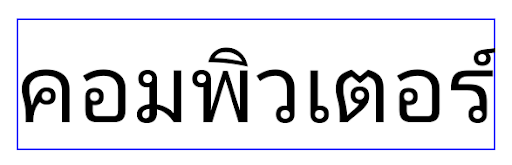
<TextView
    android:text="คอมพิวเตอร์" />
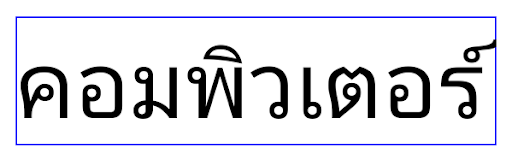
<TextView
    android:text="คอมพิวเตอร์"
    android:useBoundsForWidth="true"
    android:shiftDrawingOffsetForStartOverhang="true" />
Hauteur de ligne par défaut tenant compte des paramètres régionaux pour EditText
Dans les versions précédentes d'Android, la mise en page du texte étirait la hauteur du texte pour qu'elle corresponde à la hauteur de ligne de la police correspondant à la langue actuelle. Par exemple, si le contenu était en japonais, la hauteur de ligne de la police japonaise étant légèrement supérieure à celle d'une police latine, la hauteur du texte était légèrement plus élevée. Toutefois, malgré ces différences de hauteur de ligne, l'élément EditText était redimensionné de manière uniforme, quelle que soit la langue utilisée, comme illustré dans l'image suivante:

EditText pouvant contenir du texte en anglais (en), en japonais (ja) et en birman (my). La hauteur de l'EditText est la même, même si ces langues ont des hauteurs de ligne différentes.Pour les applications ciblant Android 15 (niveau d'API 35), une hauteur de ligne minimale est désormais réservée à EditText pour correspondre à la police de référence du paramètre régional spécifié, comme illustré dans l'image suivante:

EditText pouvant contenir du texte en anglais (en), en japonais (ja) et en birman (my). La hauteur de EditText inclut désormais un espace pour s'adapter à la hauteur de ligne par défaut des polices de ces langues.Si nécessaire, votre application peut restaurer le comportement précédent en spécifiant l'attribut useLocalePreferredLineHeightForMinimum sur false. Elle peut également définir des métriques verticales minimales personnalisées à l'aide de l'API setMinimumFontMetrics en Kotlin et en Java.
Appareil photo et médias
Android 15 apporte les modifications suivantes au comportement de l'appareil photo et des contenus multimédias pour les applications ciblant Android 15 ou version ultérieure.
Restrictions concernant la demande de priorité audio
Les applications qui ciblent Android 15 (niveau d'API 35) doivent être l'application principale ou exécuter un service de premier plan pour demander la priorité audio. Si une application tente de demander la sélection alors qu'elle ne remplit pas l'une de ces conditions, l'appel renvoie AUDIOFOCUS_REQUEST_FAILED.
Pour en savoir plus sur la mise au point audio, consultez Gérer la mise au point audio.
Mise à jour des restrictions non SDK
Android 15 inclut des listes à jour d'interfaces non SDK limitées grâce à la collaboration avec les développeurs Android et aux derniers tests internes. Dans la mesure du possible, nous nous assurons que des alternatives publiques sont disponibles avant de limiter les interfaces non SDK.
Si votre application ne cible pas Android 15, certaines de ces modifications ne vous affecteront peut-être pas immédiatement. Cependant, bien que votre application puisse accéder à certaines interfaces non SDK en fonction de son niveau d'API cible, l'utilisation d'un champ ou d'une méthode non SDK présente toujours un risque élevé d'endommager votre application.
Si vous n'êtes pas sûr que votre application utilise des interfaces non SDK, vous pouvez tester votre application pour le savoir. Si votre application repose sur des interfaces non SDK, vous devriez commencer à planifier une migration vers des alternatives SDK. Nous comprenons néanmoins que certaines applications ont des cas d'utilisation valides pour utiliser des interfaces non SDK. Si vous ne trouvez pas d'alternative à l'utilisation d'une interface non SDK pour une fonctionnalité de votre application, vous devriez demander une nouvelle API publique.
Pour en savoir plus sur les modifications apportées à cette version d'Android, consultez Mises à jour des restrictions d'interface non SDK dans Android 15. Pour en savoir plus sur les interfaces non SDK en général, consultez la section Restrictions concernant les interfaces non SDK.