

Android 15 में, पिछली रिलीज़ की तरह ही, बर्ताव से जुड़े कुछ बदलाव किए गए हैं. इनसे आपके ऐप्लिकेशन पर असर पड़ सकता है. बर्ताव से जुड़े ये बदलाव, सिर्फ़ उन ऐप्लिकेशन पर लागू होते हैं जो Android 15 या इसके बाद के वर्शन को टारगेट कर रहे हैं. अगर आपका ऐप्लिकेशन, Android 15 या इसके बाद के वर्शन को टारगेट कर रहा है, तो आपको अपने ऐप्लिकेशन में बदलाव करना चाहिए, ताकि वह इन बर्तावों के साथ सही तरीके से काम कर सके.
बर्ताव से जुड़े उन बदलावों की सूची भी देखें जो Android 15 पर चलने वाले सभी ऐप्लिकेशन पर लागू होते हैं. भले ही, आपके ऐप्लिकेशन का targetSdkVersion कुछ भी हो.
मुख्य फ़ंक्शन
Android 15 में, Android सिस्टम की कई मुख्य क्षमताओं में बदलाव किए गए हैं या उन्हें बढ़ाया गया है.
फ़ोरग्राउंड सेवाओं में बदलाव
हम Android 15 में फ़ोरग्राउंड सेवाओं में ये बदलाव कर रहे हैं.
- डेटा सिंक करने वाली फ़ोरग्राउंड सेवा के टाइम आउट का व्यवहार
- मीडिया प्रोसेस करने वाली नई फ़ोरग्राउंड सेवा का टाइप
- फ़ोरग्राउंड सेवाएं लॉन्च करने वाले
BOOT_COMPLETEDब्रॉडकास्ट रिसीवर पर पाबंदियां - ऐप्लिकेशन के पास
SYSTEM_ALERT_WINDOWअनुमति होने पर, फ़ोरग्राउंड सेवाएं शुरू करने से जुड़ी पाबंदियां
डेटा सिंक करने वाली फ़ोरग्राउंड सेवा के टाइम आउट का व्यवहार
Android 15 में, dataSync के लिए टाइम आउट का नया तरीका जोड़ा गया है. यह तरीका, Android 15 (एपीआई लेवल 35) या उसके बाद के वर्शन को टारगेट करने वाले ऐप्लिकेशन के लिए है. यह व्यवहार, mediaProcessing फ़ोरग्राउंड सेवा के नए टाइप पर भी लागू होता है.
सिस्टम, किसी ऐप्लिकेशन की dataSync सेवाओं को 24 घंटे में कुल छह घंटे तक चलने की अनुमति देता है. इसके बाद, सिस्टम चल रही सेवा के Service.onTimeout(int, int) तरीके को कॉल करता है. इसे Android 15 में लॉन्च किया गया था. इस दौरान, सेवा के पास Service.stopSelf() को कॉल करने के लिए कुछ सेकंड होते हैं. Service.onTimeout() को कॉल करने के बाद, सेवा को फ़ोरग्राउंड सेवा नहीं माना जाता. अगर सेवा Service.stopSelf() को कॉल नहीं करती है, तो सिस्टम में कोई इंटरनल अपवाद दिखता है. अपवाद को Logcat में इस मैसेज के साथ लॉग किया जाता है:
Fatal Exception: android.app.RemoteServiceException: "A foreground service of
type dataSync did not stop within its timeout: [component name]"
इस बदलाव की वजह से होने वाली समस्याओं से बचने के लिए, इनमें से एक या एक से ज़्यादा काम किए जा सकते हैं:
- अपनी सेवा में
Service.onTimeout(int, int)का नया तरीका लागू करें. जब आपके ऐप्लिकेशन को कॉलबैक मिल जाए, तोstopSelf()को कुछ सेकंड के अंदर कॉल करना न भूलें. (अगर ऐप्लिकेशन को तुरंत नहीं रोका जाता, तो सिस्टम गड़बड़ी जनरेट करता है.) - पक्का करें कि आपके ऐप्लिकेशन की
dataSyncसेवाएं किसी भी 24 घंटे में कुल छह घंटे से ज़्यादा न चलें (जब तक कि उपयोगकर्ता टाइमर को रीसेट करके ऐप्लिकेशन से इंटरैक्ट न करे). dataSyncफ़ोरग्राउंड सेवाओं को सिर्फ़ उपयोगकर्ता के सीधे इंटरैक्शन के ज़रिए शुरू करें. सेवा शुरू होने पर, आपका ऐप्लिकेशन फ़ोरग्राउंड में होता है. इसलिए, ऐप्लिकेशन के बैकग्राउंड में जाने के बाद भी, आपकी सेवा के पास पूरे छह घंटे होते हैं.dataSyncफ़ोरग्राउंड सेवा का इस्तेमाल करने के बजाय, किसी अन्य एपीआई का इस्तेमाल करें.
अगर आपके ऐप्लिकेशन की dataSync फ़ोरग्राउंड सेवाएं पिछले 24 में छह घंटे तक चली हैं, तो आपके पास dataSync की दूसरी फ़ोरग्राउंड सेवा शुरू करने का विकल्प नहीं है. जब तक उपयोगकर्ता आपके ऐप्लिकेशन को फ़ोरग्राउंड में न ले जाए (इससे टाइमर रीसेट हो जाता है). किसी दूसरी dataSync फ़ोरग्राउंड सेवा को शुरू करने की कोशिश करने पर, सिस्टम ForegroundServiceStartNotAllowedException का गड़बड़ी का मैसेज दिखाता है. जैसे, "फ़ोरग्राउंड सेवा के लिए समयसीमा खत्म हो चुकी है" डेटा सिंक करें.
टेस्ट करना
अपने ऐप्लिकेशन के व्यवहार की जांच करने के लिए, डेटा सिंक टाइम आउट की सुविधा चालू की जा सकती है. भले ही, आपका ऐप्लिकेशन Android 15 को टारगेट न करता हो. हालांकि, यह ज़रूरी है कि ऐप्लिकेशन Android 15 वाले डिवाइस पर चल रहा हो. टाइम आउट की सुविधा चालू करने के लिए, यहां दिया गया adb निर्देश चलाएं:
adb shell am compat enable FGS_INTRODUCE_TIME_LIMITS your-package-name
टाइम आउट की अवधि में भी बदलाव किया जा सकता है, ताकि यह आसानी से जांचा जा सके कि तय सीमा पूरी होने पर आपका ऐप्लिकेशन कैसा व्यवहार करता है. टाइम आउट की नई अवधि सेट करने के लिए, यह adb कमांड चलाएं:
adb shell device_config put activity_manager data_sync_fgs_timeout_duration duration-in-milliseconds
मीडिया प्रोसेस करने वाली नई फ़ोरग्राउंड सेवा का टाइप
Android 15 में, फ़ोरग्राउंड सेवा का एक नया टाइप mediaProcessing जोड़ा गया है. यह सेवा टाइप, मीडिया फ़ाइलों को ट्रांसकोड करने जैसे कामों के लिए सही है. उदाहरण के लिए, कोई मीडिया ऐप्लिकेशन किसी ऑडियो फ़ाइल को डाउनलोड कर सकता है और उसे चलाने से पहले, किसी दूसरे फ़ॉर्मैट में बदल सकता है. mediaProcessing फ़ोरग्राउंड सेवा का इस्तेमाल करके, यह पक्का किया जा सकता है कि ऐप्लिकेशन बैकग्राउंड में होने पर भी कन्वर्ज़न जारी रहे.
सिस्टम किसी ऐप्लिकेशन की mediaProcessing सेवाओं को 24 घंटों में कुल छह घंटे चलाने की अनुमति देता है. इसके बाद, सिस्टम, मौजूदा सेवा के Service.onTimeout(int, int) तरीके को कॉल करता है (Android 15 में शुरू किया गया). फ़िलहाल, Service.stopSelf() को कॉल करने के लिए सेवा को कुछ सेकंड मिलेंगे. अगर सेवा Service.stopSelf() को कॉल नहीं करती है, तो सिस्टम में कोई इंटरनल अपवाद दिखता है. अपवाद को Logcat में लॉग इन किया जाता है जिसमें यह मैसेज शामिल है:
Fatal Exception: android.app.RemoteServiceException: "A foreground service of
type mediaProcessing did not stop within its timeout: [component name]"
अपवाद से बचने के लिए, इनमें से कोई एक काम किया जा सकता है:
- अपनी सेवा में
Service.onTimeout(int, int)का नया तरीका लागू करें. जब आपके ऐप्लिकेशन को कॉलबैक मिलता है, तो कुछ सेकंड के अंदरstopSelf()को कॉल करना न भूलें. (अगर ऐप्लिकेशन को तुरंत नहीं रोका जाता, तो सिस्टम गड़बड़ी जनरेट करता है.) - पक्का करें कि आपके ऐप्लिकेशन की
mediaProcessingसेवाएं, 24 घंटे में कुल छह घंटे से ज़्यादा न चलें. ऐसा तब तक नहीं होगा, जब तक उपयोगकर्ता ऐप्लिकेशन के साथ इंटरैक्ट करके, टाइमर को रीसेट नहीं करता. - सीधे उपयोगकर्ता के साथ इंटरैक्शन होने पर ही,
mediaProcessingफ़ोरग्राउंड सेवाएं शुरू करें. सेवा शुरू होने के समय, आपका ऐप्लिकेशन फ़ोरग्राउंड में होता है. इसलिए, ऐप्लिकेशन के बैकग्राउंड में चलने के बाद, आपकी सेवा को पूरे छह घंटे तक चालू रखा जाता है. mediaProcessingफ़ोरग्राउंड सेवा का इस्तेमाल करने के बजाय, WorkManager जैसे अन्य एपीआई का इस्तेमाल करें.
अगर आपके ऐप्लिकेशन की mediaProcessing फ़ोरग्राउंड सेवाएं पिछले 24 में छह घंटों तक चली हैं, तो mediaProcessing फ़ोरग्राउंड सेवा को तब तक शुरू नहीं किया जा सकता, जब तक
उपयोगकर्ता आपके ऐप्लिकेशन को फ़ोरग्राउंड में न ले जाए (इससे टाइमर रीसेट हो जाता है). अगर कोई दूसरी mediaProcessing फ़ोरग्राउंड सेवा शुरू करने की कोशिश की जाती है, तो सिस्टम ForegroundServiceStartNotAllowedException को गड़बड़ी का मैसेज दिखाता है. जैसे, "mediaProcessing टाइप की फ़ोरग्राउंड सेवा के लिए, समयसीमा पहले ही खत्म हो चुकी है".
mediaProcessing सेवा टाइप के बारे में ज़्यादा जानकारी के लिए, Android 15 के लिए फ़ोरग्राउंड सेवा टाइप में हुए बदलाव: मीडिया प्रोसेसिंग देखें.
टेस्ट करना
अपने ऐप्लिकेशन के काम करने के तरीके की जांच करने के लिए, मीडिया प्रोसेसिंग के टाइम आउट को चालू किया जा सकता है. भले ही, आपका ऐप्लिकेशन Android 15 को टारगेट न करता हो (जब तक कि ऐप्लिकेशन, Android 15 डिवाइस पर चल रहा हो). टाइम आउट की सुविधा चालू करने के लिए, यह adb कमांड चलाएं:
adb shell am compat enable FGS_INTRODUCE_TIME_LIMITS your-package-name
टाइम आउट की अवधि में बदलाव भी किया जा सकता है. इससे यह जांचना आसान हो जाता है कि
तय सीमा पूरी होने पर, आपका ऐप्लिकेशन कैसे काम करता है. टाइम आउट की नई अवधि सेट करने के लिए, यह adb कमांड चलाएं:
adb shell device_config put activity_manager media_processing_fgs_timeout_duration duration-in-milliseconds
फ़ोरग्राउंड सेवाएं लॉन्च करने वाले BOOT_COMPLETED ब्रॉडकास्ट रिसीवर पर पाबंदियां
BOOT_COMPLETED ब्रॉडकास्ट रिसीवर के लिए, फ़ोरग्राउंड सेवाएं लॉन्च करने से जुड़ी नई पाबंदियां हैं. BOOT_COMPLETED रिसीवर को
फ़ोरग्राउंड सेवाओं के ये टाइप हैं:
dataSynccameramediaPlaybackphoneCallmediaProjectionmicrophone(यह पाबंदीmicrophoneके लिए तब से लागू है Android 14)
अगर BOOT_COMPLETED रिसीवर इनमें से किसी भी तरह के फ़ोरग्राउंड को लॉन्च करने की कोशिश करता है
सिस्टम, ForegroundServiceStartNotAllowedException की जानकारी देता है.
टेस्ट करना
अपने ऐप्लिकेशन के व्यवहार की जांच करने के लिए, ये नई पाबंदियां चालू की जा सकती हैं. भले ही, आपका ऐप्लिकेशन Android 15 को टारगेट न करता हो. हालांकि, यह ज़रूरी है कि ऐप्लिकेशन Android 15 वाले डिवाइस पर चल रहा हो. यहां दिया गया adb निर्देश चलाएं:
adb shell am compat enable FGS_BOOT_COMPLETED_RESTRICTIONS your-package-name
डिवाइस को रीस्टार्ट किए बिना BOOT_COMPLETED ब्रॉडकास्ट भेजने के लिए,
नीचे दिया गया adb निर्देश चलाएं:
adb shell am broadcast -a android.intent.action.BOOT_COMPLETED your-package-name
जब कोई ऐप्लिकेशन SYSTEM_ALERT_WINDOW अनुमति का इस्तेमाल कर रहा हो, तब फ़ोरग्राउंड सेवाएं शुरू करने से जुड़ी पाबंदियां
पहले, अगर किसी ऐप्लिकेशन के पास SYSTEM_ALERT_WINDOW अनुमति होती थी, तो वह फ़ोरग्राउंड सेवा को लॉन्च कर सकता था. भले ही, वह ऐप्लिकेशन फ़िलहाल बैकग्राउंड में हो. इस बारे में बैकग्राउंड में शुरू करने से जुड़ी पाबंदियों से छूट में बताया गया है.
अगर कोई ऐप्लिकेशन Android 15 को टारगेट करता है, तो अब यह छूट कम हो गई है. ऐप्लिकेशन को अब SYSTEM_ALERT_WINDOW की अनुमति की ज़रूरत होगी. साथ ही, उसमें भी एक दिखने वाला ओवरले विंडो भी होनी चाहिए. इसका मतलब है कि ऐप्लिकेशन को सबसे पहले TYPE_APPLICATION_OVERLAY विंडो लॉन्च करनी होगी और फ़ोरग्राउंड सेवा शुरू करने से पहले, विंडो दिखनी चाहिए.
अगर आपका ऐप्लिकेशन इन नई ज़रूरी शर्तों को पूरा किए बिना, बैकग्राउंड से फ़ोरग्राउंड सेवा शुरू करने की कोशिश करता है और उसे कोई छूट नहीं मिली है, तो सिस्टम ForegroundServiceStartNotAllowedException दिखाता है.
अगर आपका ऐप्लिकेशन SYSTEM_ALERT_WINDOW अनुमति का एलान करता है और बैकग्राउंड से फ़ोरग्राउंड सेवाएं लॉन्च करता है, तो इस बदलाव का उस पर असर पड़ सकता है. अगर आपके ऐप्लिकेशन को ForegroundServiceStartNotAllowedException मिलता है, तो अपने ऐप्लिकेशन के काम करने का क्रम देखें और पक्का करें कि बैकग्राउंड से फ़ोरग्राउंड सेवा शुरू करने से पहले, आपके ऐप्लिकेशन में एक ऐक्टिव ओवरले विंडो हो. View.getWindowVisibility() को कॉल करके, यह देखा जा सकता है कि ओवरले विंडो फ़िलहाल दिख रही है या नहीं. इसके अलावा, View.onWindowVisibilityChanged() को बदलकर, यह भी सेट किया जा सकता है कि ओवरले विंडो दिखने या न दिखने पर सूचना मिलती रहे.
टेस्ट करना
अपने ऐप्लिकेशन के व्यवहार की जांच करने के लिए, ये नई पाबंदियां चालू की जा सकती हैं. भले ही, आपका ऐप्लिकेशन Android 15 को टारगेट न करता हो. हालांकि, यह ज़रूरी है कि ऐप्लिकेशन Android 15 वाले डिवाइस पर चल रहा हो. बैकग्राउंड से फ़ोरग्राउंड सेवाएं शुरू करने से जुड़ी इन नई पाबंदियों को चालू करने के लिए, यहां दिया गया adb निर्देश चलाएं:
adb shell am compat enable FGS_SAW_RESTRICTIONS your-package-name
ऐप्लिकेशन, 'डू नॉट डिस्टर्ब' मोड की ग्लोबल स्थिति में कब बदलाव कर सकते हैं, इसमें बदलाव
Android 15 (एपीआई लेवल 35) और उसके बाद के वर्शन को टारगेट करने वाले ऐप्लिकेशन, अब किसी डिवाइस पर 'परेशान न करें' (डीएनडी) मोड की ग्लोबल स्थिति या नीति को नहीं बदल सकते. ऐसा, उपयोगकर्ता की सेटिंग में बदलाव करके या डीएनडी मोड को बंद करके नहीं किया जा सकता. इसके बजाय, ऐप्लिकेशन को AutomaticZenRule का योगदान देना होगा. सिस्टम, इस योगदान को सबसे ज़्यादा पाबंदी वाली मौजूदा नीति के साथ मिलाकर, ग्लोबल नीति बनाता है. पहले जिन मौजूदा एपीआई कॉल से ग्लोबल स्टेटस (setInterruptionFilter,
setNotificationPolicy) पर असर पड़ा था उनसे, एक 'असहमति' वाला AutomaticZenRule पैरामीटर बनता है या अपडेट होता है. यह पैरामीटर, उन एपीआई कॉल के कॉल-साइकल के हिसाब से टॉगल किया जाता है.
ध्यान दें कि इस बदलाव का असर सिर्फ़ तब पड़ता है, जब ऐप्लिकेशन setInterruptionFilter(INTERRUPTION_FILTER_ALL) को कॉल कर रहा हो और उसे उम्मीद हो कि उस कॉल से, AutomaticZenRule को बंद किया जा सकेगा. AutomaticZenRule को पहले उसके मालिकों ने चालू किया था.
OpenJDK एपीआई में बदलाव
Android 15, Android की मुख्य लाइब्रेरी को रीफ़्रेश करने का काम जारी रखता है, ताकि वे OpenJDK LTS की नई रिलीज़ में मौजूद सुविधाओं के साथ काम कर सकें.
इनमें से कुछ बदलावों का असर, Android 15 (एपीआई लेवल 35) को टारगेट करने वाले ऐप्लिकेशन के साथ काम करने वाले ऐप्लिकेशन पर पड़ सकता है:
स्ट्रिंग फ़ॉर्मैट करने वाले एपीआई में बदलाव: अब
String.format()औरFormatter.format()एपीआई का इस्तेमाल करते समय, आर्ग्युमेंट इंडेक्स, फ़्लैग, चौड़ाई, और सटीक वैल्यू की पुष्टि करने के लिए ज़्यादा सख्त नियम लागू होंगे:String.format(String, Object[])String.format(Locale, String, Object[])Formatter.format(String, Object[])Formatter.format(Locale, String, Object[])
उदाहरण के लिए, जब फ़ॉर्मैट स्ट्रिंग में 0 के आर्ग्युमेंट इंडेक्स (
%0) का इस्तेमाल किया जाता है, तो यहां दी गई गड़बड़ी होती है:IllegalFormatArgumentIndexException: Illegal format argument index = 0इस मामले में, फ़ॉर्मैट स्ट्रिंग में
%1का इस्तेमाल करके, इंडेक्स आर्ग्युमेंट को 1 पर सेट किया जा सकता है.Arrays.asList(...).toArray()के कॉम्पोनेंट टाइप में बदलाव:Arrays.asList(...).toArray()का इस्तेमाल करने पर, नतीजे के तौर पर मिलने वाले ऐरे का कॉम्पोनेंट टाइप अबObjectहै. यह, अंडरलाइंग ऐरे के एलिमेंट का टाइप नहीं है. इसलिए, नीचे दिया गया कोडClassCastExceptionदिखाता है:String[] elements = (String[]) Arrays.asList("one", "two").toArray();इस मामले में, नतीजे के तौर पर मिले ऐरे में कॉम्पोनेंट टाइप के तौर पर
Stringको बनाए रखने के लिए,Collection.toArray(Object[])का इस्तेमाल किया जा सकता है:String[] elements = Arrays.asList("two", "one").toArray(new String[0]);भाषा कोड हैंडल करने के तरीके में बदलाव:
LocaleAPI का इस्तेमाल करते समय, हिब्रू, येडिश, और इंडोनेशियाई भाषा के कोड अब उनके पुराने फ़ॉर्मैट में नहीं बदले जाते. जैसे, हिब्रू:iw, येडिश:ji, और इंडोनेशियाई:in. इन भाषाओं में से किसी एक के लिए भाषा कोड तय करते समय, आईएसओ 639-1 से कोड इस्तेमाल करें. जैसे, हिब्रू:he, येडिश:yi, और इंडोनेशियाई:id.रैंडम इंट सीक्वेंस में बदलाव: https://bugs.openjdk.org/browse/JDK-8301574 में किए गए बदलावों के बाद, अब ये
Random.ints()तरीके,Random.nextInt()तरीकों से अलग संख्या वाला सीक्वेंस दिखाते हैं:आम तौर पर, इस बदलाव से ऐप्लिकेशन के काम करने के तरीके पर कोई असर नहीं पड़ता. हालांकि, आपके कोड को
Random.ints()तरीकों से जनरेट किए गए क्रम केRandom.nextInt()से मेल खाने की उम्मीद नहीं करनी चाहिए.
SequencedCollection एपीआई का इस्तेमाल करने के लिए, अपने ऐप्लिकेशन के बिल्ड कॉन्फ़िगरेशन में compileSdk को अपडेट करने के बाद, आपके ऐप्लिकेशन की कंपैटिबिलिटी पर असर पड़ सकता है. इसके लिए, आपको Android 15 (एपीआई लेवल 35) का इस्तेमाल करना होगा:
kotlin-stdlibमेंMutableList.removeFirst()औरMutableList.removeLast()एक्सटेंशन फ़ंक्शन के साथ टकरावJava में
Listटाइप को Kotlin मेंMutableListटाइप पर मैप किया जाता है.List.removeFirst()औरList.removeLast()एपीआई, Android 15 (एपीआई लेवल 35) में पेश किए गए हैं. इसलिए, Kotlin कंपाइलर फ़ंक्शन कॉल को हल करता है. उदाहरण के लिए,list.removeFirst()कोkotlin-stdlibमें एक्सटेंशन फ़ंक्शन के बजाय, नएListएपीआई के लिए स्टैटिक तौर पर हल करता है.अगर किसी ऐप्लिकेशन को
compileSdkको35पर सेट करके औरminSdkको34या इससे कम पर सेट करके फिर से कंपाइल किया जाता है और फिर उस ऐप्लिकेशन को Android 14 और इससे पहले के वर्शन पर चलाया जाता है, तो रनटाइम गड़बड़ी होती है:java.lang.NoSuchMethodError: No virtual method removeFirst()Ljava/lang/Object; in class Ljava/util/ArrayList;Android Gradle प्लगिन में मौजूद
NewApilint विकल्प, एपीआई के इन नए इस्तेमाल का पता लगा सकता है../gradlew lintMainActivity.kt:41: Error: Call requires API level 35 (current min is 34): java.util.List#removeFirst [NewApi] list.removeFirst()रनटाइम एक्सेप्शन और लिंट की गड़बड़ियों को ठीक करने के लिए, Kotlin में
removeFirst()औरremoveLast()फ़ंक्शन कॉल को क्रमशःremoveAt(0)औरremoveAt(list.lastIndex)से बदला जा सकता है. अगर Android Studio Ladybug | 2024.1.3 या इसके बाद के वर्शन का इस्तेमाल किया जा रहा है, तो इन गड़बड़ियों को तुरंत ठीक करने का विकल्प भी मिलता है.अगर लिंट विकल्प बंद कर दिया गया है, तो
@SuppressLint("NewApi")औरlintOptions { disable 'NewApi' }हटाएं.Java में अन्य तरीकों से टकराव
मौजूदा टाइप में नए तरीके जोड़े गए हैं. उदाहरण के लिए,
ListऔरDeque. ऐसा हो सकता है कि ये नई विधियां, अन्य इंटरफ़ेस और क्लास में एक ही नाम और आर्ग्युमेंट टाइप वाली विधियों के साथ काम न करें. अगर किसी तरीके के सिग्नेचर में टकराव होता है और वह काम नहीं करता है, तोjavacकंपाइलर, बिल्ड-टाइम की गड़बड़ी दिखाता है. उदाहरण के लिए:गड़बड़ी का पहला उदाहरण:
javac MyList.javaMyList.java:135: error: removeLast() in MyList cannot implement removeLast() in List public void removeLast() { ^ return type void is not compatible with Object where E is a type-variable: E extends Object declared in interface Listगड़बड़ी का दूसरा उदाहरण:
javac MyList.javaMyList.java:7: error: types Deque<Object> and List<Object> are incompatible; public class MyList implements List<Object>, Deque<Object> { both define reversed(), but with unrelated return types 1 errorगड़बड़ी का तीसरा उदाहरण:
javac MyList.javaMyList.java:43: error: types List<E#1> and MyInterface<E#2> are incompatible; public static class MyList implements List<Object>, MyInterface<Object> { class MyList inherits unrelated defaults for getFirst() from types List and MyInterface where E#1,E#2 are type-variables: E#1 extends Object declared in interface List E#2 extends Object declared in interface MyInterface 1 errorबिल्ड से जुड़ी इन गड़बड़ियों को ठीक करने के लिए, इन इंटरफ़ेस को लागू करने वाली क्लास को, मिलते-जुलते रिटर्न टाइप के साथ इस तरीके को बदलना चाहिए. उदाहरण के लिए:
@Override
public Object getFirst() {
    return List.super.getFirst();
}
सुरक्षा
Android 15 में, ऐसे बदलाव किए गए हैं जिनसे सिस्टम की सुरक्षा बेहतर होती है. इससे, नुकसान पहुंचाने वाले ऐप्लिकेशन से उपयोगकर्ताओं और ऐप्लिकेशन को सुरक्षित रखने में मदद मिलती है.
TLS के प्रतिबंधित वर्शन
Android 15, TLS के 1.0 और 1.1 वर्शन के इस्तेमाल पर पाबंदी लगाता है. इन वर्शन को पहले Android में बंद कर दिया गया था. हालांकि, अब Android 15 को टारगेट करने वाले ऐप्लिकेशन के लिए, इनका इस्तेमाल करने की अनुमति नहीं है.
बैकग्राउंड में सुरक्षित तरीके से गतिविधि लॉन्च करना
Android 15, उपयोगकर्ताओं को नुकसान पहुंचाने वाले ऐप्लिकेशन से सुरक्षित रखता है. साथ ही, उन्हें अपने डिवाइसों पर ज़्यादा कंट्रोल देता है. इसके लिए, Android 15 में ऐसे बदलाव किए गए हैं जिनसे बैकग्राउंड में काम करने वाले नुकसान पहुंचाने वाले ऐप्लिकेशन, अन्य ऐप्लिकेशन को फ़ोरग्राउंड में नहीं ला पाते. साथ ही, वे अपनी अनुमतियों को नहीं बढ़ा पाते और उपयोगकर्ता के इंटरैक्शन का गलत इस्तेमाल नहीं कर पाते. Android 10 (एपीआई लेवल 29) के बाद से, बैकग्राउंड में ऐप्लिकेशन लॉन्च करने पर पाबंदी लगा दी गई है.
अन्य बदलाव
PendingIntentक्रिएटर्स के लिए, बैकग्राउंड में गतिविधि शुरू करने की सुविधा को डिफ़ॉल्ट रूप से ब्लॉक करने की सुविधा जोड़ी गई है. इससे ऐप्लिकेशन को गलती सेPendingIntentबनाने से रोकने में मदद मिलती है. इसका गलत इस्तेमाल नुकसान पहुंचाने वाले लोग या इकाइयां कर सकती हैं.- किसी ऐप्लिकेशन को तब तक फ़ोरग्राउंड में न लाएं, जब तक
PendingIntentभेजने वाला व्यक्ति इसकी अनुमति न दे. इस बदलाव का मकसद, नुकसान पहुंचाने वाले ऐप्लिकेशन को बैकग्राउंड में गतिविधियां शुरू करने की सुविधा का गलत इस्तेमाल करने से रोकना है. डिफ़ॉल्ट रूप से, ऐप्लिकेशन को टास्क स्टैक को फ़ोरग्राउंड में लाने की अनुमति नहीं होती है. ऐसा तब तक नहीं किया जा सकता, जब तक कि क्रिएटर, बैकग्राउंड गतिविधि लॉन्च करने की अनुमतियां न दे या भेजने वाले के पास बैकग्राउंड गतिविधि लॉन्च करने की अनुमतियां न हों. - यह कंट्रोल करना कि टास्क स्टैक में सबसे ऊपर मौजूद गतिविधि अपना टास्क कैसे पूरा कर सकती है. अगर सबसे ऊपर मौजूद गतिविधि कोई टास्क पूरा करती है, तो Android उस टास्क पर वापस चला जाएगा जो आखिरी बार चालू था. इसके अलावा, अगर कोई नॉन-टॉप ऐक्टिविटी अपना टास्क पूरा कर लेती है, तो Android होम स्क्रीन पर वापस चला जाएगा. यह नॉन-टॉप ऐक्टिविटी के टास्क को पूरा होने से नहीं रोकेगा.
- अन्य ऐप्लिकेशन से, अपनी टास्क में कोई भी गतिविधि लॉन्च करने से रोकना. इस बदलाव से, नुकसान पहुंचाने वाले ऐप्लिकेशन को लोगों को फ़िश करने से रोका जा सकेगा. इसके लिए, वे ऐसी गतिविधियां करते हैं जो दूसरे ऐप्लिकेशन से की गई लगती हैं.
- बैकग्राउंड में गतिविधि शुरू करने के लिए, न दिखने वाली विंडो को शामिल न करें. इससे, नुकसान पहुंचाने वाले ऐप्लिकेशन को बैकग्राउंड गतिविधि लॉन्च करने की सुविधा का गलत इस्तेमाल करने से रोका जा सकता है. ऐसा इसलिए, ताकि वे लोगों को नुकसान पहुंचाने वाला या आपत्तिजनक कॉन्टेंट न दिखा सकें.
ज़्यादा सुरक्षित इंटेंट
Android 15 में, इंटेंट के लिए StrictMode की सुविधा जोड़ी गई है.
Intent के इस्तेमाल से जुड़े उल्लंघनों के बारे में ज़्यादा जानकारी वाले लॉग देखने के लिए, यह तरीका अपनाएं:
Kotlin
fun onCreate() {
    StrictMode.setVmPolicy(VmPolicy.Builder()
        .detectUnsafeIntentLaunch()
        .build()
    )
}
Java
public void onCreate() {
    StrictMode.setVmPolicy(new VmPolicy.Builder()
            .detectUnsafeIntentLaunch()
            .build());
}
लोगों का अनुभव और सिस्टम यूज़र इंटरफ़ेस (यूआई)
Android 15 में कुछ ऐसे बदलाव किए गए हैं जिनसे लोगों को ज़्यादा बेहतर और आसान अनुभव मिल सके.
विंडो इनसेट में बदलाव
Android 15 में, विंडो इनसेट से जुड़े दो बदलाव किए गए हैं: डिफ़ॉल्ट रूप से, स्क्रीन के किनारों तक विंडो दिखती है. साथ ही, कॉन्फ़िगरेशन में भी बदलाव किए गए हैं. जैसे, सिस्टम बार का डिफ़ॉल्ट कॉन्फ़िगरेशन.
एज-टू-एज एनफ़ोर्समेंट
अगर आपका ऐप्लिकेशन Android 15 (एपीआई लेवल 35) को टारगेट कर रहा है, तो वह Android 15 पर चलने वाले डिवाइसों पर डिफ़ॉल्ट रूप से एज-टू-एज डिसप्ले दिखाएगा.
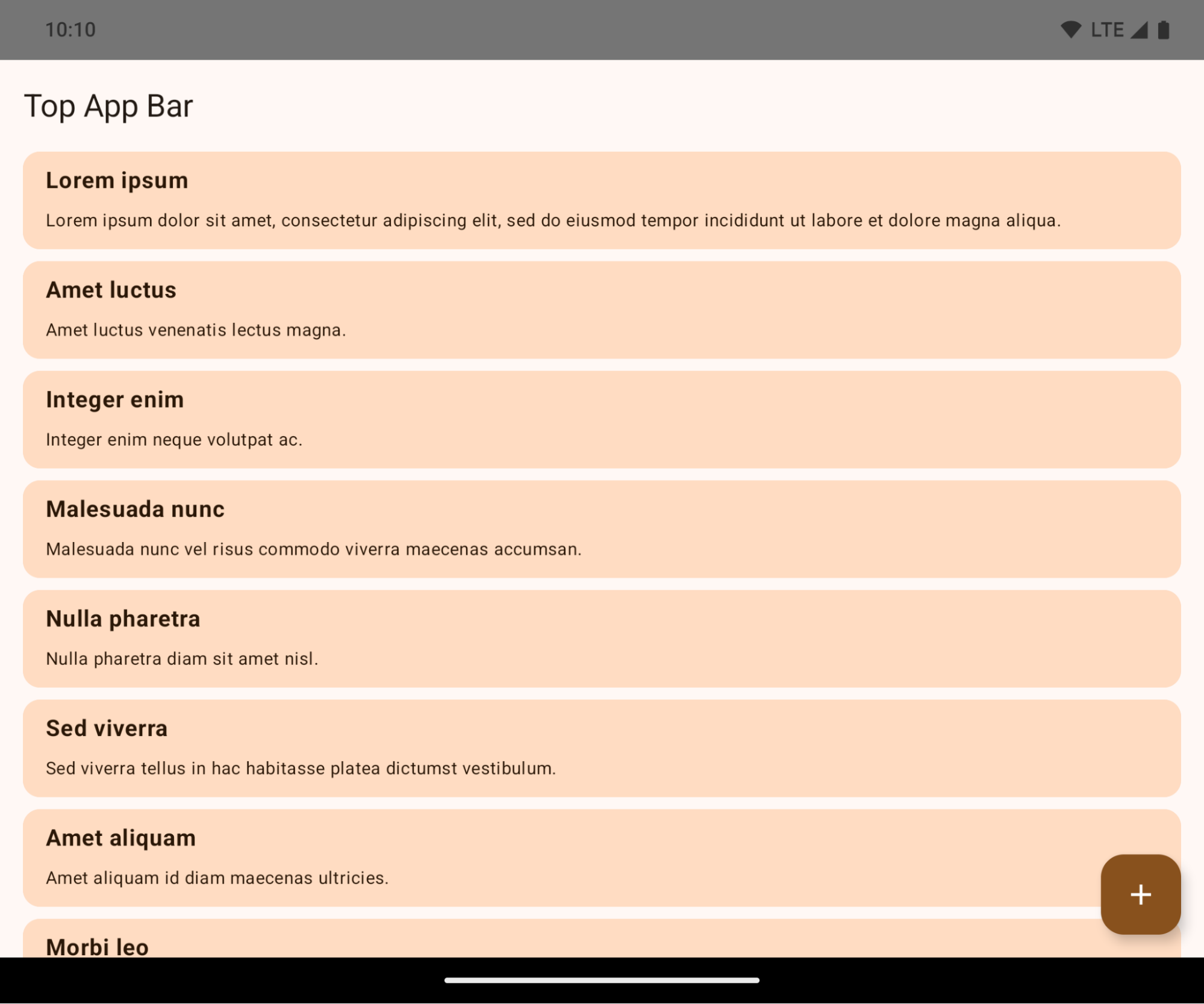
यह एक ऐसा बदलाव है जिससे आपके ऐप्लिकेशन के यूज़र इंटरफ़ेस (यूआई) पर बुरा असर पड़ सकता है. इन बदलावों का असर, यूआई के इन हिस्सों पर पड़ता है:
- जेस्चर वाले नेविगेशन बार का हैंडल
- यह डिफ़ॉल्ट रूप से पारदर्शी होता है.
- बॉटम ऑफ़सेट बंद है. इसलिए, इनसेट लागू न होने पर, कॉन्टेंट सिस्टम के नेविगेशन बार के पीछे दिखता है.
setNavigationBarColorऔरR.attr#navigationBarColorको बंद कर दिया गया है. इनका जेस्चर वाले नेविगेशन पर कोई असर नहीं पड़ता.setNavigationBarContrastEnforcedऔरR.attr#navigationBarContrastEnforcedका जेस्चर वाले नेविगेशन पर अब भी कोई असर नहीं पड़ता.
- तीन बटन वाला नेविगेशन
- ओपैसिटी डिफ़ॉल्ट रूप से 80% पर सेट होती है. इसका रंग, विंडो के बैकग्राउंड से मैच हो सकता है.
- बॉटम ऑफ़सेट बंद है. इसलिए, इनसेट लागू न होने पर, कॉन्टेंट सिस्टम के नेविगेशन बार के पीछे दिखता है.
setNavigationBarColorऔरR.attr#navigationBarColorडिफ़ॉल्ट रूप से, विंडो के बैकग्राउंड से मैच होने के लिए सेट होते हैं. डिफ़ॉल्ट रूप से, विंडो का बैकग्राउंड कलर ड्रॉएबल होना चाहिए. इस एपीआई को बंद कर दिया गया है, लेकिन इसका असर तीन बटन वाले नेविगेशन पर अब भी पड़ता है.setNavigationBarContrastEnforcedऔरR.attr#navigationBarContrastEnforcedडिफ़ॉल्ट रूप से 'सही' पर सेट होता है. इससे, तीन बटन वाले नेविगेशन में 80% ओपेक बैकग्राउंड जुड़ जाता है.
- स्टेटस बार
- यह डिफ़ॉल्ट रूप से पारदर्शी होता है.
- टॉप ऑफ़सेट बंद है. इसलिए, इनसेट लागू न होने पर, कॉन्टेंट स्टेटस बार के पीछे दिखता है.
setStatusBarColorऔरR.attr#statusBarColorको बंद कर दिया गया है. इनका Android 15 पर कोई असर नहीं पड़ता.setStatusBarContrastEnforcedऔरR.attr#statusBarContrastEnforcedको बंद कर दिया गया है, लेकिन इनका असर Android 15 पर अब भी पड़ता है.
- डिसप्ले कटआउट
- फ़्लोटिंग विंडो के अलावा अन्य विंडो के लिए,
layoutInDisplayCutoutModeकोLAYOUT_IN_DISPLAY_CUTOUT_MODE_ALWAYSपर सेट करना ज़रूरी है.SHORT_EDGES,NEVER, औरDEFAULTकोALWAYSके तौर पर समझा जाता है, ताकि उपयोगकर्ताओं को डिसप्ले कटआउट की वजह से दिखने वाला काला बार न दिखे और उन्हें एज-टू-एज डिसप्ले दिखे.
- फ़्लोटिंग विंडो के अलावा अन्य विंडो के लिए,
यहां दिए गए उदाहरण में, Android 15 (एपीआई लेवल 35) को टारगेट करने से पहले और बाद में, साथ ही इनसेट लागू करने से पहले और बाद में, किसी ऐप्लिकेशन का डिसप्ले दिखाया गया है. यह उदाहरण पूरी जानकारी नहीं देता. Android Auto पर यह अलग दिख सकता है.
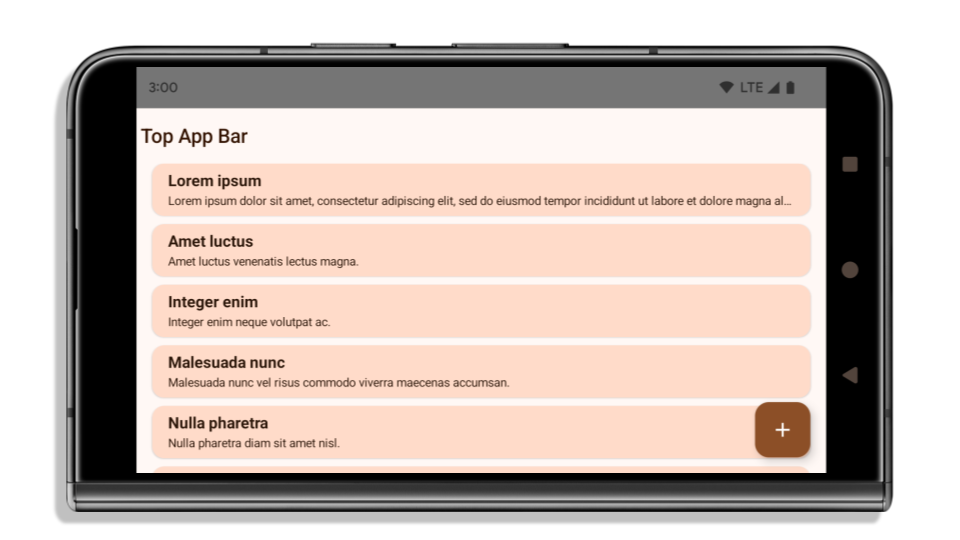
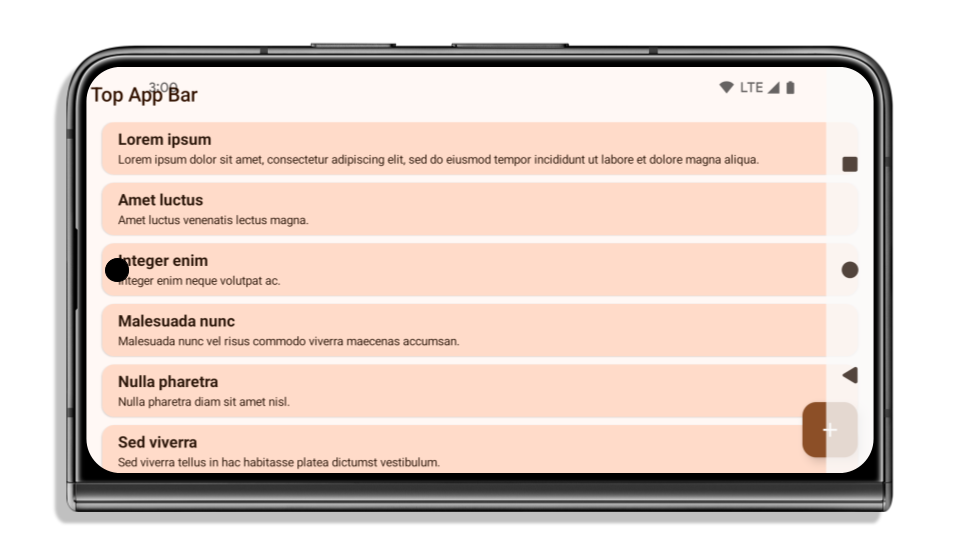
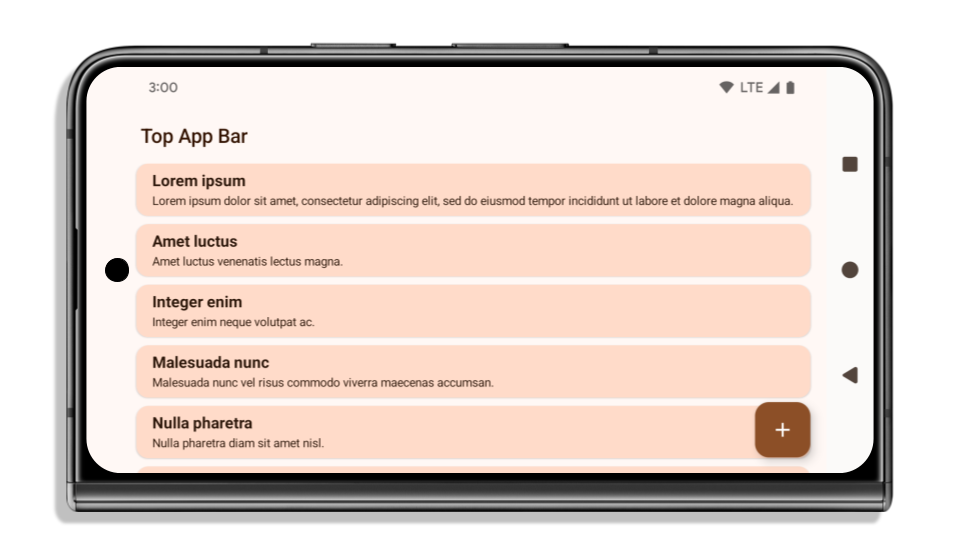
अगर आपका ऐप्लिकेशन पहले से एज-टू-एज डिसप्ले दिखा रहा है, तो आपको क्या देखना चाहिए
अगर आपका ऐप्लिकेशन पहले से एज-टू-एज डिसप्ले दिखा रहा है और इनसेट लागू करता है, तो ज़्यादातर मामलों में इस बदलाव का कोई असर नहीं पड़ेगा. हालांकि, इन स्थितियों में असर पड़ सकता है. हालांकि, हमारा सुझाव है कि अगर आपको लगता है कि इस बदलाव का आपके ऐप्लिकेशन पर कोई असर नहीं पड़ेगा, तब भी अपने ऐप्लिकेशन की जांच करें.
- आपके पास फ़्लोटिंग विंडो के अलावा कोई विंडो है. जैसे,
ActivityजोLAYOUT_IN_DISPLAY_CUTOUT_MODE_ALWAYSके बजायSHORT_EDGES,NEVERयाDEFAULTका इस्तेमाल करती है. अगर लॉन्च होने पर आपका ऐप्लिकेशन क्रैश हो जाता है, तो इसकी वजह स्प्लैश स्क्रीन हो सकती है. आपके पास दो विकल्प हैं. पहला, कोर स्प्लैश स्क्रीन की डिपेंडेंसी को 1.2.0-alpha01 या इसके बाद के वर्शन पर अपग्रेड करें. दूसरा,window.attributes.layoutInDisplayCutoutMode = WindowManager.LayoutInDisplayCutoutMode.alwaysसेट करें. - कम ट्रैफ़िक वाली ऐसी स्क्रीन हो सकती हैं जिनका यूआई छिपा हुआ हो. पक्का करें कि कम ट्रैफ़िक वाली इन स्क्रीन का यूआई छिपा हुआ न हो. कम ट्रैफ़िक वाली स्क्रीन में ये शामिल हैं:
- ऑनबोर्डिंग या साइन-इन स्क्रीन
- सेटिंग पेज
अगर आपका ऐप्लिकेशन पहले से एज-टू-एज डिसप्ले नहीं दिखा रहा है, तो आपको क्या देखना चाहिए
अगर आपका ऐप्लिकेशन पहले से एज-टू-एज डिसप्ले नहीं दिखा रहा है, तो इस बदलाव का असर पड़ने की संभावना है. ऐसे ऐप्लिकेशन के लिए बताई गई स्थितियों के अलावा जो पहले से एज-टू-एज डिसप्ले दिखा रहे हैं, आपको इन बातों का ध्यान रखना चाहिए:
- अगर आपका ऐप्लिकेशन, कंपोज़ में Material 3 कॉम्पोनेंट (
androidx.compose.material3) का इस्तेमाल करता है, जैसे किTopAppBar,BottomAppBar, औरNavigationBar, तो इन कॉम्पोनेंट पर असर पड़ने की संभावना नहीं है. ऐसा इसलिए, क्योंकि ये कॉम्पोनेंट इनसेट को अपने-आप मैनेज करते हैं. - अगर आपका ऐप्लिकेशन, कंपोज़ में Material 2 कॉम्पोनेंट (
androidx.compose.material) का इस्तेमाल करता है, तो ये कॉम्पोनेंट इनसेट को अपने-आप मैनेज नहीं करते. हालांकि, आपके पास इनसेट का ऐक्सेस पाने और उन्हें मैन्युअल तरीके से लागू करने का विकल्प होता है. androidx.compose.material 1.6.0 और इसके बाद के वर्शन में, इनसेट को मैन्युअल तरीके से लागू करने के लिए,windowInsetsपैरामीटर का इस्तेमाल करें. यह पैरामीटरBottomAppBar,TopAppBar,BottomNavigation, औरNavigationRailके लिए उपलब्ध है. इसी तरह,contentWindowInsetsपैरामीटर का इस्तेमाल करेंScaffold. - अगर आपका ऐप्लिकेशन, व्यू और Material कॉम्पोनेंट
(
com.google.android.material) का इस्तेमाल करता है, तो व्यू पर आधारित ज़्यादातर Material कॉम्पोनेंट, जैसे किBottomNavigationView,BottomAppBar,NavigationRailViewयाNavigationView, इनसेट को मैनेज करते हैं. इनके लिए, किसी अतिरिक्त काम की ज़रूरत नहीं होती. हालांकि, आपकोandroid:fitsSystemWindows="true"जोड़ना होगा, अगर आपAppBarLayoutका इस्तेमाल कर रहे हैं. - पसंद के मुताबिक बनाए गए कंपोज़ेबल के लिए, इनसेट को पैडिंग के तौर पर मैन्युअल तरीके से लागू करें. अगर आपका
कॉन्टेंट
Scaffoldमें है, तोScaffoldपैडिंग वैल्यू का इस्तेमाल करके, इनसेट का इस्तेमाल किया जा सकता है. इसके अलावा,WindowInsetsमें से किसी एक का इस्तेमाल करके, पैडिंग लागू करें. - अगर आपका ऐप्लिकेशन, व्यू और
BottomSheet,SideSheetया पसंद के मुताबिक बनाए गए कंटेनर का इस्तेमाल करता है, तोViewCompat.setOnApplyWindowInsetsListenerका इस्तेमाल करके, पैडिंग लागू करें.RecyclerViewके लिए, इस लिसनर का इस्तेमाल करके पैडिंग लागू करें. साथ ही,clipToPadding="false"जोड़ें.
अगर आपके ऐप्लिकेशन को, बैकग्राउंड में काम करने वाली सुविधा के लिए, पसंद के मुताबिक सुरक्षा देनी है, तो आपको क्या देखना चाहिए
अगर आपके ऐप्लिकेशन को, तीन बटन वाले नेविगेशन या
स्टेटस बार के लिए, बैकग्राउंड में काम करने वाली सुविधा के लिए, पसंद के मुताबिक सुरक्षा देनी है, तो आपके ऐप्लिकेशन को सिस्टम बार
के पीछे कोई कंपोज़ेबल या व्यू रखना चाहिए. इसके लिए, WindowInsets.Type#tappableElement() का इस्तेमाल करें. इससे, तीन बटन वाले
नेविगेशन बार की ऊंचाई या WindowInsets.Type#statusBars की जानकारी मिलेगी.
एज-टू-एज डिसप्ले के बारे में अन्य संसाधन
इनसेट लागू करने के बारे में ज़्यादा जानकारी के लिए, एज-टू-एज व्यू और एज-टू-एज कंपोज़ के बारे में गाइड देखें.
बंद किए गए एपीआई
यहां दिए गए एपीआई को बंद कर दिया गया है, लेकिन इन्हें इस्तेमाल किया जा सकता है:
R.attr#enforceStatusBarContrastR.attr#navigationBarColorतीन बटन वाले नेविगेशन के लिए, (80% अल्फ़ा के साथ)Window#isStatusBarContrastEnforcedWindow#setNavigationBarColorतीन बटन वाले नेविगेशन के लिए, ( 80% अल्फ़ा के साथ)Window#setStatusBarContrastEnforced
यहां दिए गए एपीआई को बंद कर दिया गया है और इन्हें इस्तेमाल नहीं किया जा सकता:
- जेस्चर वाले नेविगेशन के लिए,
R.attr#navigationBarColor R.attr#navigationBarDividerColorR.attr#statusBarColorWindow#setDecorFitsSystemWindowsWindow#getNavigationBarColorWindow#getNavigationBarDividerColorWindow#getStatusBarColor- जेस्चर वाले नेविगेशन के लिए,
Window#setNavigationBarColor Window#setNavigationBarDividerColorWindow#setStatusBarColor
स्टेबल कॉन्फ़िगरेशन
अगर आपका ऐप्लिकेशन, Android 15 (एपीआई लेवल 35) या इसके बाद के वर्शन को टारगेट करता है, तो Configuration अब सिस्टम बार को शामिल किया जाएगा. अगर लेआउट का हिसाब लगाने के लिए, Configuration क्लास में स्क्रीन साइज़ का इस्तेमाल किया जाता है, तो आपको इसे बेहतर विकल्पों से बदलना चाहिए. जैसे, अपनी ज़रूरत के हिसाब से सही ViewGroup, WindowInsets या WindowMetricsCalculator.
Configuration, एपीआई 1 से उपलब्ध है. आम तौर पर, इसे Activity.onConfigurationChanged से लिया जाता है. इससे विंडो डेंसिटी, ओरिएंटेशन, और साइज़ जैसी जानकारी मिलती है. Configuration से मिले विंडो साइज़ की एक अहम खासियत यह है कि इसमें पहले सिस्टम बार शामिल नहीं होते थे.
कॉन्फ़िगरेशन साइज़ का इस्तेमाल आम तौर पर संसाधन चुनने के लिए किया जाता है. जैसे, /res/layout-h500dp. यह अब भी इस्तेमाल का मान्य उदाहरण है. हालांकि, लेआउट का हिसाब लगाने के लिए इसका इस्तेमाल करने से हमेशा मना किया जाता है. अगर आपने ऐसा किया है, तो आपको अब इससे दूर हो जाना चाहिए. आपको Configuration की जगह, अपनी ज़रूरत के हिसाब से कोई और बेहतर विकल्प इस्तेमाल करना चाहिए.
अगर आपको लेआउट का हिसाब लगाने के लिए इसका इस्तेमाल करना है, तो सही ViewGroup का इस्तेमाल करें. जैसे, CoordinatorLayout या ConstraintLayout. अगर इसका इस्तेमाल सिस्टम के नेवबार की ऊंचाई का पता लगाने के लिए किया जाता है, तो WindowInsets का इस्तेमाल करें. अगर आपको अपने ऐप्लिकेशन की विंडो का मौजूदा साइज़ जानना है, तो computeCurrentWindowMetrics का इस्तेमाल करें.
यहां दी गई सूची में, उन फ़ील्ड के बारे में बताया गया है जिन पर इस बदलाव का असर पड़ा है:
Configuration.screenWidthDpऔरscreenHeightDpसाइज़ में अब सिस्टम बार शामिल होते हैं.screenWidthDpऔरscreenHeightDpमें हुए बदलावों का असर,Configuration.smallestScreenWidthDpपर सीधे तौर पर नहीं पड़ता.Configuration.orientationपर, स्क्वेयर जैसे डिवाइसों परscreenWidthDpऔरscreenHeightDpमें किए गए बदलावों का असर पड़ता है.Display.getSize(Point)पर,Configurationमें हुए बदलावों का असर सीधे तौर पर नहीं पड़ता. एपीआई लेवल 30 से, इस सुविधा का इस्तेमाल बंद कर दिया गया है.Display.getMetrics(), एपीआई लेवल 33 से ही इस तरह काम कर रहा है.
elegantTextHeight एट्रिब्यूट, डिफ़ॉल्ट रूप से 'सही' पर सेट होता है
Android 15 (एपीआई लेवल 35) को टारगेट करने वाले ऐप्लिकेशन के लिए, elegantTextHeight TextView एट्रिब्यूट डिफ़ॉल्ट रूप से true हो जाता है. इससे, डिफ़ॉल्ट रूप से इस्तेमाल किए जाने वाले कॉम्पैक्ट फ़ॉन्ट की जगह, कुछ ऐसी स्क्रिप्ट का इस्तेमाल किया जाता है जिनमें बड़ी वर्टिकल मेट्रिक होती हैं. इन मेट्रिक को पढ़ना ज़्यादा आसान होता है.
कॉम्पैक्ट फ़ॉन्ट को लेआउट के बीच में रुकावट आने से रोकने के लिए लॉन्च किया गया था. Android 13 (एपीआई लेवल 33), fallbackLineSpacing एट्रिब्यूट का इस्तेमाल करके, टेक्स्ट लेआउट की वर्टिकल ऊंचाई को बढ़ाकर, इनमें से कई रुकावटों को रोकता है.
Android 15 में, कॉम्पैक्ट फ़ॉन्ट अब भी सिस्टम में मौजूद है. इसलिए, आपका ऐप्लिकेशन पहले जैसा व्यवहार पाने के लिए, elegantTextHeight को false पर सेट कर सकता है. हालांकि, आने वाले समय में रिलीज़ होने वाले वर्शन में, इसकी सुविधा काम नहीं करेगी. इसलिए, अगर आपका ऐप्लिकेशन इन स्क्रिप्ट के साथ काम करता है: ऐरेबिक, लाओ, म्यांमार, तमिल, गुजराती, कन्नड़, मलयालम, उड़ीया, तेलुगु या थाई, तो elegantTextHeight को true पर सेट करके अपने ऐप्लिकेशन की जांच करें.

elegantTextHeight Android 14 (एपीआई लेवल 34) और उससे पहले के वर्शन को टारगेट करने वाले ऐप्लिकेशन के लिए व्यवहार.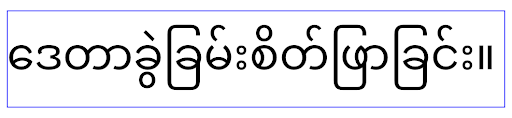
elegantTextHeight Android 15 को टारगेट करने वाले ऐप्लिकेशन के लिए व्यवहार.जटिल अक्षरों के आकार के लिए, TextView की चौड़ाई में बदलाव
Android के पिछले वर्शन में, पेचीदा आकार वाले कुछ कर्सिव फ़ॉन्ट या भाषाएं, पिछले या अगले वर्ण के एरिया में अक्षर खींच सकती हैं.
कुछ मामलों में, ऐसे अक्षरों को शुरुआत या आखिर में काटकर छोटा किया गया था.
Android 15 से, TextView ऐसे अक्षरों के लिए ज़रूरी जगह बनाने के लिए
चौड़ाई तय करता है. साथ ही, क्लिप बनाने से रोकने के लिए,
ऐप्लिकेशन बाईं ओर ज़्यादा पैडिंग (जगह) का अनुरोध कर सकते हैं.
इस बदलाव का असर इस बात पर पड़ता है कि TextView, चौड़ाई का फ़ैसला कैसे लेता है. इसलिए, अगर ऐप्लिकेशन Android 15 (एपीआई लेवल 35) या उसके बाद के वर्शन को टारगेट करता है, तो TextView डिफ़ॉल्ट रूप से ज़्यादा चौड़ाई तय करता है. setUseBoundsForWidth पर एपीआई को कॉल करके, इस सुविधा को चालू या बंद किया जा सकता है.TextView
बाईं ओर की पैडिंग जोड़ने से, हो सकता है कि मौजूदा लेआउट गलत तरीके से अलाइन हो जाएं. ऐसा होने पर, Android 15 या इसके बाद के वर्शन को टारगेट करने वाले ऐप्लिकेशन के लिए भी पैडिंग (जगह) डिफ़ॉल्ट रूप से नहीं जोड़ी जाती.
हालांकि, setShiftDrawingOffsetForStartOverhang को कॉल करके, क्लिपिंग को रोकने के लिए अतिरिक्त पैडिंग जोड़ी जा सकती है.
नीचे दिए गए उदाहरणों से पता चलता है कि इन बदलावों से कुछ फ़ॉन्ट और भाषाओं के लिए टेक्स्ट लेआउट को बेहतर कैसे बनाया जा सकता है.

<TextView
    android:fontFamily="cursive"
    android:text="java" />

<TextView
    android:fontFamily="cursive"
    android:text="java"
    android:useBoundsForWidth="true"
    android:shiftDrawingOffsetForStartOverhang="true" />

<TextView
    android:text="คอมพิวเตอร์" />
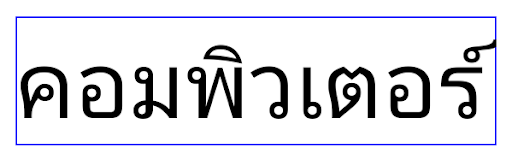
<TextView
    android:text="คอมพิวเตอร์"
    android:useBoundsForWidth="true"
    android:shiftDrawingOffsetForStartOverhang="true" />
EditText के लिए, स्थानीय भाषा के हिसाब से लाइन की डिफ़ॉल्ट ऊंचाई
Android के पिछले वर्शन में, टेक्स्ट लेआउट, टेक्स्ट की ऊंचाई को बढ़ा देता था, ताकि मौजूदा स्थानीय भाषा से मैच करने वाले फ़ॉन्ट की लाइन की ऊंचाई पूरी की जा सके. उदाहरण के लिए, अगर कॉन्टेंट जैपनीज़ में था, तो टेक्स्ट की ऊंचाई थोड़ी ज़्यादा हो गई, क्योंकि जैपनीज़ फ़ॉन्ट की लाइन की ऊंचाई, लैटिन फ़ॉन्ट की लाइन की ऊंचाई से थोड़ी ज़्यादा होती है. हालांकि, लाइन हाइट में इन अंतरों के बावजूद, इस्तेमाल किए जा रहे स्थानीय भाषा के बावजूद, EditText एलिमेंट का साइज़ एक जैसा था, जैसा कि इस इमेज में दिखाया गया है:

EditText एलिमेंट दिखाने वाले तीन बॉक्स, जिनमें इंग्लिश (en), जैपनीज़ (ja), और बर्मीज़ (my) भाषा का टेक्स्ट हो सकता है. EditText की ऊंचाई एक जैसी है, भले ही इन भाषाओं की लाइन की ऊंचाई एक-दूसरे से अलग हो.Android 15 (एपीआई लेवल 35) को टारगेट करने वाले ऐप्लिकेशन के लिए, EditText के लिए कम से कम लाइन हाइट तय की गई है. इससे, तय की गई लोकेल के रेफ़रंस फ़ॉन्ट से मैच करने में मदद मिलती है. इसकी जानकारी इस इमेज में दी गई है:

EditText एलिमेंट दिखाने वाले तीन बॉक्स, जिनमें इंग्लिश (en), जैपनीज़ (ja), और बर्मीज़ (my) भाषा का टेक्स्ट हो सकता है. EditText की ऊंचाई में अब इन भाषाओं के फ़ॉन्ट के लिए, डिफ़ॉल्ट लाइन की ऊंचाई को शामिल करने के लिए स्पेस शामिल है.ज़रूरत पड़ने पर, आपका ऐप्लिकेशन useLocalePreferredLineHeightForMinimum एट्रिब्यूट को false पर सेट करके, पहले जैसा व्यवहार वापस ला सकता है. साथ ही, आपका ऐप्लिकेशन Kotlin और Java में setMinimumFontMetrics एपीआई का इस्तेमाल करके, कस्टम मिनिमम वर्टिकल मेट्रिक सेट कर सकता है.
कैमरा और मीडिया
Android 15 या इसके बाद के वर्शन को टारगेट करने वाले ऐप्लिकेशन के लिए, Android 15 में कैमरा और मीडिया के बर्ताव में ये बदलाव किए गए हैं.
ऑडियो फ़ोकस के लिए अनुरोध करने पर लागू होने वाली पाबंदियां
Android 15 (एपीआई लेवल 35) को टारगेट करने वाले ऐप्लिकेशन को ऑडियो फ़ोकस का अनुरोध करने के लिए, टॉप ऐप्लिकेशन या फ़ोरग्राउंड सेवा के तौर पर चलना होगा. अगर कोई ऐप्लिकेशन इनमें से किसी एक ज़रूरी शर्त को पूरा न करने पर फ़ोकस का अनुरोध करता है, तो कॉल AUDIOFOCUS_REQUEST_FAILED दिखाता है.
ऑडियो फ़ोकस के बारे में ज़्यादा जानने के लिए, ऑडियो फ़ोकस मैनेज करें पर जाएं.
गैर-एसडीके से जुड़ी पाबंदियां अपडेट की गईं
Android 15 में, पाबंदी वाले गैर-एसडीके इंटरफ़ेस की अपडेट की गई सूचियां शामिल हैं. ये सूचियां, Android डेवलपर के साथ मिलकर काम करने और हाल ही में हुई इंटरनल टेस्टिंग के आधार पर बनाई गई हैं. हम यह पक्का करते हैं कि गैर-एसडीके इंटरफ़ेस को प्रतिबंधित करने से पहले, सार्वजनिक विकल्प उपलब्ध हों.
अगर आपका ऐप्लिकेशन Android 15 को टारगेट नहीं करता है, तो हो सकता है कि इनमें से कुछ बदलावों का असर आप पर तुरंत न पड़े. हालांकि, आपके ऐप्लिकेशन के टारगेट एपीआई लेवल के हिसाब से, आपका ऐप्लिकेशन कुछ गैर-एसडीके इंटरफ़ेस ऐक्सेस कर सकता है. हालांकि, किसी भी गैर-एसडीके तरीके या फ़ील्ड का इस्तेमाल करने से, आपके ऐप्लिकेशन के काम न करने का जोखिम हमेशा ज़्यादा होता है.
अगर आपको पक्का नहीं है कि आपका ऐप्लिकेशन, गैर-एसडीके इंटरफ़ेस का इस्तेमाल करता है या नहीं, तो यह पता लगाने के लिए अपने ऐप्लिकेशन की जांच करें. अगर आपका ऐप्लिकेशन, गैर-एसडीके इंटरफ़ेस पर निर्भर करता है, तो आपको एसडीके के विकल्पों पर माइग्रेट करने की योजना बनानी चाहिए. हालांकि, हम समझते हैं कि कुछ ऐप्लिकेशन के पास, गैर-एसडीके इंटरफ़ेस इस्तेमाल करने के लिए मान्य वजहें होती हैं. अगर आपको अपने ऐप्लिकेशन में किसी सुविधा के लिए, गैर-एसडीके इंटरफ़ेस के इस्तेमाल का कोई विकल्प नहीं मिल रहा है, तो आपको नया सार्वजनिक एपीआई का अनुरोध करना चाहिए.
Android के इस वर्शन में हुए बदलावों के बारे में ज़्यादा जानने के लिए, Android 15 में, SDK टूल के अलावा अन्य इंटरफ़ेस से जुड़ी पाबंदियों में हुए अपडेट देखें. आम तौर पर, SDK टूल के बाहर के इंटरफ़ेस के बारे में ज़्यादा जानने के लिए, SDK टूल के बाहर के इंटरफ़ेस पर लगी पाबंदियां देखें.