
When an extended or connected display is available the system UI adapts to a desktop-like environment.
Taskbar
In desktop experiences, a taskbar is displayed at the bottom of the screen. Your app's icon will be shown on the taskbar when it's open. Users can pin apps to the taskbar.
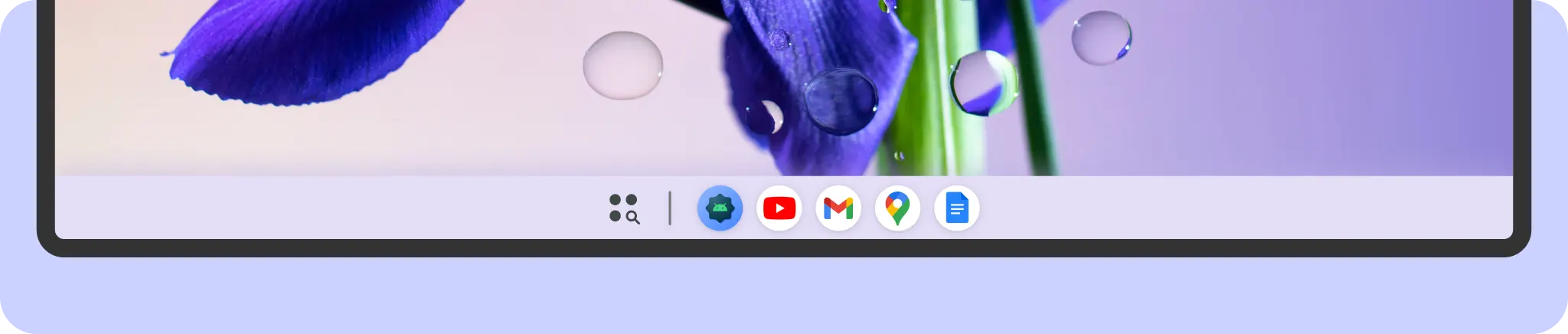
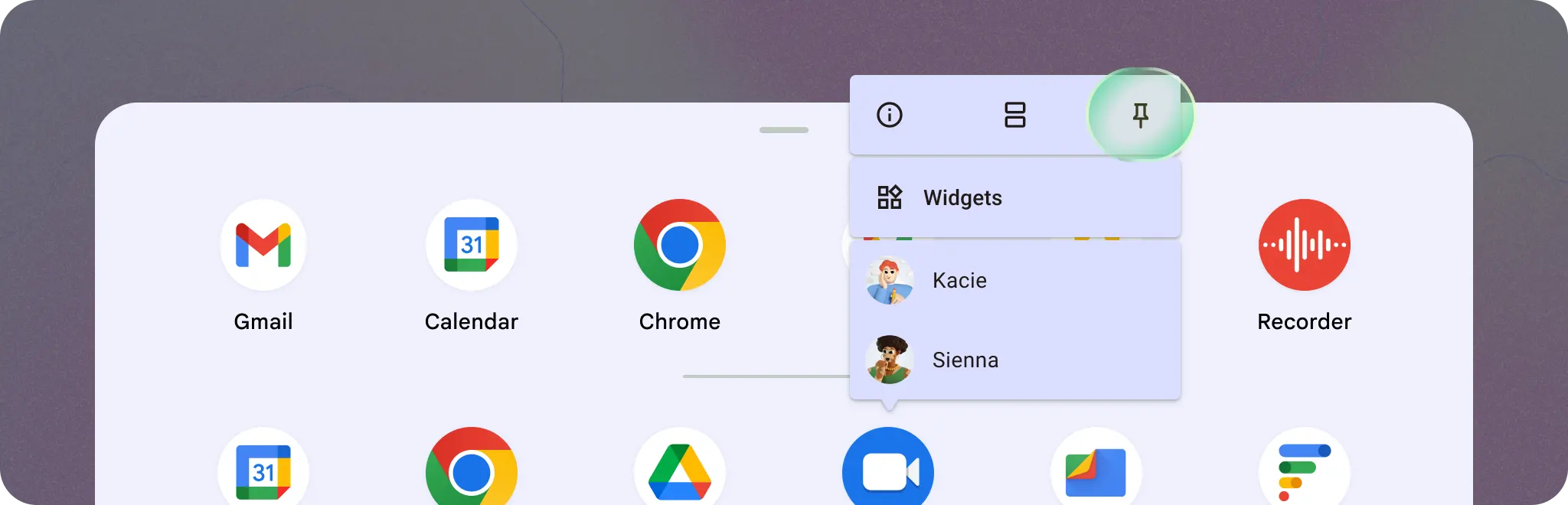
After an app is pinned, the icon stays in the taskbar even when the app is closed. Users can long-press or right-click an app icon to access system features like pinning to the taskbar, adding new windows, and closing the app, and App Shortcuts defined by your app. They can also access App Shortcuts defined by your app.
Window header bar
When your app is displayed in a free-form window, Android adds a header bar containing essential window controls, such as maximize, minimize, and close.

Use the customizable space in the middle of the header bar to display app-specific content, like navigation elements of your app or global actions like search.
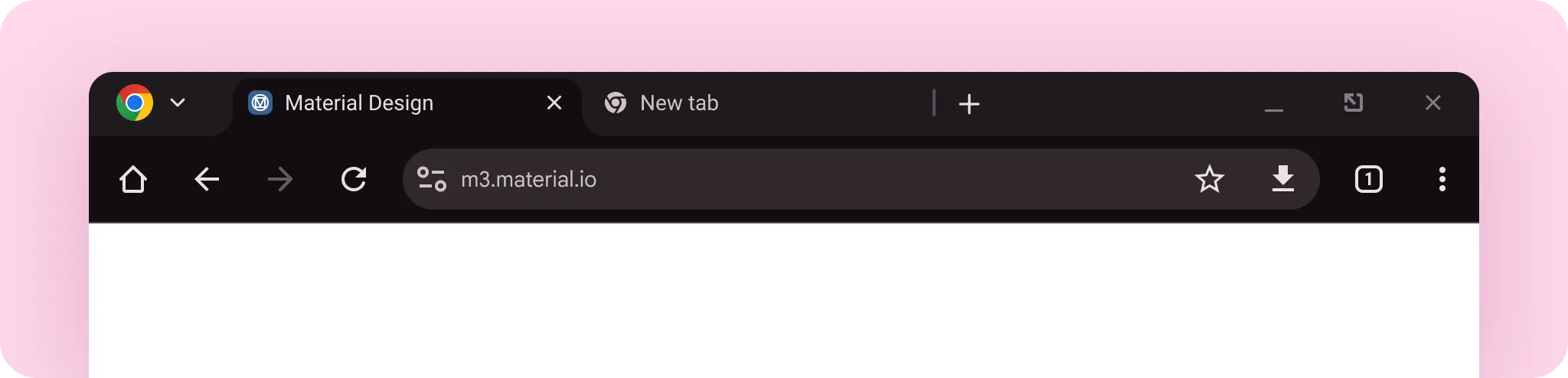
Learn how to implement customizable header insets.