

Android 8.0 (API লেভেল 26) এবং তার চেয়ে উন্নত সংস্করণে চালিত ডিভাইসগুলিতে, কম্প্যানিয়ন ডিভাইস পেয়ারিং আপনার অ্যাপের পক্ষ থেকে ACCESS_FINE_LOCATION পারমিশন ছাড়াই কাছাকাছি থাকা ডিভাইসগুলির একটি ব্লুটুথ বা ওয়াই-ফাই স্ক্যান করে। এটি ব্যবহারকারীর গোপনীয়তার সুরক্ষা সর্বোচ্চ করতে সাহায্য করে। কম্প্যানিয়ন ডিভাইসের প্রাথমিক কনফিগারেশন করার জন্য এই পদ্ধতিটি ব্যবহার করুন, যেমন একটি BLE-সক্ষম স্মার্টওয়াচ। এছাড়াও, কম্প্যানিয়ন ডিভাইস পেয়ারিংয়ের জন্য লোকেশন সার্ভিসেস চালু থাকা আবশ্যক।
সহযোগী ডিভাইস পেয়ারিং নিজে থেকে সংযোগ তৈরি করে না বা অবিচ্ছিন্ন স্ক্যানিং সক্ষম করে না। অ্যাপগুলো সংযোগ স্থাপনের জন্য ব্লুটুথ বা ওয়াই-ফাই কানেক্টিভিটি এপিআই ব্যবহার করতে পারে।
ডিভাইসটি পেয়ার করার পর, এটি ব্যাকগ্রাউন্ড থেকে অ্যাপ চালু করার জন্য REQUEST_COMPANION_RUN_IN_BACKGROUND এবং REQUEST_COMPANION_USE_DATA_IN_BACKGROUND পারমিশনগুলো ব্যবহার করতে পারে। এছাড়াও, অ্যাপগুলো ব্যাকগ্রাউন্ড থেকে কোনো ফোরগ্রাউন্ড সার্ভিস চালু করার জন্য REQUEST_COMPANION_START_FOREGROUND_SERVICES_FROM_BACKGROUND পারমিশনটি ব্যবহার করতে পারে।
একজন ব্যবহারকারী একটি তালিকা থেকে একটি ডিভাইস নির্বাচন করতে পারেন এবং অ্যাপটিকে সেই ডিভাইসটি অ্যাক্সেস করার অনুমতি দিতে পারেন। আপনি যদি অ্যাপটি আনইনস্টল করেন বা disassociate() কল করেন, তাহলে এই অনুমতিগুলো প্রত্যাহার করা হয়। ব্যবহারকারীর আর প্রয়োজন না হলে, যেমন লগ আউট করলে বা সংযুক্ত ডিভাইসগুলো সরিয়ে ফেললে, কম্প্যানিয়ন অ্যাপটি তার নিজের অ্যাসোসিয়েশনগুলো মুছে ফেলার জন্য দায়ী থাকে।
সহযোগী ডিভাইস পেয়ারিং বাস্তবায়ন করুন
এই অংশে ব্যাখ্যা করা হয়েছে কীভাবে CompanionDeviceManager ব্যবহার করে Bluetooth, BLE, এবং Wi-Fi এর মাধ্যমে আপনার অ্যাপকে কম্প্যানিয়ন ডিভাইসগুলোর সাথে যুক্ত করা যায়।
সহযোগী ডিভাইসগুলি নির্দিষ্ট করুন
নিম্নলিখিত কোড নমুনাটি দেখায় কিভাবে একটি ম্যানিফেস্ট ফাইলে <uses-feature> ফ্ল্যাগটি যোগ করতে হয়। এটি সিস্টেমকে জানিয়ে দেয় যে আপনার অ্যাপটি কম্প্যানিয়ন ডিভাইস সেট আপ করতে চায়।
<uses-feature android:name="android.software.companion_device_setup"/>
DeviceFilter অনুযায়ী ডিভাইসগুলির তালিকা
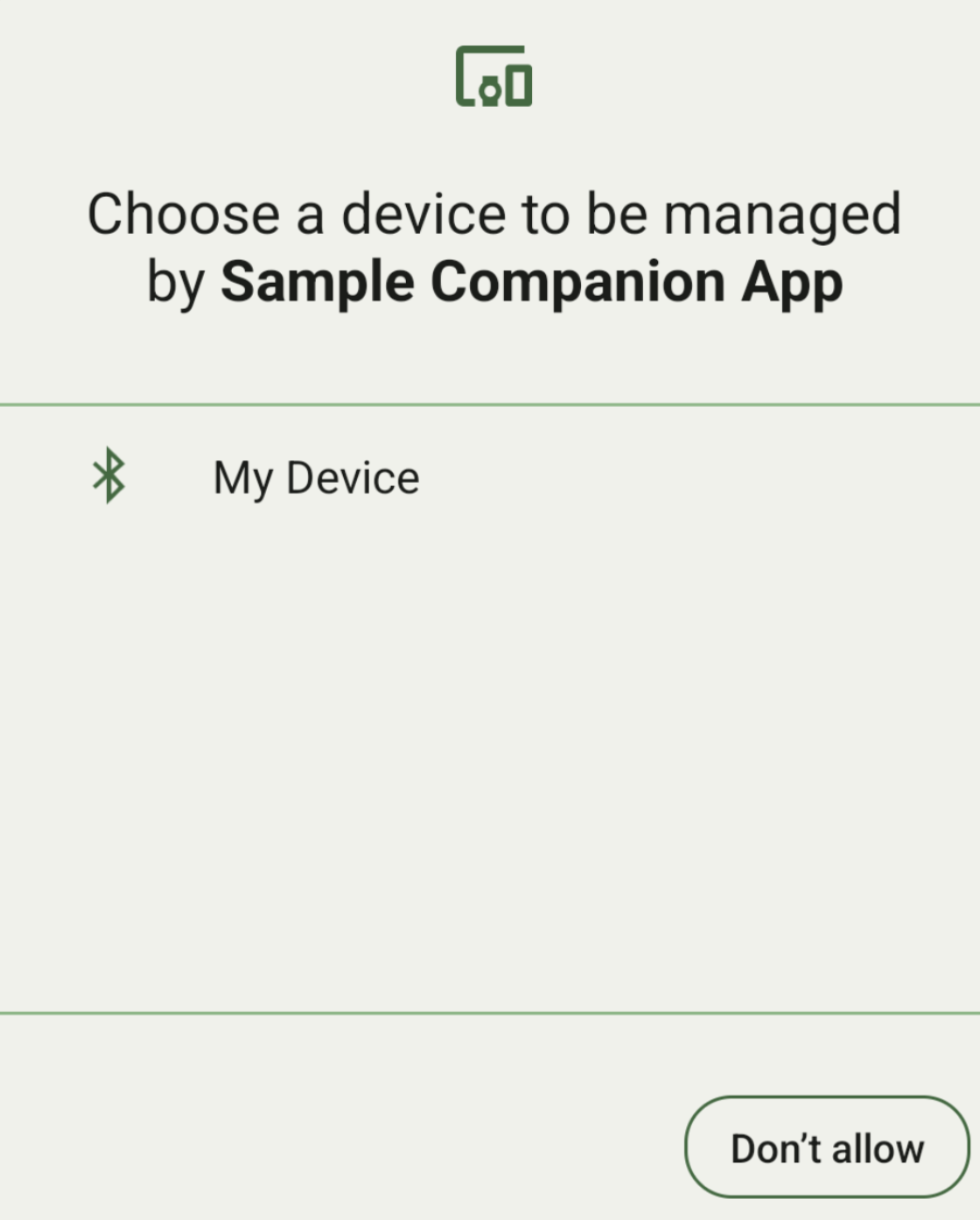
আপনি আপনার দেওয়া DeviceFilter সাথে মেলে এমন সীমার মধ্যে থাকা সমস্ত সহযোগী ডিভাইস প্রদর্শন করতে পারেন (চিত্র ১-এ দেখানো হয়েছে)। যদি আপনি স্ক্যানিং শুধুমাত্র একটি ডিভাইসে সীমাবদ্ধ করতে চান, তাহলে আপনি setSingleDevice() কে true করতে পারেন (চিত্র ২-এ দেখানো হয়েছে)।

DeviceFilter এর নিম্নলিখিত সাবক্লাসগুলি AssociationRequest এ নির্দিষ্ট করা যেতে পারে:
তিনটি সাবক্লাসেরই বিল্ডার রয়েছে যা ফিল্টার কনফিগারেশনকে সহজ করে তোলে। নিচের উদাহরণে, একটি ডিভাইস BluetoothDeviceFilter ব্যবহার করে একটি ব্লুটুথ ডিভাইস স্ক্যান করছে।
কোটলিন
val deviceFilter: BluetoothDeviceFilter = BluetoothDeviceFilter.Builder()
        // Match only Bluetooth devices whose name matches the pattern.
        .setNamePattern(Pattern.compile("My device"))
        // Match only Bluetooth devices whose service UUID matches this pattern.
        .addServiceUuid(ParcelUuid(UUID(0x123abcL, -1L)), null)
        .build()
জাভা
BluetoothDeviceFilter deviceFilter = new BluetoothDeviceFilter.Builder()
        // Match only Bluetooth devices whose name matches the pattern.
        .setNamePattern(Pattern.compile("My device"))
        // Match only Bluetooth devices whose service UUID matches this pattern.
        .addServiceUuid(new ParcelUuid(new UUID(0x123abcL, -1L)), null)
        .build();
একটি AssociationRequest এ একটি DeviceFilter সেট করুন, যাতে CompanionDeviceManager নির্ধারণ করতে পারে যে কোন ধরনের ডিভাইস সন্ধান করতে হবে।
কোটলিন
val pairingRequest: AssociationRequest = AssociationRequest.Builder()
        // Find only devices that match this request filter.
        .addDeviceFilter(deviceFilter)
        // Stop scanning as soon as one device matching the filter is found.
        .setSingleDevice(true)
        .build()
জাভা
AssociationRequest pairingRequest = new AssociationRequest.Builder()
        // Find only devices that match this request filter.
        .addDeviceFilter(deviceFilter)
        // Stop scanning as soon as one device matching the filter is found.
        .setSingleDevice(true)
        .build();
আপনার অ্যাপ একটি AssociationRequest ইনিশিয়ালাইজ করার পর, CompanionDeviceManager এর উপর associate() ফাংশনটি চালান। associate() ফাংশনটি একটি AssociationRequest এবং একটি Callback গ্রহণ করে।
যখন CompanionDeviceManager একটি ডিভাইস খুঁজে পায় এবং ব্যবহারকারীর সম্মতির ডায়ালগ চালু করার জন্য প্রস্তুত হয়, তখন Callback onAssociationPending এ একটি IntentSender রিটার্ন করে। ব্যবহারকারী ডিভাইসটি নিশ্চিত করার পর, onAssociationCreated এ ডিভাইসটির একটি AssociationInfo রিটার্ন করা হয়। যদি আপনার অ্যাপ কোনো ডিভাইস খুঁজে না পায়, তাহলে কলব্যাকটি একটি ত্রুটির বার্তা সহ onFailure রিটার্ন করে।
অ্যান্ড্রয়েড ১৩ (এপিআই লেভেল ৩৩) এবং এর চেয়ে উন্নত সংস্করণে চালিত ডিভাইসগুলোতে:
কোটলিন
val deviceManager =
  requireContext().getSystemService(Context.COMPANION_DEVICE_SERVICE)

val executor: Executor =  Executor { it.run() }

deviceManager.associate(pairingRequest,
    executor,
    object : CompanionDeviceManager.Callback() {
    // Called when a device is found. Launch the IntentSender so the user
    // can select the device they want to pair with.
    override fun onAssociationPending(intentSender: IntentSender) {
        intentSender?.let {
             startIntentSenderForResult(it, SELECT_DEVICE_REQUEST_CODE, null, 0, 0, 0)
        }
    }

    override fun onAssociationCreated(associationInfo: AssociationInfo) {
        // An association is created.
    }

    override fun onFailure(errorMessage: CharSequence?) {
        // To handle the failure.
     }
})
জাভা
CompanionDeviceManager deviceManager =
        (CompanionDeviceManager) getSystemService(Context.COMPANION_DEVICE_SERVICE);

Executor executor = new Executor() {
            @Override
            public void execute(Runnable runnable) {
                runnable.run();
            }
        };
deviceManager.associate(pairingRequest, new CompanionDeviceManager.Callback() {
    executor,
    // Called when a device is found. Launch the IntentSender so the user can
    // select the device they want to pair with.
    @Override
    public void onDeviceFound(IntentSender chooserLauncher) {
        try {
            startIntentSenderForResult(
                    chooserLauncher, SELECT_DEVICE_REQUEST_CODE, null, 0, 0, 0
            );
        } catch (IntentSender.SendIntentException e) {
            Log.e("MainActivity", "Failed to send intent");
        }
    }

    @Override
    public void onAssociationCreated(AssociationInfo associationInfo) {
        // An association is created.
    }

    @Override
    public void onFailure(CharSequence errorMessage) {
        // To handle the failure.
    });
Android 12L (API লেভেল 32) বা তার নিম্নতর (অপ্রচলিত) সংস্করণে চালিত ডিভাইসগুলিতে:
কোটলিন
val deviceManager =
      requireContext().getSystemService(Context.COMPANION_DEVICE_SERVICE)

deviceManager.associate(pairingRequest,
    object : CompanionDeviceManager.Callback() {
        // Called when a device is found. Launch the IntentSender so the user
        // can select the device they want to pair with.
        override fun onDeviceFound(chooserLauncher: IntentSender) {
            startIntentSenderForResult(chooserLauncher,
                SELECT_DEVICE_REQUEST_CODE, null, 0, 0, 0)
        }

        override fun onFailure(error: CharSequence?) {
            // To handle the failure.
        }
    }, null)
জাভা
CompanionDeviceManager deviceManager =
        (CompanionDeviceManager) getSystemService(Context.COMPANION_DEVICE_SERVICE);
deviceManager.associate(pairingRequest, new CompanionDeviceManager.Callback() {
    // Called when a device is found. Launch the IntentSender so the user can
    // select the device they want to pair with.
    @Override
    public void onDeviceFound(IntentSender chooserLauncher) {
        try {
            startIntentSenderForResult(
                    chooserLauncher, SELECT_DEVICE_REQUEST_CODE, null, 0, 0, 0
            );
        } catch (IntentSender.SendIntentException e) {
            Log.e("MainActivity", "Failed to send intent");
        }
    }

    @Override
    public void onFailure(CharSequence error) {
        // To handle the failure.
    }
}, null);
ব্যবহারকারীর নির্বাচনের ফলাফল আপনার অ্যাক্টিভিটির onActivityResult() ফাংশনে ফ্র্যাগমেন্টে ফেরত পাঠানো হয়। এরপর আপনি নির্বাচিত ডিভাইসটি অ্যাক্সেস করতে পারেন।
যখন ব্যবহারকারী একটি ব্লুটুথ ডিভাইস নির্বাচন করেন, তখন একটি BluetoothDevice প্রত্যাশিত হয়। যখন ব্যবহারকারী একটি ব্লুটুথ এলই (Bluetooth LE) ডিভাইস নির্বাচন করেন, তখন একটি android.bluetooth.le.ScanResult প্রত্যাশিত হয়। যখন ব্যবহারকারী একটি ওয়াই-ফাই (Wi-Fi) ডিভাইস নির্বাচন করেন, তখন একটি android.net.wifi.ScanResult প্রত্যাশিত হয়।
কোটলিন
override fun onActivityResult(requestCode: Int, resultCode: Int, data: Intent?) {
    when (requestCode) {
        SELECT_DEVICE_REQUEST_CODE -> when(resultCode) {
            Activity.RESULT_OK -> {
                // The user chose to pair the app with a Bluetooth device.
                val deviceToPair: BluetoothDevice? =
data?.getParcelableExtra(CompanionDeviceManager.EXTRA_DEVICE)
                deviceToPair?.let { device ->
                    device.createBond()
                    // Continue to interact with the paired device.
                }
            }
        }
        else -> super.onActivityResult(requestCode, resultCode, data)
    }
}
জাভা
@Override
protected void onActivityResult(int requestCode, int resultCode, @Nullable Intent data) {
    if (resultCode != Activity.RESULT_OK) {
        return;
    }
    if (requestCode == SELECT_DEVICE_REQUEST_CODE && data != null) {
        BluetoothDevice deviceToPair =
data.getParcelableExtra(CompanionDeviceManager.EXTRA_DEVICE);
        if (deviceToPair != null) {
            deviceToPair.createBond();
            // Continue to interact with the paired device.
        }
    } else {
        super.onActivityResult(requestCode, resultCode, data);
    }
}
সম্পূর্ণ উদাহরণটি দেখুন:
অ্যান্ড্রয়েড ১৩ (এপিআই লেভেল ৩৩) এবং এর চেয়ে উন্নত সংস্করণে চালিত ডিভাইসগুলোতে:
কোটলিন
private const val SELECT_DEVICE_REQUEST_CODE = 0

class MainActivity : AppCompatActivity() {

    private val deviceManager: CompanionDeviceManager by lazy {
        getSystemService(Context.COMPANION_DEVICE_SERVICE) as CompanionDeviceManager
    }
    val mBluetoothAdapter: BluetoothAdapter by lazy {
        val java = BluetoothManager::class.java
        getSystemService(java)!!.adapter }
    val executor: Executor =  Executor { it.run() }

    override fun onCreate(savedInstanceState: Bundle?) {
        super.onCreate(savedInstanceState)
        setContentView(R.layout.activity_main)

        // To skip filters based on names and supported feature flags (UUIDs),
        // omit calls to setNamePattern() and addServiceUuid()
        // respectively, as shown in the following  Bluetooth example.
        val deviceFilter: BluetoothDeviceFilter = BluetoothDeviceFilter.Builder()
            .setNamePattern(Pattern.compile("My device"))
            .addServiceUuid(ParcelUuid(UUID(0x123abcL, -1L)), null)
            .build()

        // The argument provided in setSingleDevice() determines whether a single
        // device name or a list of them appears.
        val pairingRequest: AssociationRequest = AssociationRequest.Builder()
            .addDeviceFilter(deviceFilter)
            .setSingleDevice(true)
            .build()

        // When the app tries to pair with a Bluetooth device, show the
        // corresponding dialog box to the user.
        deviceManager.associate(pairingRequest,
            executor,
            object : CompanionDeviceManager.Callback() {
                // Called when a device is found. Launch the IntentSender so the user
                // can select the device they want to pair with.
                override fun onAssociationPending(intentSender: IntentSender) {
                intentSender?.let {
                    startIntentSenderForResult(it, SELECT_DEVICE_REQUEST_CODE, null, 0, 0, 0)
              }
            }

             override fun onAssociationCreated(associationInfo: AssociationInfo) {
                 // AssociationInfo object is created and get association id and the
                 // macAddress.
                 var associationId: int = associationInfo.id
                 var macAddress: MacAddress = associationInfo.deviceMacAddress
             }
             override fun onFailure(errorMessage: CharSequence?) {
                // Handle the failure.
            }
    )

    override fun onActivityResult(requestCode: Int, resultCode: Int, data: Intent?) {
        when (requestCode) {
            SELECT_DEVICE_REQUEST_CODE -> when(resultCode) {
                Activity.RESULT_OK -> {
                    // The user chose to pair the app with a Bluetooth device.
                    val deviceToPair: BluetoothDevice? =
                        data?.getParcelableExtra(CompanionDeviceManager.EXTRA_DEVICE)
                    deviceToPair?.let { device ->
                        device.createBond()
                        // Maintain continuous interaction with a paired device.
                    }
                }
            }
            else -> super.onActivityResult(requestCode, resultCode, data)
        }
    }
}
জাভা
class MainActivityJava extends AppCompatActivity {

    private static final int SELECT_DEVICE_REQUEST_CODE = 0;
    Executor executor = new Executor() {
        @Override
        public void execute(Runnable runnable) {
            runnable.run();
        }
    };

    @Override
    protected void onCreate(@Nullable Bundle savedInstanceState) {
        super.onCreate(savedInstanceState);
        setContentView(R.layout.activity_main);

        CompanionDeviceManager deviceManager =
            (CompanionDeviceManager) getSystemService(
                Context.COMPANION_DEVICE_SERVICE
            );

        // To skip filtering based on name and supported feature flags,
        // do not include calls to setNamePattern() and addServiceUuid(),
        // respectively. This example uses Bluetooth.
        BluetoothDeviceFilter deviceFilter =
            new BluetoothDeviceFilter.Builder()
                .setNamePattern(Pattern.compile("My device"))
                .addServiceUuid(
                    new ParcelUuid(new UUID(0x123abcL, -1L)), null
                )
                .build();

        // The argument provided in setSingleDevice() determines whether a single
        // device name or a list of device names is presented to the user as
        // pairing options.
        AssociationRequest pairingRequest = new AssociationRequest.Builder()
            .addDeviceFilter(deviceFilter)
            .setSingleDevice(true)
            .build();

        // When the app tries to pair with the Bluetooth device, show the
        // appropriate pairing request dialog to the user.
        deviceManager.associate(pairingRequest, new CompanionDeviceManager.Callback() {
            executor,
           // Called when a device is found. Launch the IntentSender so the user can
           // select the device they want to pair with.
           @Override
           public void onDeviceFound(IntentSender chooserLauncher) {
               try {
                   startIntentSenderForResult(
                       chooserLauncher, SELECT_DEVICE_REQUEST_CODE, null, 0, 0, 0
                   );
               } catch (IntentSender.SendIntentException e) {
                   Log.e("MainActivity", "Failed to send intent");
               }
           }

          @Override
          public void onAssociationCreated(AssociationInfo associationInfo) {
                 // AssociationInfo object is created and get association id and the
                 // macAddress.
                 int associationId = associationInfo.getId();
                 MacAddress macAddress = associationInfo.getDeviceMacAddress();
          }

          @Override
          public void onFailure(CharSequence errorMessage) {
             // Handle the failure.
        });
    }

    @Override
    protected void onActivityResult(int requestCode, int resultCode, @Nullable Intent data) {
        if (resultCode != Activity.RESULT_OK) {
            return;
        }
        if (requestCode == SELECT_DEVICE_REQUEST_CODE) {
            if (resultCode == Activity.RESULT_OK && data != null) {
                BluetoothDevice deviceToPair = data.getParcelableExtra(
                    CompanionDeviceManager.EXTRA_DEVICE
                );

                if (deviceToPair != null) {
                    deviceToPair.createBond();
                    // ... Continue interacting with the paired device.
                }
            }
        } else {
            super.onActivityResult(requestCode, resultCode, data);
        }
    }
}
Android 12L (API লেভেল 32) বা তার নিম্নতর (অপ্রচলিত) সংস্করণে চালিত ডিভাইসগুলিতে:
কোটলিন
private const val SELECT_DEVICE_REQUEST_CODE = 0

class MainActivity : AppCompatActivity() {

    private val deviceManager: CompanionDeviceManager by lazy {
        getSystemService(Context.COMPANION_DEVICE_SERVICE) as CompanionDeviceManager
    }

    override fun onCreate(savedInstanceState: Bundle?) {
        super.onCreate(savedInstanceState)
        setContentView(R.layout.activity_main)

        // To skip filters based on names and supported feature flags (UUIDs),
        // omit calls to setNamePattern() and addServiceUuid()
        // respectively, as shown in the following  Bluetooth example.
        val deviceFilter: BluetoothDeviceFilter = BluetoothDeviceFilter.Builder()
            .setNamePattern(Pattern.compile("My device"))
            .addServiceUuid(ParcelUuid(UUID(0x123abcL, -1L)), null)
            .build()

        // The argument provided in setSingleDevice() determines whether a single
        // device name or a list of them appears.
        val pairingRequest: AssociationRequest = AssociationRequest.Builder()
            .addDeviceFilter(deviceFilter)
            .setSingleDevice(true)
            .build()

        // When the app tries to pair with a Bluetooth device, show the
        // corresponding dialog box to the user.
        deviceManager.associate(pairingRequest,
            object : CompanionDeviceManager.Callback() {

                override fun onDeviceFound(chooserLauncher: IntentSender) {
                    startIntentSenderForResult(chooserLauncher,
                        SELECT_DEVICE_REQUEST_CODE, null, 0, 0, 0)
                }

                override fun onFailure(error: CharSequence?) {
                    // Handle the failure.
                }
            }, null)
    }

    override fun onActivityResult(requestCode: Int, resultCode: Int, data: Intent?) {
        when (requestCode) {
            SELECT_DEVICE_REQUEST_CODE -> when(resultCode) {
                Activity.RESULT_OK -> {
                    // The user chose to pair the app with a Bluetooth device.
                    val deviceToPair: BluetoothDevice? =
                        data?.getParcelableExtra(CompanionDeviceManager.EXTRA_DEVICE)
                    deviceToPair?.let { device ->
                        device.createBond()
                        // Maintain continuous interaction with a paired device.
                    }
                }
            }
            else -> super.onActivityResult(requestCode, resultCode, data)
        }
    }
}
জাভা
class MainActivityJava extends AppCompatActivity {

    private static final int SELECT_DEVICE_REQUEST_CODE = 0;

    @Override
    protected void onCreate(@Nullable Bundle savedInstanceState) {
        super.onCreate(savedInstanceState);
        setContentView(R.layout.activity_main);

        CompanionDeviceManager deviceManager =
            (CompanionDeviceManager) getSystemService(
                Context.COMPANION_DEVICE_SERVICE
            );

        // To skip filtering based on name and supported feature flags,
        // don't include calls to setNamePattern() and addServiceUuid(),
        // respectively. This example uses Bluetooth.
        BluetoothDeviceFilter deviceFilter =
            new BluetoothDeviceFilter.Builder()
                .setNamePattern(Pattern.compile("My device"))
                .addServiceUuid(
                    new ParcelUuid(new UUID(0x123abcL, -1L)), null
                )
                .build();

        // The argument provided in setSingleDevice() determines whether a single
        // device name or a list of device names is presented to the user as
        // pairing options.
        AssociationRequest pairingRequest = new AssociationRequest.Builder()
            .addDeviceFilter(deviceFilter)
            .setSingleDevice(true)
            .build();

        // When the app tries to pair with the Bluetooth device, show the
        // appropriate pairing request dialog to the user.
        deviceManager.associate(pairingRequest,
            new CompanionDeviceManager.Callback() {
                @Override
                public void onDeviceFound(IntentSender chooserLauncher) {
                    try {
                        startIntentSenderForResult(chooserLauncher,
                            SELECT_DEVICE_REQUEST_CODE, null, 0, 0, 0);
                    } catch (IntentSender.SendIntentException e) {
                        // failed to send the intent
                    }
                }

                @Override
                public void onFailure(CharSequence error) {
                    // handle failure to find the companion device
                }
            }, null);
    }

    @Override
    protected void onActivityResult(int requestCode, int resultCode, @Nullable Intent data) {
        if (requestCode == SELECT_DEVICE_REQUEST_CODE) {
            if (resultCode == Activity.RESULT_OK && data != null) {
                BluetoothDevice deviceToPair = data.getParcelableExtra(
                    CompanionDeviceManager.EXTRA_DEVICE
                );

                if (deviceToPair != null) {
                    deviceToPair.createBond();
                    // ... Continue interacting with the paired device.
                }
            }
        } else {
            super.onActivityResult(requestCode, resultCode, data);
        }
    }
}
সহযোগী ডিভাইস প্রোফাইল
অ্যান্ড্রয়েড ১২ (এপিআই লেভেল ৩১) এবং এর পরবর্তী সংস্করণগুলোতে, ঘড়ির মতো ডিভাইস পরিচালনা করে এমন কম্প্যানিয়ন অ্যাপগুলো পেয়ারিং করার সময় প্রয়োজনীয় অনুমতি প্রদানের মাধ্যমে সেটআপ প্রক্রিয়াকে সহজ করতে কম্প্যানিয়ন ডিভাইস প্রোফাইল ব্যবহার করতে পারে। আরও তথ্যের জন্য, কম্প্যানিয়ন ডিভাইস প্রোফাইল দেখুন।
সহযোগী অ্যাপগুলোকে সজাগ রাখুন
অ্যান্ড্রয়েড ১৬ (এপিআই লেভেল ৩৬) থেকে শুরু করে,
CompanionDeviceManager.startObservingDevicePresence(String) এবং CompanionDeviceService.onDeviceAppeared() এখন আর ব্যবহার করা হয় না।
আপনার ইমপ্লিমেন্টেড
CompanionDeviceServiceএর বাইন্ডিং স্বয়ংক্রিয়ভাবে পরিচালনা করার জন্য আপনারCompanionDeviceManager.startObservingDevicePresence (ObservingDevicePresenceRequest)ব্যবহার করা উচিত।- আপনার
CompanionDeviceServiceএর বাইন্ডিং অবস্থা তার সাথে যুক্ত কম্প্যানিয়ন ডিভাইসের উপস্থিতি স্থিতির উপর ভিত্তি করে স্বয়ংক্রিয়ভাবে পরিচালিত হয়:- যখন সহযোগী ডিভাইসটি BLE রেঞ্জের মধ্যে থাকে অথবা ব্লুটুথ ব্যবহার করে সংযুক্ত থাকে, তখন পরিষেবাটি সক্রিয় হয়।
- যখন সহযোগী ডিভাইসটি BLE রেঞ্জের বাইরে চলে যায় অথবা এর ব্লুটুথ সংযোগ বিচ্ছিন্ন হয়ে যায়, তখন পরিষেবাটি অসংযুক্ত হয়ে পড়ে।
- আপনার
বিভিন্ন
DevicePresenceEventএর উপর ভিত্তি করে অ্যাপটি কলব্যাক পাবে।বিস্তারিত জানতে
CompanionDeviceService.onDeviceEvent()দেখুন।