

AI glasses use the standard Android notification framework, so you can notify
users across different form factors using the same notification APIs. To promote
maximum compatibility and minimize development overhead, use the Android
NotificationCompat APIs. Android parses incoming notifications and adapts
their presentation based on the capabilities of the device.
By following the best practices for notifications, your existing phone notifications can be bridged to AI glasses with little to no additional configuration. Read the information in the following sections to understand how the system adapts notifications for AI glasses.
How the system determines whether to bridge a notification to AI glasses
Android uses the incoming notification's Notification.Style together with
several other criteria to determine whether or not to bridge the notification to
the user's AI glasses.
Supported notification styles
AI glasses support a subset of Android Notification.Style classes. The
following notification styles are fully rendered on display AI glasses:
Standard style (
NotificationCompat.Style)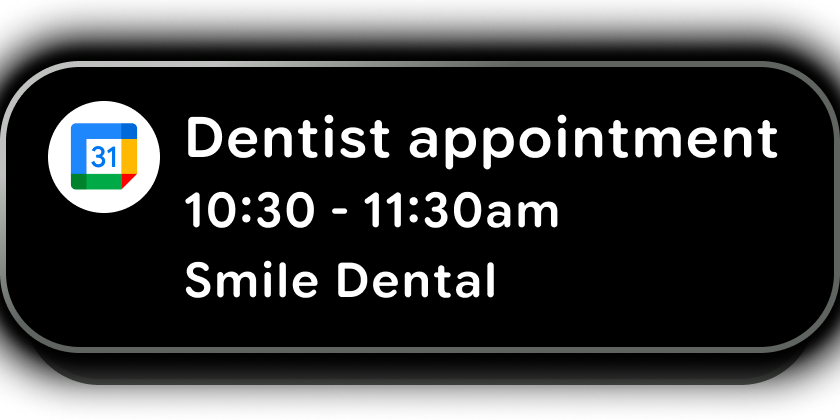
-

-

CallStyle(only when the notification qualifies as a live update)
Other notification styles (such as InboxStyle) aren't fully parsed and
rendered. For these styles, style-specific fields aren't rendered (such as the
summary text for InboxStyle). Instead, the system reverts to the
standard style and renders only common fields such as the content title.
Other required criteria for bridging
Besides the notification's style, a notification must also meet the following criteria to be bridged to AI glasses:
The notification isn't subject to any of the following user-controlled settings that would prevent its delivery:
Glasses companion app settings:
App-level toggle: By default, app notifications are toggled off in the Glasses app to help users purposefully decide which notifications are bridged to their AI glasses.
This default behavior lets a user leave notifications enabled on their phone for a certain app, but disable them for that app on their AI glasses. To help a user decide whether to enable notifications for your app in the Glasses app, explain how notifications would improve their experience with your app.
System-level notification settings on the user's phone:
App-level toggle: If a user disables notifications entirely for an app on the phone, no notifications for that app are bridged.
Notification channel settings: If a user disables notifications for an app-defined notification channel, no notifications for that channel are bridged.
System-level Do Not Disturb (DND) settings on the user's phone: AI glasses use the phone's DND settings. If the user's phone is in DND mode, notifications are also suppressed on the user's glasses.
The notification is assigned to a channel with
IMPORTANCE_HIGHorIMPORTANCE_MAX.The notification's title isn't
nullor empty.The notification isn't marked with
FLAG_LOCAL_ONLY. If this flag is set, the notification is restricted to the primary device.The notification isn't an ongoing notification, such as a persistent background task, unless it qualifies as a Live Update notification.
How Live Update notifications are bridged to AI glasses
Live Update notifications are a specialized class of notifications designed for ongoing, user-initiated activities that require real-time monitoring, such as rideshare ETAs, turn-by-turn navigation, or active calls. Unlike regular notifications, live updates remain active to provide a continuous stream of information that are surfaced prominently across the system UI.
For display AI glasses, live updates are rendered in two primary locations:
- Home screen: Live Update notifications appear on the Home canvas as cards. If multiple live updates are active, the system uses a stack instead.
- System bar: When the user is inside another app or experience, live updates appear as status chips in the system bar. These chips appear briefly whenever a status change occurs. If the display is asleep, a status chip automatically wakes the screen to signal a status change, so the user stays informed without manual interaction.
If a live update notification uses a supported notification style for AI
glasses, it is fully parsed and rendered. Live Updates notifications that use
other notification styles (such as BigTextStyle) aren't fully parsed,
and the system adapts them to a standard style notification instead.
Available notification actions for display AI glasses
On display AI glasses, incoming notifications appear as heads-up
notifications (HUNs). For MessagingStyle notifications, your app can use
a direct reply action. Users can tap to expand for more details and reply.
For all other notification styles, the only available option is the
system-provided clear action.
When using direct reply, users can reply with the voice or select from a smart reply list by scrolling forward. For smart replies, you can use our on-device AI to suggest short, relevant replies.