


Direct Preview lets you test and iterate on complex interactions directly inside the Unreal Editor using live data from the Android XR Device. With Direct Preview, the host machine renders and debugs the content, streams the visual viewport directly to your physical Android XR device, and streams supported OpenXR extensions back to the host in real time.
Follow this guide to set up Direct Preview for your project in Unreal Engine.
Prerequisites
Before beginning, ensure your development environment meets the following requirements:
- Unreal Engine version: Unreal Engine 5.6.1 or higher.
- Project setup: Complete all steps in the Unreal Engine project setup guide.
- Android XR Engine Hub: Complete all the steps in the get started section of the Android XR Engine Hub guide to install and configure your host machine for Direct Preview.
Hardware:
- Use a host machine running Windows 11.
- Use a modern graphics card with Vulkan Video Encoding support.
Set up Android XR plugins
Set up Unreal Engine with the required Android XR plugins:
Follow the steps in the Android XR Extensions for Unreal Engine quickstart guide.
Later, if you create a new project or open a project that you haven't used with Direct Preview, follow those same steps again.
For each project, make sure the project has a symlink to the vendor plugins folder.
Configure project settings
Configure your project settings for Direct Preview streaming:
- Navigate to Project Settings > Platforms > Windows.
- For RHI to Vulkan.
- Navigate to Edit > Plugins.
- Enable the AndroidXRStreaming plugin.
- Navigate to Edit > Project Settings > Description.
- Enable Start In VR.
Enable the streaming runtime
Now that the project has the AndroidXRStreaming plugin enabled, check if the Android XR Streaming runtime is present:
- Go to Project Settings > Plugins > AndroidXRStreaming.
Click Enable AndroidXR Streaming.
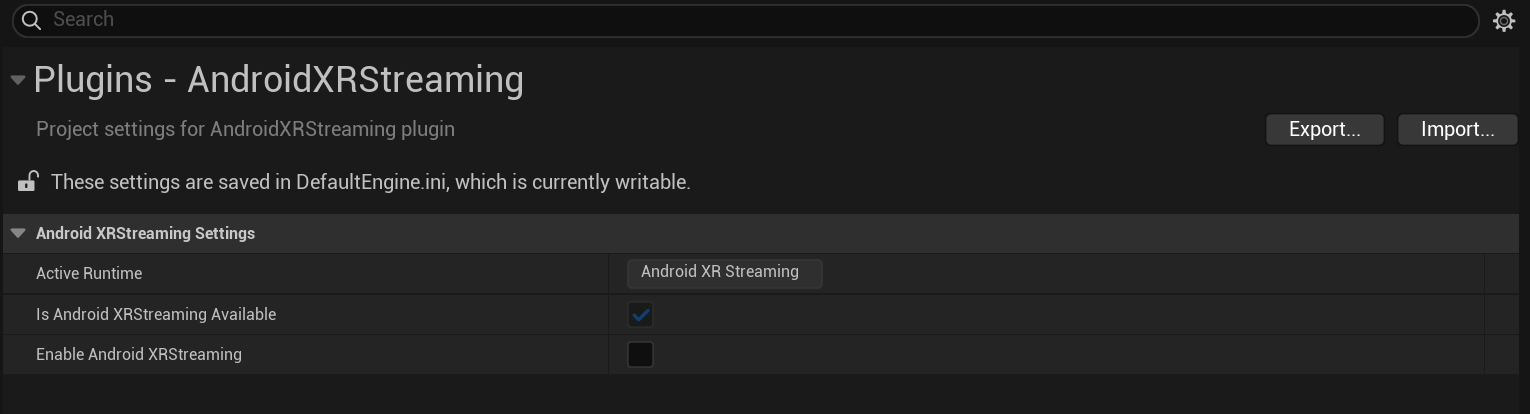
Restart Unreal Engine to apply these changes.
Configure the streaming client
Configure the streaming client with different options for your project:
- Go to Project Settings > Plugins.
In AndroidXRStreamingClient section, review each of the following options and enable or disable them to match what you need for your project:
- Auto Start Client On Preview: When enabled, launches the preview client app on any valid, selected device when clicking Start VR Preview from the editor.
- Auto Stop Client On Preview: When enabled, terminates the preview client when the VR preview from the editor is stopped.
- Auto Select Compatible Device: When enabled, automatically selects the first compatible device that is connected to the machine when searching for devices.
- Show Error Dialogs: When enabled, displays additional error dialogs (for example, an error dialog displays if you try to start a VR preview without selecting a client device). Disable this option to hide these dialogs.
- Refresh: When enabled, the Refresh button searches for connected devices and lists compatible ones (determined by the presence of the Direct Preview client app in the Android XR Engine Hub).
Start Direct Preview
Start Direct Preview to stream directly from Unreal Engine:
Connect your Android XR device to your host machine using a high-quality USB-C cable.
If you've never used this device with Direct Preview before, connect and configure the device for Direct Preview in the Android XR Engine Hub before you start Direct Preview through your game engine.
In the Unreal Editor, click Play level in VR. Don't use the usual Play in Editor option when starting Direct Preview.