
Android protects users from malicious apps and provides a trustworthy UI experience. The Activity Security framework encompasses rules and platform restrictions. These rules and restrictions prevent unwanted UI interruptions, task hijacking, and other security threats. These threats relate to when and how app components appear on screen. A key component of this framework restricts starting activities from the background.
Background activity launch restrictions
A Background Activity Launch (BAL) occurs when an app not in the foreground,
with no visible activities, or a PendingIntent received from a different app
attempts to start a new activity. This is a Background Activity Launch (BAL).
While legitimate use cases exist, such as when an alarm clock app starts,
unrestricted BALs lead to a poor user experience and create security
vulnerabilities.
Why are they restricted?
Since Android 10 (API level 29), the platform has placed restrictions on when apps can start activities from the background. These protections help prevent malicious app behavior and improve the user experience by mitigating common abuses, including:
- UI Hijacking & Pop-up Ads: A background app unexpectedly launches an activity (often an ad) on top of the app the user is currently interacting with, hijacking their session.
- Phishing & Impersonation: A background app launches an activity that impersonates another app (for example, a fake login screen for a legitimate app) to steal user credentials. This is often accomplished via an "Activity Sandwich" attack, where a malicious activity is inserted into the task stack of a legitimate app.
- Tapjacking: A background app displays a transparent or obscured activity over another app to intercept the user's taps and trick them into taking unintended actions.
- App Awakening: A background component from one app awakens another app's foreground components to illegitimately boost daily active user metrics.
Foreground services (for ongoing tasks)
If your app needs to perform a long-running task in the background that the user needs to be aware of, such as playing music or tracking a workout, you should use a Foreground Service. A foreground service must display a persistent notification that cannot be dismissed by the user. This notification can provide interactive controls (for example, play/pause buttons for a music app). This keeps the user informed and in control but does not interrupt them with a full-screen activity.
By following this hierarchy—starting with standard notifications and only escalating to more intrusive options when necessary, you create a better, more predictable experience for your users.
When background activity starts are allowed (exceptions)
An app can start an activity from the background if one of the following conditions is met:
- The app has a visible window, such as an activity in the foreground.
- The app is the current Input Method Editor (IME).
- The activity is started from a
PendingIntentthat was sent by the system (for example, from a notification tap). - The app has the
SYSTEM_ALERT_WINDOWpermission granted by the user. - The app has been granted the
START_ACTIVITIES_FROM_BACKGROUNDpermission. - The app is bound by a service that has been granted permission to start background activities.
- The launch is initiated by the device's launcher app, such as when a user taps an app icon or interacts with a widget.
- The launch is from a core part of the operating system that must run at all times, such as the Telephony service starting the incoming call screen.
New hardening and required opt-ins
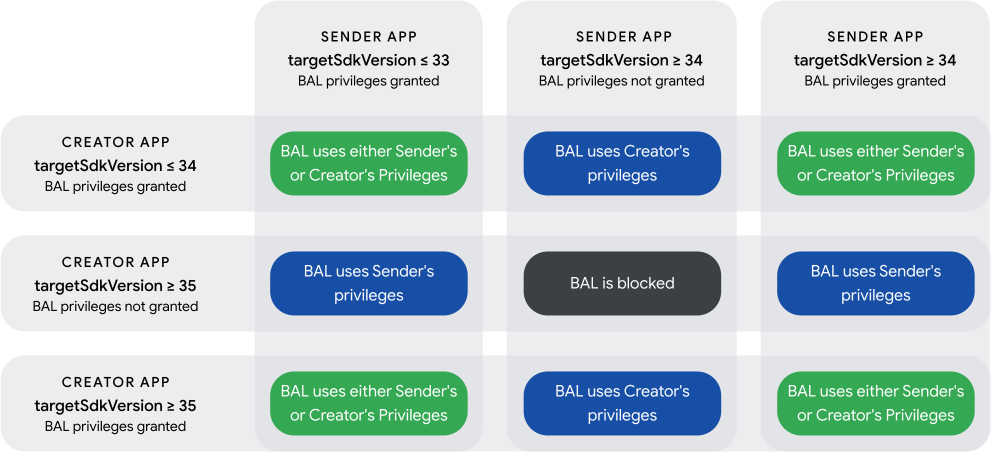
To further enhance security, Android has introduced stricter rules requiring
explicit opt-ins for apps that use PendingIntent and IntentSender to
launch activities. A launch is only permitted if either the app that created the
PendingIntent or the app that sends it opts-in to grant its background
launch privileges.
In most cases, the app sending the PendingIntent should be the one to
opt-in, as it is typically the app the user is directly interacting with (for
example, tapping a button).
Senders must opt-in for PendingIntent
When your app targets Android 14 (API level 34) or higher, it no longer grants
its BAL privileges by default when sending a PendingIntent. If you do not
explicitly opt-in, the activity launch might be blocked, unless the creator
of the PendingIntent has already granted its own privileges.
To ensure a launch succeeds, the sender should opt-in to grant its privileges by calling ActivityOptions.setPendingIntentBackgroundActivityStartMode() and the recommended mode is ActivityOptions.MODE_BACKGROUND_ACTIVITY_START_ALLOW_IF_VISIBLE (added in SDK 36).
This is a stricter and safer mode. It grants permission only if the sending app
is visible on screen at the moment the PendingIntent is sent. This more
strongly ensures that the activity launch is a direct result of a user's
interaction with your app.
Use ActivityOptions.setPendingIntentBackgroundActivityStartMode() to grant privileges.
// Sender Side
ActivityOptions options = ActivityOptions.makeBasic()
    .setPendingIntentBackgroundActivityStartMode(
        ActivityOptions.MODE_BACKGROUND_ACTIVITY_START_ALLOW_IF_VISIBLE);

try {
    myPendingIntent.send(options.toBundle());
} catch (PendingIntent.CanceledException e) {
    Log.e(TAG, "The PendingIntent was canceled", e);
}
// Sender Side
val options = ActivityOptions.makeBasic().apply {
    pendingIntentBackgroundActivityStartMode = ActivityOptions.MODE_BACKGROUND_ACTIVITY_START_ALLOW_IF_VISIBLE
}

try {
    myPendingIntent.send(options.toBundle())
} catch (e: PendingIntent.CanceledException) {
    Log.e(TAG, "The PendingIntent was canceled", e)
}
Creators must opt-in for PendingIntent
When your app targets Android 15 (API level 35) or higher, an app that
creates a PendingIntent no longer grants its background launch
privileges by default. To allow the sender to use your app's BAL privileges, you
must explicitly opt-in.
Use ActivityOptions.setPendingIntentCreatorBackgroundActivityStartMode() to grant privileges.
// Creator Side
Intent intent = new Intent(context, MyActivity.class);
ActivityOptions options = ActivityOptions.makeBasic().setPendingIntentCreatorBackgroundActivityStartMode(ActivityOptions.MODE_BACKGROUND_ACTIVITY_START_ALLOWED);

PendingIntent pendingIntent = PendingIntent.getActivity(context, REQUEST_CODE, intent, PendingIntent.FLAG_IMMUTABLE, options.toBundle());
// Creator Side
val intent = Intent(context, MyActivity::class.java)
val options = ActivityOptions.makeBasic().apply {
    pendingIntentCreatorBackgroundActivityStartMode = ActivityOptions.MODE_BACKGROUND_ACTIVITY_START_ALLOWED
}

val pendingIntent = PendingIntent.getActivity(context, REQUEST_CODE, intent,
        PendingIntent.FLAG_IMMUTABLE, options.toBundle())
Launching with IntentSender
The same BAL restrictions also apply when launching activities using an
IntentSender. Since an IntentSender is obtained via
PendingIntent.getIntentSender, it is subject to similar opt-in
requirements.
- Starting with Android 14 (API 34) using Context.startIntentSender()
requires a sender-side opt-in. You must provide the
ActivityOptionsbundle here as well.
ActivityOptions options = ActivityOptions.makeBasic()
        .setPendingIntentBackgroundActivityStartMode(
            ActivityOptions.MODE_BACKGROUND_ACTIVITY_START_ALLOWED);

context.startIntentSender(myIntentSender, fillInIntent, flagsMask,
        flagsValues, extraFlags, options.toBundle());
val options = ActivityOptions.makeBasic().apply {
    pendingIntentBackgroundActivityStartMode = ActivityOptions.MODE_BACKGROUND_ACTIVITY_START_ALLOWED
}

context.startIntentSender(myIntentSender, fillInIntent, flagsMask,
        flagsValues, extraFlags, options.toBundle())
- Starting with Android 17 (API 37+) using IntentSender.sendIntent() requires a sender-side opt-in.
ActivityOptions options = ActivityOptions.makeBasic()
        .setPendingIntentBackgroundActivityStartMode(
            ActivityOptions.MODE_BACKGROUND_ACTIVITY_START_ALLOWED);

myIntentSender.sendIntent(context, code, intent, onFinished, handler,
        requiredPermission, options.toBundle());
val options = ActivityOptions.makeBasic().apply {
    pendingIntentBackgroundActivityStartMode = ActivityOptions.MODE_BACKGROUND_ACTIVITY_START_ALLOWED
}

myIntentSender.sendIntent(context, code, intent, onFinished, handler,
        requiredPermission, options.toBundle())
- Using ActivityResultLauncher<IntentSenderRequest>: This AndroidX API uses Context.startIntentSender()internally and is therefore affected by BAL restrictions.
Sequence Diagram: BAL Restrictions
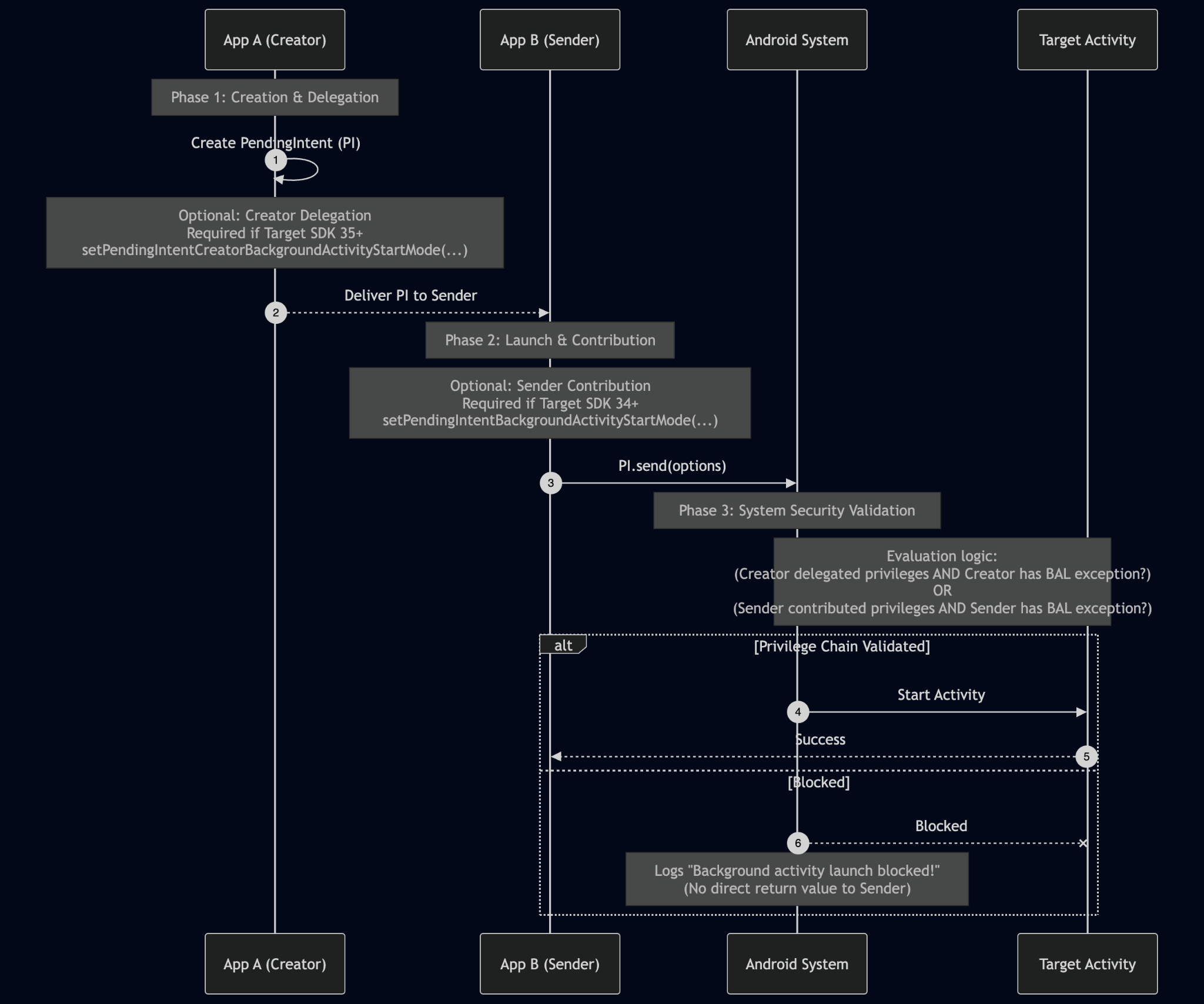
This diagram illustrates the process of securely launching an activity using a PendingIntent. A successful launch depends on a valid privilege chain where at least one of the participating apps both grants its privileges and has the ability to launch an activity from the background
- Creation & Delegation (App A - The Creator)
- The Creator app build the
PendingIntent - If targeting SDK 35+, the creator must explicitly delegate its BAL privileges using setPendingIntentCreatorBackgroundActivityStartMode() if it wants its privileges to be used. By default, no privileges are delegated.
- The
PendingIntentis then delivered to another app (App B)
- The Creator app build the
- Launch & Contribution (App B - The Sender)
- At a later time, the Sender app initiates the launch by calling
PendingIntent.send(). - If targeting SDK 34+, the sender must explicitly contribute its own privileges using setPendingIntentBackgroundActivityStartMode() if it wants its privileges to be used. By default, no privileges are delegated.
- At a later time, the Sender app initiates the launch by calling
- Android System Security Validation
- The Android System intercepts the launch request and performs a security check.
- It evaluates two conditions:
- Did the Creator delegate its privileges, AND does the Creator app currently satisfy one of the general BAL exceptions?
- Did the Sender contribute its privileges, AND does the Sender app currently satisfy one of the general BAL exceptions?
- Outcome
- ALLOWED: If at least one of the two conditions in step 3 is met, the privilege chain is validated. The Android System starts the target activity, and the sender receives a success result.
- BLOCKED: if neither condition is met, the system blocks the launch. The sender app does not receive a direct return value or exception indicating the failure. Instead the Android System internally logs a "Background activity launch blocked!" message to Logcat, which developers must check for debugging.
Task Hijacking Prevention
To prevent in-task hijacking attacks (like the "Activity Sandwich"), Android 15 introduces new rules for apps targeting API level 37 or higher.
- Rule 1: Within a single task, an activity can only be launched by another activity that belongs to the same application (that is, has the same UID) as the current top-most activity in the task.
- Rule 2: Only an activity within a foreground task that matches the UID of the top-most activity is allowed to create a new task or bring a different, existing task to the foreground.
Developer opt-in for in-task protections
This behavior can be enabled starting with target SDK 37, you must explicitly opt-in to enable. It is designed to prevent in-task hijacking (or Activity Sandwiching), where a malicious app could launch an activity into your app's task to impersonate it and steal user data.
Enabling protections
To opt-in and enable ASM for your application, set the
android:allowCrossUidActivitySwitchFromBelow attribute to false in your
AndroidManifest.xml file. This is an application-level setting that protects
all activities in your app by default.
Creating exceptions for specific activities
If you have enabled it for your app but need to allow a specific, trusted
activity to be launched by other apps, you can create a targeted exception. To
exempt a single activity from this protection, call
setAllowCrossUidActivitySwitchFromBelow(true) within that activity's
onCreate() method. This allows that one activity to be launched while the
rest of your app remains protected.
Troubleshooting
Filter Logcat to find relevant messages using a regular expression. The tag
ActivityTaskManager is often used, and filtering by
ActivityTaskManager can help isolate the logs.
Understanding key log messages
Blocked Launch (Error): This message indicates an activity start was blocked.
- Meaning: An activity start was denied because the necessary PendingIntent opt-in was missing from either the sender (targeting SDK 34+) or the creator (targeting SDK 35+).
- Action: You must update your code to include the correct ActivityOptions opt-in.
When analyzing the logs, check these fields:
- realCallingPackage: The app that sent the PendingIntent. This is the sender.
- callingPackage: The app that created the PendingIntent. This is the creator.
Strict Mode
Starting with Android 16, the app developer can enable Strict mode to get notified when an activity launch is blocked (or at risk of getting blocked when the app's target SDK is raised).
Example code to enable from early in your Application, Activity, or other application component's Application.onCreate() method:
override fun onCreate(savedInstanceState: Bundle?) {
     super.onCreate(savedInstanceState)
     StrictMode.setVmPolicy(
         StrictMode.VmPolicy.Builder()
         .detectBlockedBackgroundActivityLaunch()
         .penaltyLog()
         .build());
     )
 }