

เมื่อผสานรวมการนำส่งชิ้นงาน เกม Unity จะเข้าถึง Asset Pack ได้โดยใช้ Addressables หรือ AssetBundle Addressables เป็นโซลูชันการส่งชิ้นงานที่ใหม่กว่าและแนะนำสำหรับเกมที่สร้างด้วย Unity 2019.4 ขึ้นไป ส่วน AssetBundles รองรับแพ็กชิ้นงานใน Unity 2017.4 และ 2018.4
Unity Addressables
เกมที่สร้างด้วย Unity 2019.4 ขึ้นไปควรใช้ Addressables สำหรับการนำส่งชิ้นงานใน Android Unity มี Play Asset Delivery (PAD) API สำหรับจัดการ Asset Pack ของ Android โดยใช้ Addressables ดูข้อมูลเกี่ยวกับการใช้ Addressables ได้ที่หัวข้อต่อไปนี้
- Addressables สำหรับแพ็กเกจ Android
- คู่มือ PAD สำหรับ Unity
- เอกสารอ้างอิงสำหรับ PAD API สำหรับ Unity
ใช้ไฟล์ AssetBundle
เกมที่สร้างด้วย Unity 2017.4 และ 2018.4 สามารถใช้ไฟล์ AssetBundle สำหรับการส่งมอบชิ้นงานใน Android ได้ ไฟล์ AssetBundle ของ Unity ประกอบด้วยชิ้นงานที่แปลงเป็นอนุกรมซึ่งโหลดได้โดยเอนจิน Unity ขณะที่ แอปทำงานอยู่ ไฟล์เหล่านี้เป็นไฟล์เฉพาะแพลตฟอร์ม (เช่น สร้างขึ้นสำหรับ Android) และใช้ร่วมกับ Asset Pack ได้ โดยทั่วไปแล้ว ระบบจะแพ็กเกจไฟล์ AssetBundle 1 ไฟล์ลงใน Asset Pack เดียว โดย Asset Pack จะใช้ชื่อเดียวกับ AssetBundle หากต้องการความยืดหยุ่นมากขึ้นในการสร้าง Asset Pack ให้กำหนดค่า Asset Packโดยใช้ API
ในรันไทม์ ให้ใช้คลาส การนำส่งเนื้อหา Play สำหรับ Unity เพื่อดึงข้อมูล AssetBundle ที่แพ็กเกจไว้ใน Asset Pack
สิ่งที่ต้องมีก่อน
- ตั้งค่าสภาพแวดล้อมในการพัฒนาซอฟต์แวร์
OpenUPM-CLI
หากติดตั้ง OpenUPM CLI ไว้ คุณจะติดตั้งรีจิสทรี OpenUPM ได้ด้วยคำสั่งต่อไปนี้
openupm add com.google.play.assetdeliveryOpenUPM
เปิดการตั้งค่า Package Manager โดยเลือกตัวเลือกเมนู Unity แก้ไข > การตั้งค่าโปรเจ็กต์ > Package Manager
เพิ่ม OpenUPM เป็นรีจิสทรีที่กำหนดขอบเขตในหน้าต่าง Package Manager โดยทำดังนี้
Name: package.openupm.com URL: https://package.openupm.com Scopes: com.google.external-dependency-manager com.google.play.common com.google.play.core com.google.play.assetdelivery com.google.android.appbundleเปิดเมนู Package Manager โดยเลือกตัวเลือกเมนู Unity Window > Package Manager
ตั้งค่าเมนูแบบเลื่อนลงขอบเขตผู้จัดการเพื่อเลือกรีจิสทรีของฉัน
เลือกแพ็กเกจปลั๊กอิน Google Play Integrity สำหรับ Unity จาก รายการแพ็กเกจ แล้วกดติดตั้ง
นำเข้าจาก GitHub
ดาวน์โหลด
.unitypackageรุ่นล่าสุดจาก GitHubนำเข้าไฟล์
.unitypackageโดยเลือกตัวเลือกเมนู Unity ชิ้นงาน > นำเข้าแพ็กเกจ > แพ็กเกจที่กำหนดเอง แล้วนำเข้าทุกรายการ
กำหนดค่า AssetBundle โดยใช้ UI
กำหนดค่า AssetBundle แต่ละรายการใน Asset Pack ดังนี้
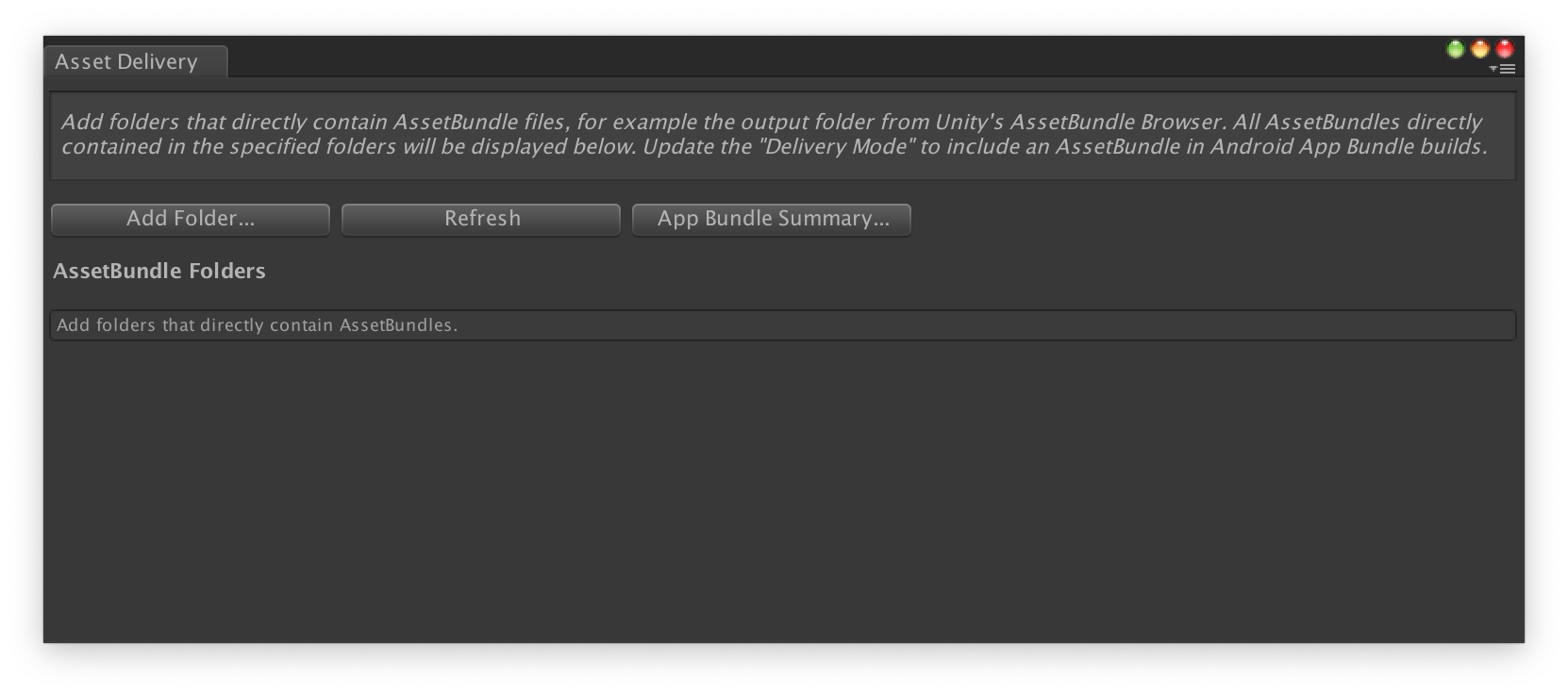
- เลือก Google > Android App Bundle > Asset Delivery
- หากต้องการเลือกโฟลเดอร์ที่มีไฟล์ AssetBundle โดยตรง ให้คลิกเพิ่ม โฟลเดอร์
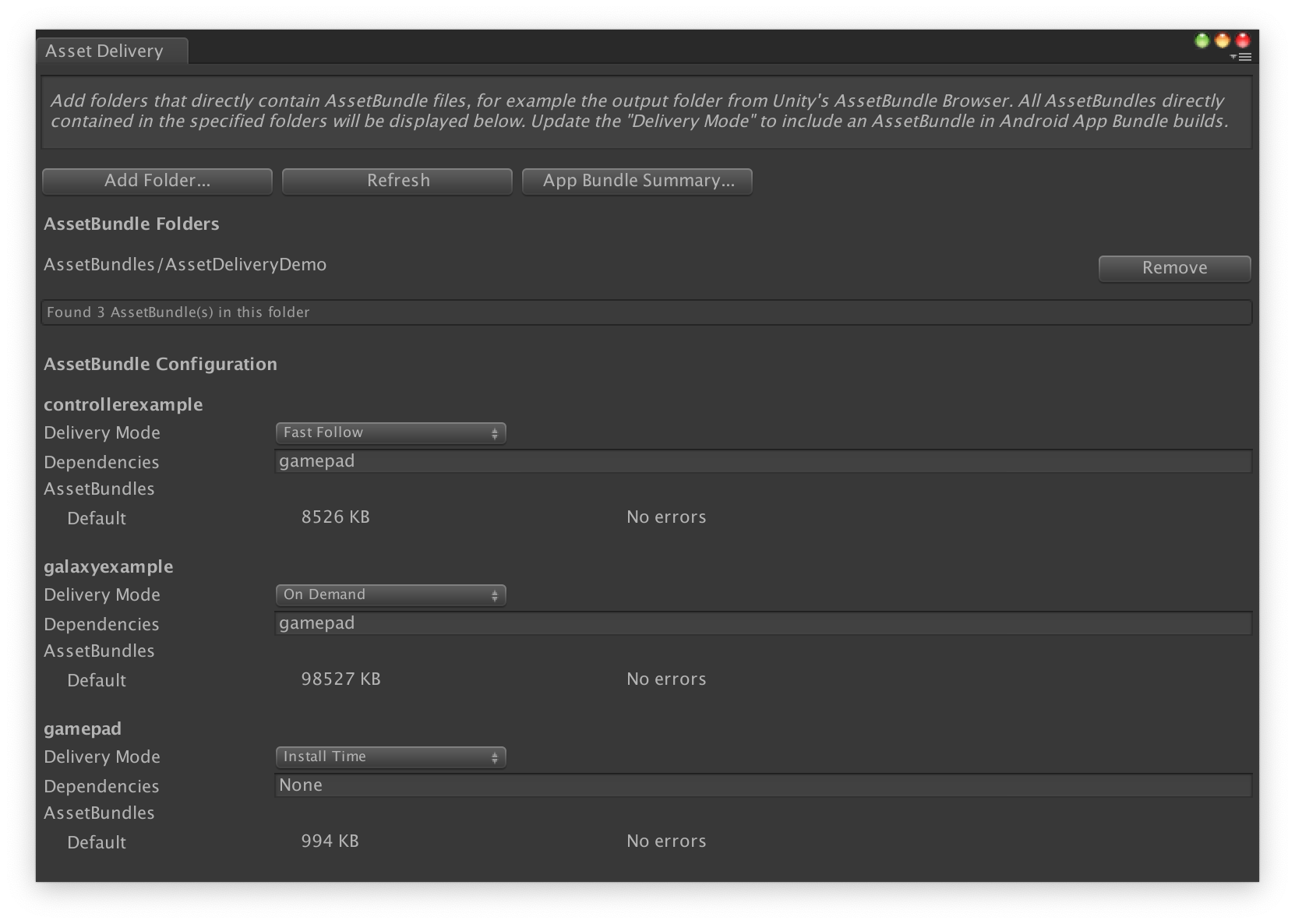
เปลี่ยนโหมดการแสดงโฆษณาเป็นเวลาติดตั้ง Fast Follow หรือตามต้องการสำหรับแต่ละกลุ่ม แก้ไขข้อผิดพลาดหรือการขึ้นต่อกัน แล้วปิดหน้าต่าง
เลือก Google > สร้าง Android App Bundle เพื่อสร้าง App Bundle
(ไม่บังคับ) กำหนดค่า App Bundle เพื่อรองรับรูปแบบการบีบอัด พื้นผิวที่แตกต่างกัน
กำหนดค่าแพ็กเกจเนื้อหาโดยใช้ API
คุณสามารถกำหนดค่าการนำส่งชิ้นงานผ่านสคริปต์ของเอดิเตอร์ ซึ่งสามารถเรียกใช้เป็นส่วนหนึ่ง ของระบบบิลด์อัตโนมัติได้
ใช้คลาส
AssetPackConfig
เพื่อกำหนดชิ้นงานที่จะรวมไว้ในการสร้าง Android App Bundle รวมถึง
โหมดการนำส่งชิ้นงาน Asset Pack เหล่านี้ไม่จำเป็นต้องมี AssetBundle
public void ConfigureAssetPacks {
   // Creates an AssetPackConfig with a single asset pack, named
   // examplePackName, containing all the files in path/to/exampleFolder.
   var assetPackConfig = new AssetPackConfig();
   assetPackConfig.AddAssetsFolder("examplePackName",
                                   "path/to/exampleFolder",
                                   AssetPackDeliveryMode.OnDemand);

   // Configures the build system to use the newly created assetPackConfig when
   // calling Google > Build and Run or Google > Build Android App Bundle.
   AssetPackConfigSerializer.SaveConfig(assetPackConfig);

   // Alternatively, use BundleTool.BuildBundle to build an App Bundle from script.
   BuildBundle(new buildPlayerOptions(), assetPackConfig);
}
นอกจากนี้ คุณยังใช้เมธอดแบบคงที่
BuildBundle
ในคลาส Bundletool เพื่อสร้าง Android App Bundle ที่มี Asset Pack ได้ด้วย
โดยระบุ
BuildPlayerOptions
และ
AssetPackConfig
ดูบทแนะนำแบบมีคำแนะนำได้ที่ Codelab การใช้การนำส่งเนื้อหา Play ในเกม Unity
ผสานรวมกับ Play Asset Delivery Unity API
Play Asset Delivery Unity API มีฟังก์ชันการทำงานสำหรับการขอ Asset Pack, การจัดการการดาวน์โหลด และการเข้าถึงเนื้อหา โปรดเพิ่มปลั๊กอิน Unity ลงในโปรเจ็กต์ก่อน
ฟังก์ชันที่คุณใช้ใน API จะขึ้นอยู่กับวิธีที่คุณสร้าง แพ็กเกจเนื้อหา
หากคุณ สร้างแพ็กเกจชิ้นงานโดยใช้ UI ของปลั๊กอิน ให้เลือกแพ็กเกจชิ้นงานที่กำหนดค่าปลั๊กอิน
หากคุณสร้างแพ็กเกจเนื้อหาโดยใช้ API (หรือ UI ของปลั๊กอิน) ให้เลือกแพ็กเกจเนื้อหาที่กำหนดค่า API
คุณจะใช้ API ตามประเภทการนำส่งของ Asset Pack ที่ต้องการเข้าถึง ขั้นตอนเหล่านี้แสดงในโฟลว์ชาร์ตต่อไปนี้

รูปที่ 1 แผนภาพโฟลว์สำหรับการเข้าถึงแพ็กเกจชิ้นงาน
ดึงข้อมูล AssetBundle
นำเข้าไลบรารีการนำส่งเนื้อหา Play แล้วเรียกใช้เมธอดRetrieveAssetBundleAsync()เพื่อดึงข้อมูล AssetBundle
using Google.Play.AssetDelivery;

// Loads the AssetBundle from disk, downloading the asset pack containing it if necessary.
PlayAssetBundleRequest bundleRequest = PlayAssetDelivery.RetrieveAssetBundleAsync(asset-bundle-name);
การนำส่งเมื่อติดตั้ง
แพ็กเกจชิ้นงานที่กำหนดค่าเป็น install-time จะพร้อมใช้งานทันทีเมื่อเปิดแอป
คุณใช้สิ่งต่อไปนี้เพื่อโหลดฉากจาก AssetBundle ได้
AssetBundle assetBundle = bundleRequest.AssetBundle;

// You may choose to load scenes from the AssetBundle. For example:
string[] scenePaths = assetBundle.GetAllScenePaths();
SceneManager.LoadScene(scenePaths[path-index]);
การดาวน์โหลดอัตโนมัติและการนำส่งแบบออนดีมานด์
ส่วนเหล่านี้มีผลกับ Asset Pack fast-follow และ on-demand
ตรวจสอบสถานะ
ระบบจะจัดเก็บ Asset Pack แต่ละรายการไว้ในโฟลเดอร์แยกต่างหากในที่จัดเก็บข้อมูลภายในของแอป
ใช้เมธอด
isDownloaded()
เพื่อตรวจสอบว่าดาวน์โหลด Asset Pack แล้วหรือยัง
ตรวจสอบการดาวน์โหลด
ค้นหาออบเจ็กต์
PlayAssetBundleRequest
เพื่อตรวจสอบสถานะของคำขอ
// Download progress of request, between 0.0f and 1.0f. The value will always be
// 1.0 for assets delivered as install-time.
// NOTE: A value of 1.0 will only signify the download is complete. It will still need to be loaded.
float progress = bundleRequest.DownloadProgress;

// Returns true if:
//   * it had either completed the download, installing, and loading of the AssetBundle,
//   * OR if it has encountered an error.
bool done = bundleRequest.IsDone;

// Returns status of retrieval request.
AssetDeliveryStatus status = bundleRequest.Status;
switch(status) {
    case AssetDeliveryStatus.Pending:
        // Asset pack download is pending - N/A for install-time assets.
    case AssetDeliveryStatus.Retrieving:
        // Asset pack is being downloaded and transferred to app storage.
        // N/A for install-time assets.
    case AssetDeliveryStatus.Available:
        // Asset pack is downloaded on disk but NOT loaded into memory.
        // For PlayAssetPackRequest(), this indicates that the request is complete.
    case AssetDeliveryStatus.Loading:
        // Asset pack is being loaded.
    case AssetDeliveryStatus.Loaded:
        // Asset pack has finished loading, assets can now be loaded.
        // For PlayAssetBundleRequest(), this indicates that the request is complete.
    case AssetDeliveryStatus.Failed:
        // Asset pack retrieval has failed.
    case AssetDeliveryStatus.WaitingForWifi:
        // Asset pack retrieval paused until either the device connects via Wi-Fi,
        // or the user accepts the PlayAssetDelivery.ShowConfirmationDialog dialog.
    case AssetDeliveryStatus.RequiresUserConfirmation:
        // Asset pack retrieval paused until the user accepts the
        // PlayAssetDelivery.ShowConfirmationDialog dialog.
    default:
        break;
}
การดาวน์โหลดขนาดใหญ่
Asset Pack ที่มีขนาดใหญ่กว่า 200 MB จะดาวน์โหลดโดยอัตโนมัติได้ แต่จะดาวน์โหลดได้เฉพาะใน Wi-Fi เท่านั้น หาก
ผู้ใช้ไม่ได้ใช้ Wi-Fi ระบบจะตั้งค่าสถานะ PlayAssetBundleRequest เป็น
AssetDeliveryStatus.WaitingForWifi
และหยุดการดาวน์โหลดชั่วคราว ในกรณีนี้ ให้รอจนกว่าอุปกรณ์จะเชื่อมต่อกับ Wi-Fi แล้วดาวน์โหลดต่อ หรือแจ้งให้ผู้ใช้ขออนุมัติเพื่อดาวน์โหลดแพ็กผ่านการเชื่อมต่อเครือข่ายมือถือ
การยืนยันผู้ใช้ที่จำเป็น
หากแพ็กมีสถานะเป็น AssetDeliveryStatus.RequiresUserConfirmation ระบบจะไม่ดาวน์โหลดจนกว่าผู้ใช้จะยอมรับกล่องโต้ตอบที่แสดงพร้อมกับ PlayAssetDelivery.ShowConfirmationDialog()
สถานะนี้อาจเกิดขึ้นหาก Play ไม่รู้จักแอป โปรดทราบว่าการโทร
PlayAssetDelivery.ShowConfirmationDialog()ในกรณีนี้จะทำให้แอป
ได้รับการอัปเดต หลังจากอัปเดตแล้ว ให้ขอชิ้นงานอีกครั้ง
if(request.Status == AssetDeliveryStatus.RequiresUserConfirmation
   || request.Status == AssetDeliveryStatus.WaitingForWifi) {
    var userConfirmationOperation = PlayAssetDelivery.ShowConfirmationDialog();
    yield return userConfirmationOperation;

    switch(userConfirmationOperation.GetResult()) {
        case ConfirmationDialogResult.Unknown:
            // userConfirmationOperation finished with an error. Something went
            // wrong when displaying the prompt to the user, and they weren't
            // able to interact with the dialog.
        case ConfirmationDialogResult.Accepted:
            // User accepted the confirmation dialog--an update will start.
        case ConfirmationDialogResult.Declined:
            // User canceled or declined the dialog. It can be shown again.
        default:
            break;
    }
}
ยกเลิกคำขอ (เฉพาะแบบออนดีมานด์)
หากต้องการยกเลิกคำขอก่อนที่จะโหลด AssetBundle ลงใน
หน่วยความจำ ให้เรียกใช้เมธอด
AttemptCancel()
ในออบเจ็กต์
PlayAssetBundleRequest
// Will only attempt if the status is Pending, Retrieving, or Available - otherwise
// it will be a no-op.
bundleRequest.AttemptCancel();

// Check to see if the request was successful by checking if the error code is Canceled.
if(bundleRequest.Error == AssetDeliveryErrorCode.Canceled) {
    // Request was successfully canceled.
}
ขอ Asset Pack แบบอะซิงโครนัส
ในกรณีส่วนใหญ่ คุณควรใช้ โครูทีนเพื่อ ขอ Asset Pack แบบอะซิงโครนัสและตรวจสอบความคืบหน้า ดังที่แสดงใน ตัวอย่างต่อไปนี้
private IEnumerator LoadAssetBundleCoroutine(string assetBundleName) {

    PlayAssetBundleRequest bundleRequest =
        PlayAssetDelivery.RetrieveAssetBundleAsync(assetBundleName);

    while (!bundleRequest.IsDone) {
        if(bundleRequest.Status == AssetDeliveryStatus.WaitingForWifi) {
            var userConfirmationOperation = PlayAssetDelivery.ShowCellularDataConfirmation();

            // Wait for confirmation dialog action.
            yield return userConfirmationOperation;

            if((userConfirmationOperation.Error != AssetDeliveryErrorCode.NoError) ||
               (userConfirmationOperation.GetResult() != ConfirmationDialogResult.Accepted)) {
                // The user did not accept the confirmation. Handle as needed.
            }

            // Wait for Wi-Fi connection OR confirmation dialog acceptance before moving on.
            yield return new WaitUntil(() => bundleRequest.Status != AssetDeliveryStatus.WaitingForWifi);
        }

        // Use bundleRequest.DownloadProgress to track download progress.
        // Use bundleRequest.Status to track the status of request.

        yield return null;
    }

    if (bundleRequest.Error != AssetDeliveryErrorCode.NoError) {
        // There was an error retrieving the bundle. For error codes NetworkError
        // and InsufficientStorage, you may prompt the user to check their
        // connection settings or check their storage space, respectively, then
        // try again.
        yield return null;
    }

    // Request was successful. Retrieve AssetBundle from request.AssetBundle.
    AssetBundle assetBundle = bundleRequest.AssetBundle;
ดูข้อมูลเพิ่มเติมเกี่ยวกับการจัดการข้อผิดพลาดได้ที่รายการ
AssetDeliveryErrorCodes
เมธอดอื่นๆ ของ Play Core API
ต่อไปนี้คือเมธอด API เพิ่มเติมบางส่วนที่คุณอาจต้องการใช้ในแอป
ตรวจสอบขนาดการดาวน์โหลด
ตรวจสอบขนาดของ AssetBundle โดยการเรียก Google Play แบบอะซิงโครนัส และตั้งค่าเมธอด Callback เมื่อการดำเนินการเสร็จสมบูรณ์
public IEnumerator GetDownloadSize() {
   PlayAsyncOperation<long> getSizeOperation =
   PlayAssetDelivery.GetDownloadSize(assetPackName);

   yield return getSizeOperation;
   if(operation.Error != AssetDeliveryErrorCode.NoError) {
       // Error while retrieving download size.
    } else {
        // Download size is given in bytes.
        long downloadSize = operation.GetResult();
    }
}
นำ AssetBundles ออก
คุณสามารถนำ AssetBundle แบบดาวน์โหลดอัตโนมัติและแบบออนดีมานด์ที่ไม่ได้โหลดลงในหน่วยความจำในขณะนี้ออกได้ ทำการเรียกแบบอะซิงโครนัสต่อไปนี้และตั้งค่าเมธอดเรียกกลับเมื่อการเรียกเสร็จสมบูรณ์
PlayAsyncOperation<string> removeOperation = PlayAssetDelivery.RemoveAssetPack(assetBundleName);

removeOperation.Completed += (operation) =>
            {
                if(operation.Error != AssetDeliveryErrorCode.NoError) {
                    // Error while attempting to remove AssetBundles.
                } else {
                    // Files were deleted OR files did not exist to begin with.
                }
            };
ขั้นตอนถัดไป
ทดสอบการนำส่งเนื้อหาในเครื่องและจาก Google Play