

Android Studio 支持 tools 命名空间中的多种 XML 属性,这些属性支持设计时功能(例如要在 Fragment 中显示哪种布局)或编译时行为(例如要对 XML 资源应用哪种缩减模式)。在您构建应用时,构建工具会移除这些属性,以免它们会对 APK 大小或运行时行为产生影响。
若要使用这些属性,请将 tools 命名空间添加到各个目标 XML 文件的根元素中,如下所示:
<RootTag xmlns:android="http://schemas.android.com/apk/res/android"
    xmlns:tools="http://schemas.android.com/tools" >
错误处理属性
以下属性可帮助抑制 lint 警告消息:
tools:targetApi
适用于:任何元素
使用者:lint
此属性的工作方式与 Java
代码中的 @TargetApi 注释相同。通过它,您可以指定支持该元素的 API 级别(指定为整数或代号)。
它会告知工具,您认为该元素(及任何子元素)将只能在指定的 API 级别或更高级别中使用。这样,如果该元素或其属性在您指定为
minSdkVersion 的 API 级别中不可用,lint 将不会向您发出警告。
例如,您可以使用此属性,因为 GridLayout 只能在 API 级别 14 及更高级别中使用,但您知道此布局不会用于任何更低版本对应的代码中:
<GridLayout xmlns:android="http://schemas.android.com/apk/res/android"
    xmlns:tools="http://schemas.android.com/tools"
    tools:targetApi="14" >
(不过,请注意,我们建议您改用GridLayout
支持库中的 instead。)
设计时视图属性
以下属性定义了仅会在 Android Studio 布局预览中看到的布局特性。
tools: 代替 android:
适用于:<View>
使用者:Android Studio 布局编辑器
您可通过将 tools: 前缀(而非 android:)与 Android 框架中的任意 <View> 属性搭配使用,在布局预览中插入示例数据。此属性在以下情况下很有用:属性的值在运行时之前不会填充,但您希望在布局预览中看到效果。
例如,如果在运行时设置 android:text 属性值,或者您希望在布局中看到默认值以外的值,则可添加 tools:text
以指定一些仅在布局预览中显示的文本。
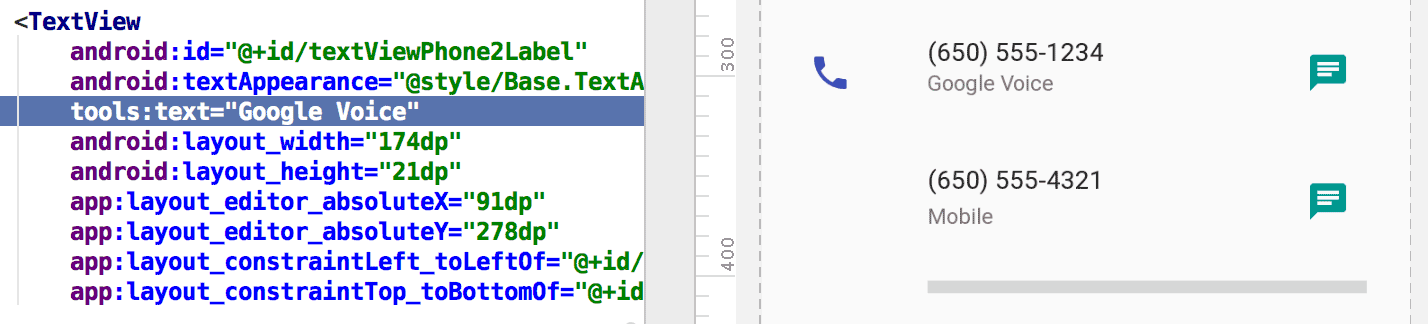
tools:text 属性用于将“Google Voice”设为在布局预览中显示的值。您可以同时添加 android: 命名空间属性(会在运行时用到)和匹配的 tools: 属性(会替换仅在布局预览中显示的运行时属性)。
您还可以使用 tools: 属性来撤消仅为布局预览指定的属性设置。例如,如果您拥有的 FrameLayout 包含 2 个子元素,但您希望在布局预览中仅看到一个子元素,则可将其中一个子元素设为在布局预览中不可见,如下所示:
<Button
    android:id="@+id/button"
    android:layout_width="wrap_content"
    android:layout_height="wrap_content"
    android:text="First" />

<Button
    android:id="@+id/button2"
    android:layout_width="wrap_content"
    android:layout_height="wrap_content"
    android:text="Second"
    tools:visibility="invisible"  />
在 Design 视图中使用布局编辑器时,您可通过 Properties 窗口修改部分设计时视图属性。每个设计时属性的属性名称旁边都会显示扳手图标  ,以便与同名的真实属性区分开来。
tools:context
适用于:任何根 <View>
使用者:lint、Android Studio 布局编辑器
此属性用于声明相应布局默认与哪个 activity 关联。这会在编辑器或布局预览中启用具有以下特征的功能:需要了解相应 activity,例如预览中的布局主题是什么以及在何处插入通过快速修复生成的 onClick 处理程序,如图 2 所示。
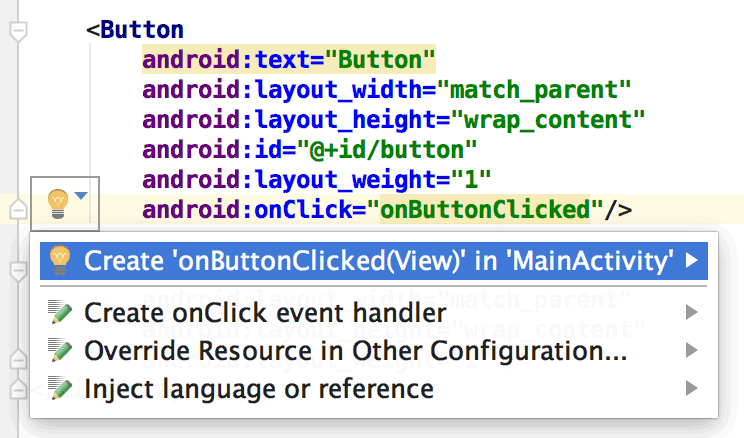
tools:context 的情况下,onClick 属性的快速修复功能才会起作用。您可以使用清单文件所用的同一点前缀指定 activity 类名称(完整的软件包名称除外)。
例如:
<android.support.constraint.ConstraintLayout
    xmlns:android="http://schemas.android.com/apk/res/android"
    xmlns:tools="http://schemas.android.com/tools"
    tools:context=".MainActivity" >
tools:itemCount
适用于:<RecyclerView>
对于给定的 RecyclerView,此属性会指定
布局编辑器应该在 Preview 窗口中呈现的内容数量。
例如:
<androidx.recyclerview.widget.RecyclerView
    android:id="@+id/recyclerView"
    android:layout_width="match_parent"
    android:layout_height="match_parent"
    tools:itemCount="3"/>
tools:layout
适用于:<fragment>
使用者:Android Studio 布局编辑器
此属性用于声明您希望布局预览在 Fragment 内绘制的布局,因为布局预览无法执行正常情况下会应用布局的 activity 代码。
例如:
<fragment android:name="com.example.main.ItemListFragment"
    tools:layout="@layout/list_content" />
tools:listitem, tools:listheader, tools:listfooter
适用于:<ListView>(以及 <AdapterView> 等子类)
使用者:Android Studio 布局编辑器
这些属性用于指定要在列表的项目、标题和页脚布局预览中显示的布局。布局中的任何数据字段都填充有数字内容(例如“Item 1”),以确保列表的项目不会重复。
例如:
<ListView xmlns:android="http://schemas.android.com/apk/res/android"
    xmlns:tools="http://schemas.android.com/tools"
    android:id="@android:id/list"
    android:layout_width="match_parent"
    android:layout_height="match_parent"
    tools:listitem="@layout/sample_list_item"
    tools:listheader="@layout/sample_list_header"
    tools:listfooter="@layout/sample_list_footer" />
tools:showIn
适用于:<include> 引用的布局中的任何根 <View>
使用者:Android Studio 布局编辑器
借助此属性,您可指向某个通过 <include> 使用此布局的布局,以便能按照此文件内嵌在其父级布局期间的显示情形来预览和修改此文件。
例如:
<TextView xmlns:android="http://schemas.android.com/apk/res/android"
    xmlns:tools="http://schemas.android.com/tools"
    android:text="@string/hello_world"
    android:layout_width="wrap_content"
    android:layout_height="wrap_content"
    tools:showIn="@layout/activity_main" />
现在,当此 TextView 布局出现在 activity_main 布局内部时,布局预览中会进行显示。
tools:menu
适用于:任何根 <View>
使用者:Android Studio 布局编辑器
此属性用于指定要让布局预览在应用栏中显示的菜单。值为一个或多个菜单 ID,以英文逗号分隔,不带 @menu/ 或任何此类 ID 前缀且不带 .xml 扩展名。
例如:
<?xml version="1.0" encoding="utf-8"?>
<LinearLayout xmlns:android="http://schemas.android.com/apk/res/android"
    xmlns:tools="http://schemas.android.com/tools"
    android:orientation="vertical"
    android:layout_width="match_parent"
    android:layout_height="match_parent"
    tools:menu="menu1,menu2" />
tools:minValue, tools:maxValue
适用于:<NumberPicker>
使用者: Android Studio 布局编辑器
这些属性用于设置 NumberPicker 视图的最小值和最大值。
例如:
<NumberPicker xmlns:android="http://schemas.android.com/apk/res/android"
    xmlns:tools="http://schemas.android.com/tools"
    android:id="@+id/numberPicker"
    android:layout_width="match_parent"
    android:layout_height="wrap_content"
    tools:minValue="0"
    tools:maxValue="10" />
tools:openDrawer
适用于:<DrawerLayout>
使用者: Android Studio 布局编辑器
借助此属性,您可在预览中打开 DrawerLayout。
您还可通过传递以下任一值修改布局编辑器呈现布局的方式:
表 1. 一些用于修改布局编辑器如何呈现 DrawerLayout 的值
| 常量 | 值 | 说明 |
|---|---|---|
end | 800005 | 将对象推送到其容器的末尾,不更改其大小。 |
left | 3 | 将对象推送到其容器的左侧,不更改其大小。 |
right | 5 | 将对象推送到其容器的右侧,不更改其大小。 |
start | 800003 | 将对象推送到其容器的开头,不更改其大小。 |
例如:
<androidx.drawerlayout.widget.DrawerLayout
    xmlns:android="http://schemas.android.com/apk/res/android"
    xmlns:tools="http://schemas.android.com/tools"
    android:id="@+id/drawer_layout"
    android:layout_width="match_parent"
    android:layout_height="match_parent"
    tools:openDrawer="start" />
"@tools:sample/*" 资源
适用于:支持界面文本或图片的任何视图
通过此属性,您可将占位符数据或图片注入到视图中。 例如,如果您想在未最终确定应用界面文本的情况下测试布局在采用文本时的行为,则可以使用占位符文本,如下所示:
<TextView xmlns:android="http://schemas.android.com/apk/res/android"
    xmlns:tools="http://schemas.android.com/tools"
    android:layout_width="wrap_content"
    android:layout_height="wrap_content"
    tools:text="@tools:sample/lorem" />
下表列出了可注入到布局中的占位符数据的类型:
表 2. 布局的占位符数据
| 属性值 | 占位符数据说明 |
|---|---|
@tools:sample/full_names |
根据 @tools:sample/first_names 和 @tools:sample/last_names 的组合随机生成的全名 |
@tools:sample/first_names |
常见名字 |
@tools:sample/last_names |
常见姓氏 |
@tools:sample/cities |
世界各地的城市名称 |
@tools:sample/us_zipcodes |
随机生成的美国邮政编码 |
@tools:sample/us_phones |
随机生成的电话号码,格式如下:
(800) 555-xxxx |
@tools:sample/lorem |
拉丁文占位符文本 |
@tools:sample/date/day_of_week |
按照指定格式随机生成的日期和时间 |
@tools:sample/date/ddmmyy | |
@tools:sample/date/mmddyy | |
@tools:sample/date/hhmm | |
@tools:sample/date/hhmmss | |
@tools:sample/avatars |
可用作个人资料头像的矢量可绘制对象 |
@tools:sample/backgrounds/scenic |
可用作背景的图片 |