
Concepts and Jetpack Compose implementation
The Translations Editor provides a consolidated and editable view of all of your default and translated string resources.
For an introduction to translating your app for different languages, read Support different languages and cultures.
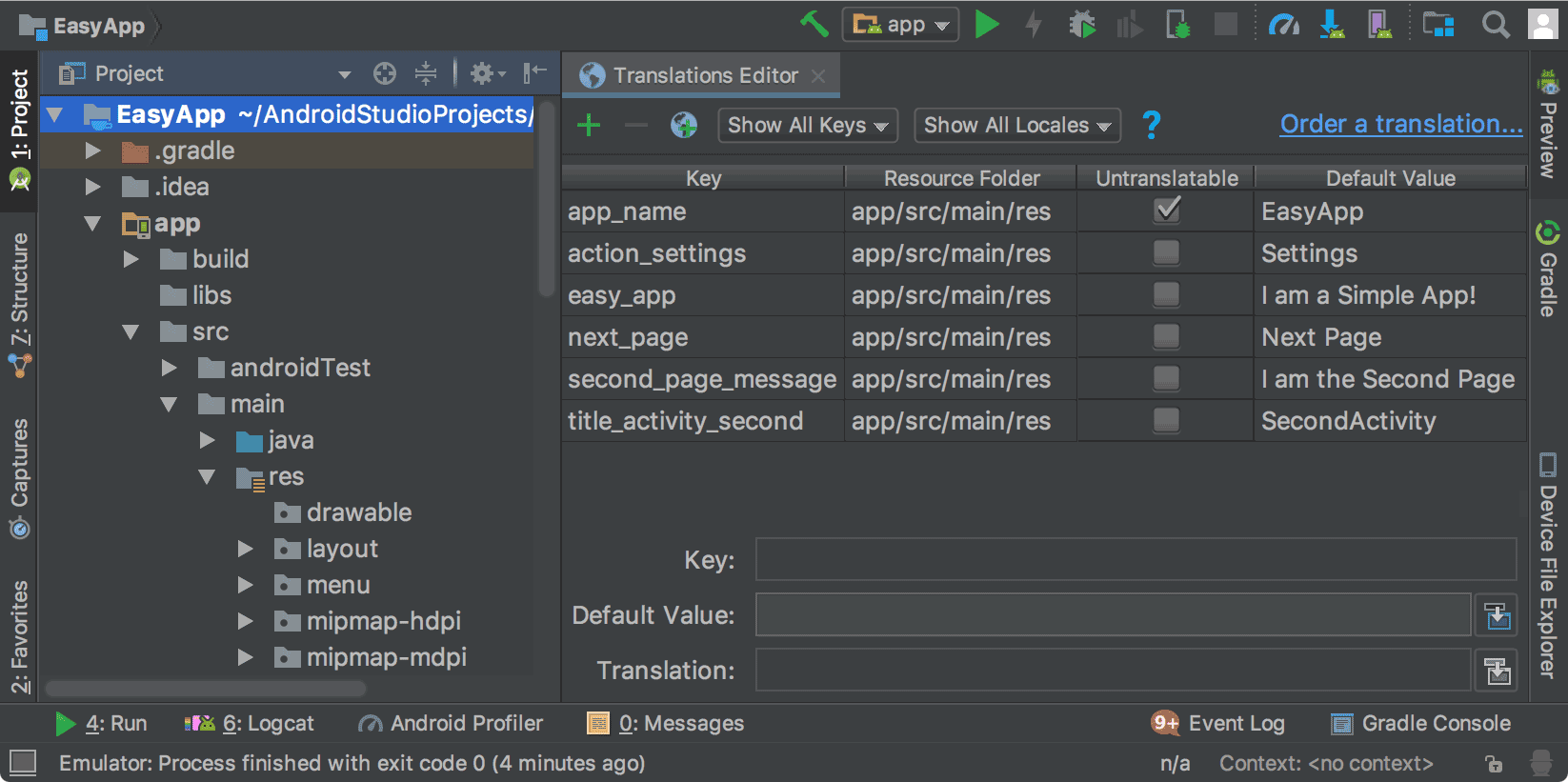
Figure 1. The Translations Editor showing app text before translation
Open the Translations Editor from the Design Editor
You can open the Translations Editor from the Layout Editor's Design Editor to edit your default and translated text to better fit your layout. For information about switching languages in the Design Editor, see Display translated text in the Design Editor.
- In the Project > Android panel on the left, select ModuleName > res > layout.
- Double-click content_main.xml to open it for editing.
- Click the Design tab in the lower-left corner to display the Design Editor.
- In the Design Editor, select the Language
 drop-down list.
- Select Edit Translations
 .
.
Display translated text in the Design Editor
To see how the translated text displays in your app layout, toggle the text between the default and translated versions in the Design Editor, as follows:
- In the Project > Android panel on the left, select ModuleName > res > layout.
- Double-click content_main.xml to open it for editing.
- Click the Design tab in the lower-left corner to display the Design Editor.
- In the Design Editor, select the Language
drop-down list.
- Select Edit Translations .
- Select the language you want to use to view your app.

Figure 2. The language drop-down list with Spanish selected
The Design Editor displays your app layout in the selected language, which in this case is Spanish.
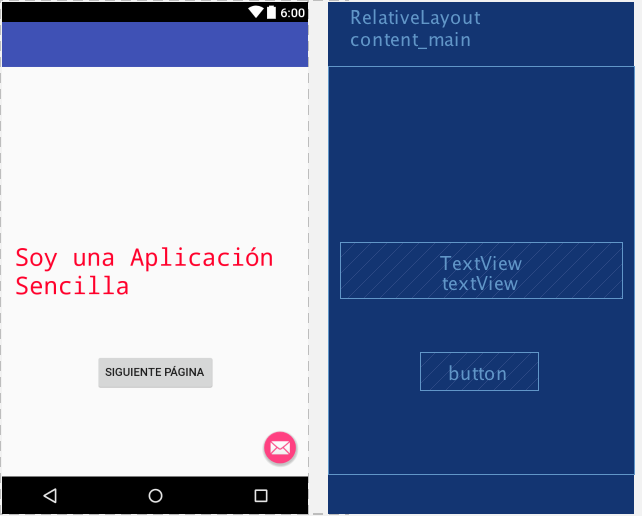
Figure 3. The Design Editor displaying translated text in Spanish
Set the Design Editor to the default language
To set the language back to the default, select es > Language
.
Manage and test localizable text
The Android platform and Android Studio provide several features to help you manage and test your localizable app text. These features have options to help you target issues with right-to-left (RTL) scripts, such as Arabic or Hebrew. Testing your localizable text lets you make adjustments to the UI text and its layout before you commit your messages to the source repository to be sent for translation later.
Refactor your project for RTL support
Android Studio has a refactoring command that enables support for bidirectional
text in TextView, ConstraintLayout, and LinearLayout
elements so your apps can display and allow users to edit text in both
left-to-right (LTR) and right-to-left (RTL) scripts. The command also provides
automatic mirroring of app UI layouts and all view widgets. To see the text
direction change and the layout mirroring, you must also set the text and
layout direction properties in the Layout Editor.
The following procedure shows how to refactor your project for RTL support:
- Select Refactor > Add RTL support where possible to display the dialog
shown in figure 4.
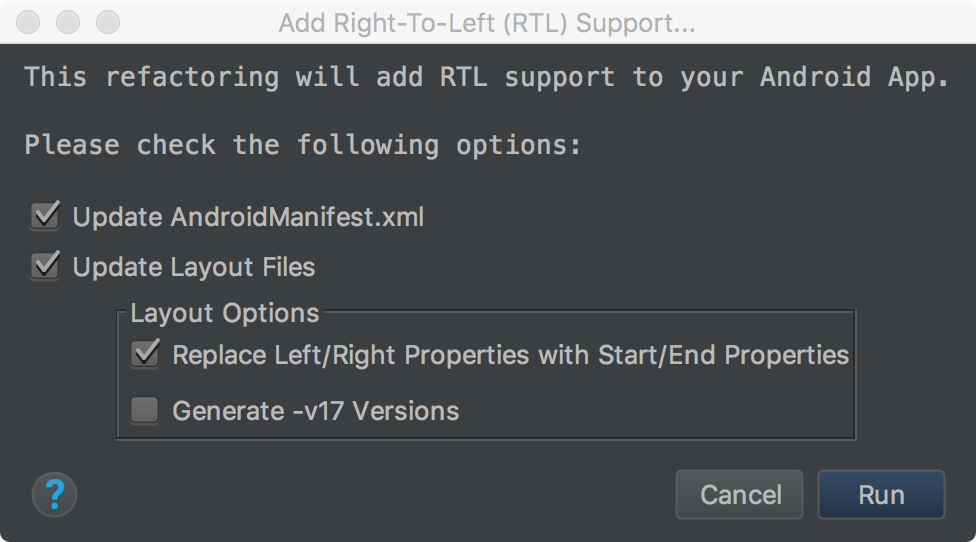
Figure 4. Add RTL support
- If the
<application>element in yourAndroidManifest.xmlfile does not have theandroid:supportsRTL="true"attribute, then select the Update AndroidManifest.xml checkbox. - If your app's
targetSdkVersionis 17 or higher, select Replace Left/Right Properties with Start/End Properties. In this case, your properties should use "start" and "end" instead of "left" and "right". For example,android:paddingLeftbecomesandroid:paddingStart. - If your app's
targetSdkVersionis 16 or less, select Generate -v17 Versions In this case, your XML should use both sets of properties. For example, your XML should use bothandroid:paddingLeftandandroid:paddingStart.
- If the
- To display the Find Refactoring Preview window, click Run.
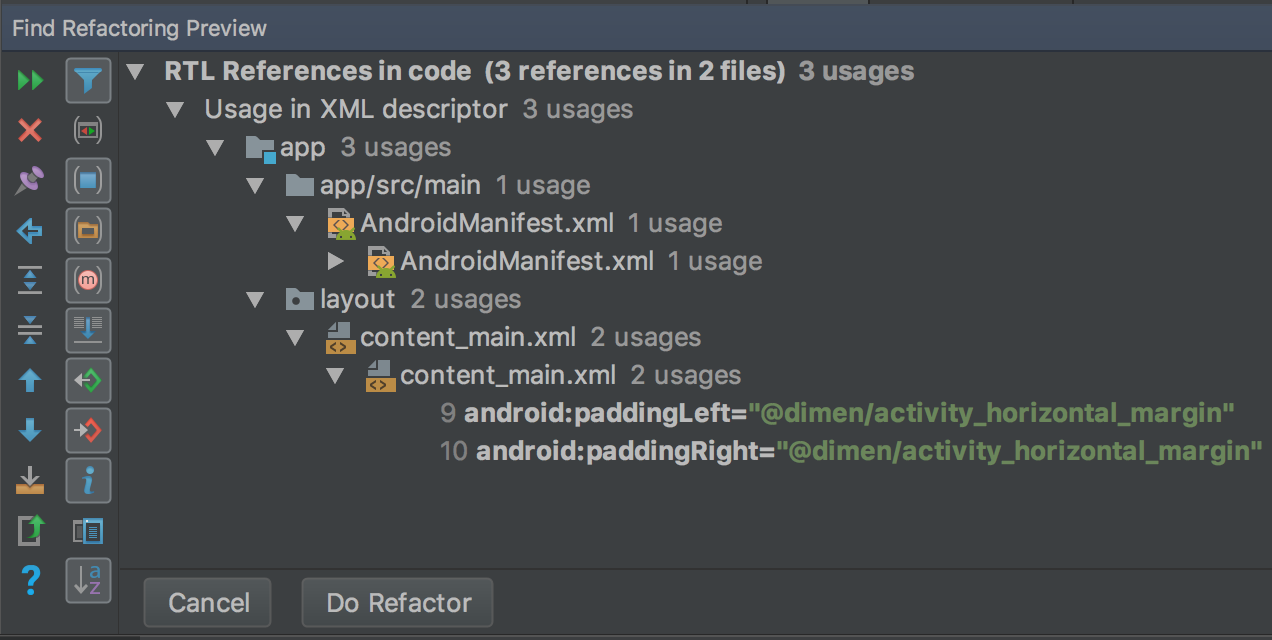
Figure 5. Check the preview
- Click Do Refactor.
For more information about refactoring your project for RTL support, see Native RTL support in Android 4.2.
Text and layout direction properties
The Properties window on the right provides the textDirection property to use with text widgets and the layoutDirection property to use with layout widgets to change the direction of text and layout components. The direction properties are listed in the Properties window on the right, and work with API Level 17 or higher.
To see the text direction change and the layout mirroring, you must also refactor the project for RTL support. In English, the text direction change moves only punctuation from the right side to the left side of the text; for example, "Hello World!" becomes "!Hello World". To see LTR text switch to RTL, you have to use an RTL language in your app. If you want to use English and see the text switch to RTL for testing purposes, use pseudolocales. Pseudolocales are independent of the refactoring command and the direction properties.
To access and use the direction properties, do the following:
- In the Layout Editor, select a text widget.
Open the Properties window and search for the RTL property you want to use. To set the property value, select one of the following:
- firstStrong: Default for the root view. The first strong directional character determines the paragraph direction. If there is no strong directional character, the paragraph direction is the view's resolved layout direction.
- anyRtl: The paragraph direction is RTL if it contains any strong RTL character; otherwise, it is LTR if it contains any strong LTR characters. If there are neither, the paragraph direction is the view's resolved layout direction.
- ltr: The paragraph direction is LTR.
- rtl: The paragraph direction is RTL.
- locale: The paragraph direction comes from the system locale.
- inherit: Default. Use the direction set in the parent.
Note: Strong directional characters have their own predefined direction, such as most alphabetic and syllabic characters, non-European and non-Arabic digits, Han ideographs, and punctuation characters that are specific to only those scripts.
To review the reversed text and layout, run the app.