


This guide details the recommended engine versions, required SDKs, and Android project settings when developing a Godot Engine app for Android XR.
Prerequisites
Before you can configure a Godot Engine project for Android XR development, you need to complete the following prerequisites:
- Download Godot 4.6.2 from the official Godot website.
- Ensure you have an XR headset or some XR glasses.
- Install Android Studio.
Install Android build support
Godot requires specific Android build tools to compile and export packages for spatial computing.
In Android Studio, use the SDK Manager to install the following packages and tools:
- Android SDK Platform: Android 14.0 ("UpsideDownCake") (API Level 34)
- Android SDK Build-Tools: Version 34.0.0 or higher
- NDK: Any 28.x version
- CMake: Version 3.10.2
You might need to select Show Package Details in the SDK Manager to see all of the available versions of a tool.
In Godot, go to Editor > Editor Settings > Export > Android and provide the path to your SDK.
Create a Godot XR project
Set up a new project for spatial rendering:
- Open Godot and create a new project.
For the Renderer, select Mobile.
This is the highly-performant, Vulkan-first graphics API recommended for Android XR.
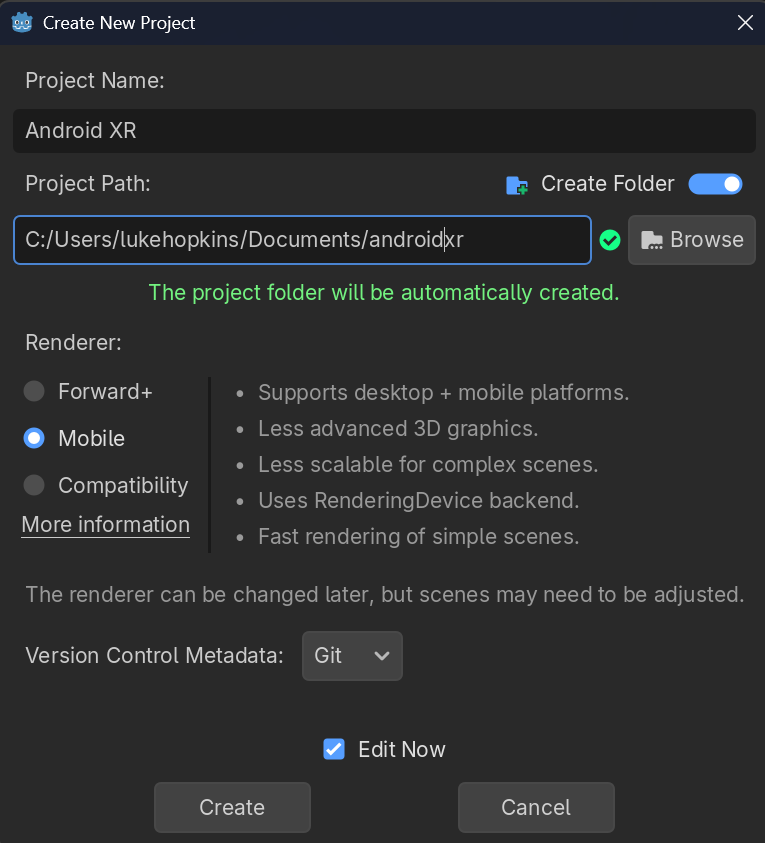
Select any other options that you want, and click Create.
Construct your internal XR scene (including
XROrigin3DandXRCamera3D) using the Official Godot XR Scene Setup Guide.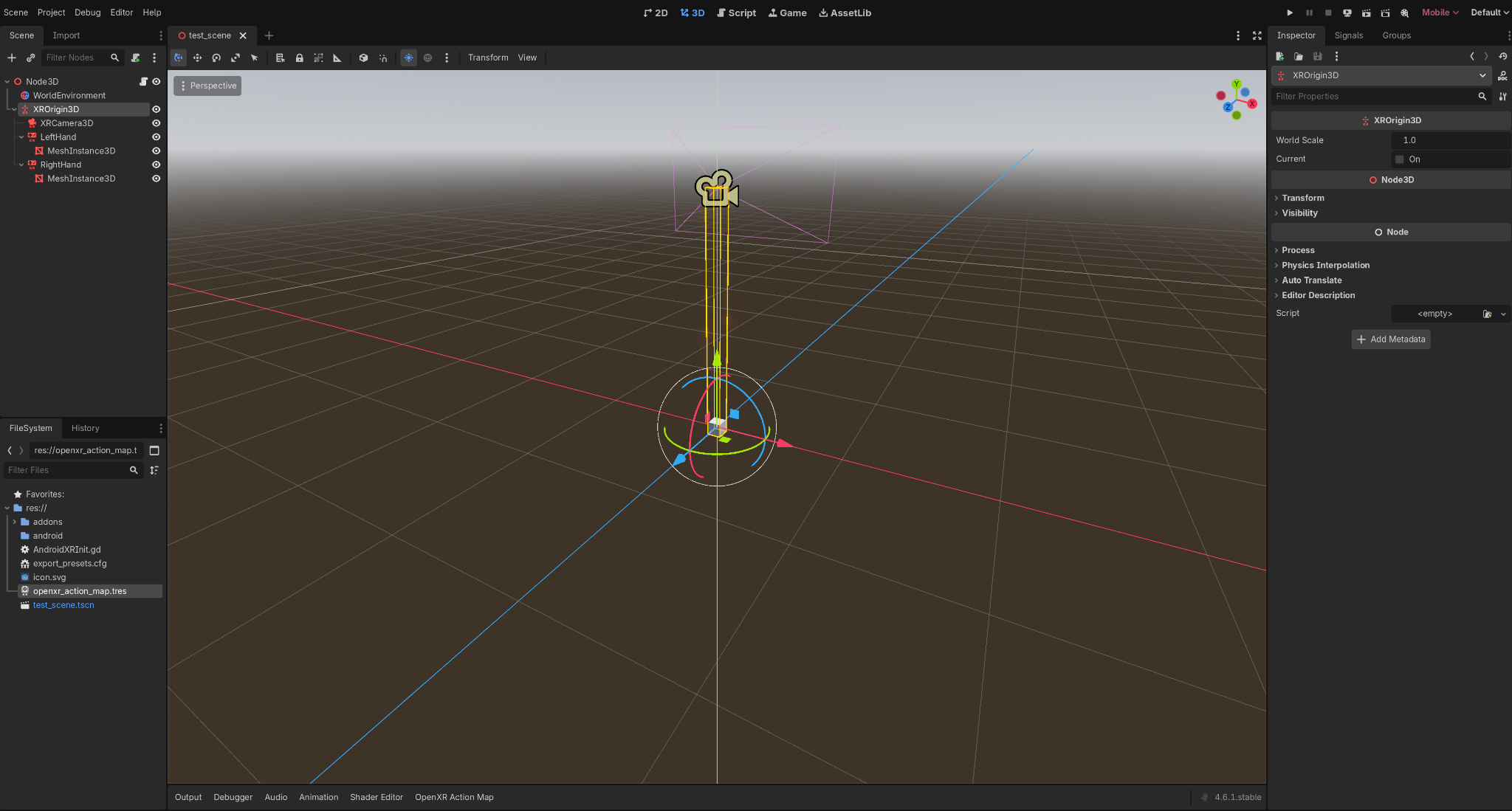
Configure project settings
Next, you'll configure project settings to enable OpenXR and configure the rendering pipeline for mobile performance:
- Open Godot.
- Configure the following project settings for OpenXR:
- Go to Project > Project Settings > XR > OpenXR, and select Enabled.
- Go to Project > Project Settings > XR > Shaders, and select Enabled.
Go to Rendering > Anti Aliasing > Quality > MSAA 3D, and select 4x.
This setting provides the best clarity in Android XR.
Set up your project to export to Android XR
Complete the following steps to set up your project to export to Android XR:
Set up an Export Preset: Go to Project > Export and click Add... > Android.
Complete the Deployment Guide: Follow the Official Godot Android Deployment Guide for step-by-step instructions on permissions and one-click deployment.
Check your project's SDK Versions:
- For the Min SDK: 34
- For the Target SDK: 34
Configure the XR Mode: Set the XR Mode to OpenXR in the export settings.
Install the Godot OpenXR Vendors Plugin
Your app must use the Vendors Plugin to access Android XR specific extensions. Follow these steps to get a compatible version:
- In Godot, select AssetLib.
Search for "Vendor".

Find version 5.1 (or higher) of the Godot OpenXR Vendors plugin and download it.
After the download completes, select Install.

See also
For more information about Android XR development with Godot, see the following pages in the Godot Engine documentation: