
Next Edit Prediction (NEP) evolves code completion by anticipating your next move, even when it's not at your current cursor position. While traditional AI code completion focuses on suggesting code at your current cursor position, NEP is designed for "away from cursor" updates.
By using Gemini to analyze your recent edits across multiple files, NEP anticipates your next logical move. It proactively suggests changes elsewhere in your codebase—even in areas that are off-screen—helping you maintain consistency and speed up repetitive refactoring tasks.
When you update code in your Android Studio editor, NEP can detect the change on recently edited files, and automatically suggest updates on the file you're editing. Instead of manually searching and replacing, you can jump to and apply these edits with a single keystroke.
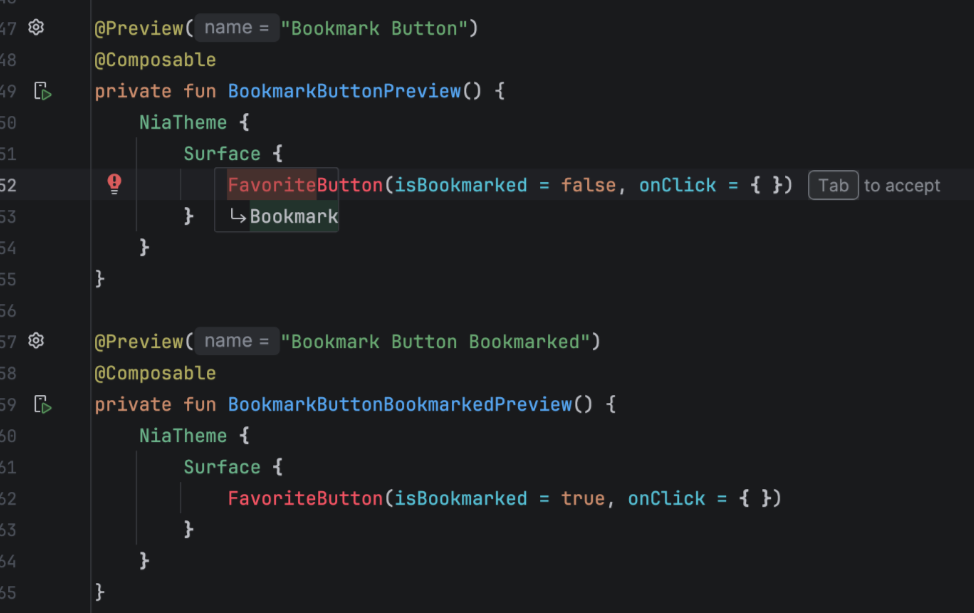
How it works
NEP is complementary to Agent Mode. While the agent makes changes based on your explicit prompts, NEP works silently in the background of the editor to assist your manual coding flow.
- Intelligent grouping: The tool groups related edits (such as renaming a variable across multiple lines or changing a logic pattern) into reviewable blocks.
- Filtering: NEP automatically filters out low-value suggestions, such as import statements, allowing the IDE's native auto-import features to handle them more efficiently.
How to use NEP
Here's how to use NEP:
- When NEP has a suggestion off-screen, a "Tab to move" hint will appear in the editor to guide you to the predicted edit. Press Tab to jump to the suggestion.
- To accept the suggested edit, press Tab.
- If you don't like a suggestion, you can either ignore it or press Esc to remove it.
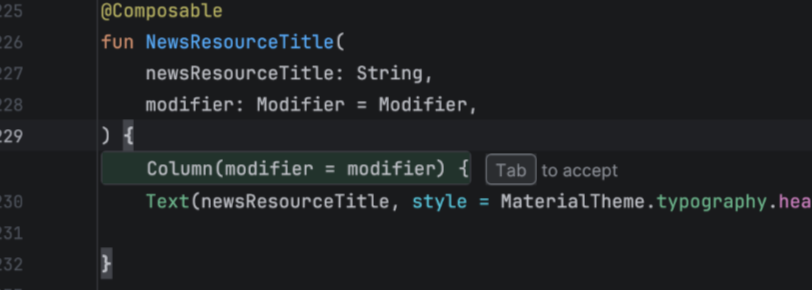
Settings
NEP is designed to be helpful without being intrusive. You have full control over how and when predictions appear.
NEP status bar
NEP controls are available on the bottom rail of Android Studio.
 Clicking the NEP controls button lets you quickly:
- Pause predictions: Temporarily disable suggestions for 5 minutes, 10 minutes, or until the next restart.
- Adjust request delay: Change how long the editor waits after you stop typing before it requests a prediction (for example, 500ms or 1000ms).
- Access additional settings: Jump directly to the settings menu at File (Android Studio on macOS) > Settings > Tools > AI > Editor.
Choose your completion engine
You can toggle between classic code completion and NEP in the Android Studio settings: File (Android Studio on macOS) > Settings > Tools > AI > Editor.