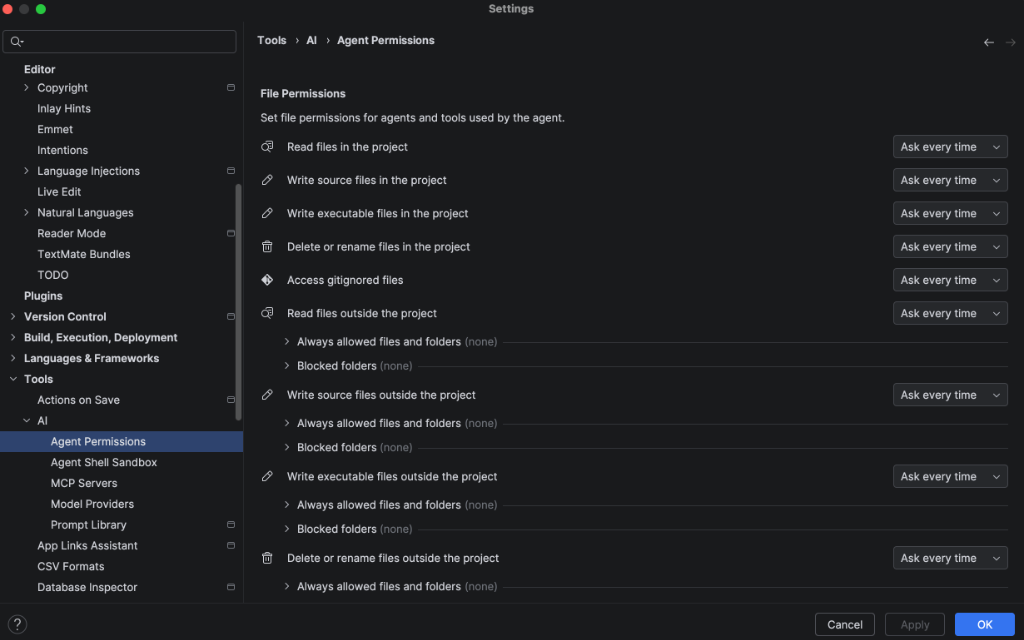
You can manage specific permissions for the agent, giving you granular control over your workspace. Permissions let you control whether the agent can perform certain actions, including the following:
- Read and update project files, external directories, and sensitive data (such as credentials).
- Access Google Search and other domains.
- Run shell commands.
- Interact with MCP servers.
While you're working with the agent, the agent will ask you for permission to do something if you haven't approved before:
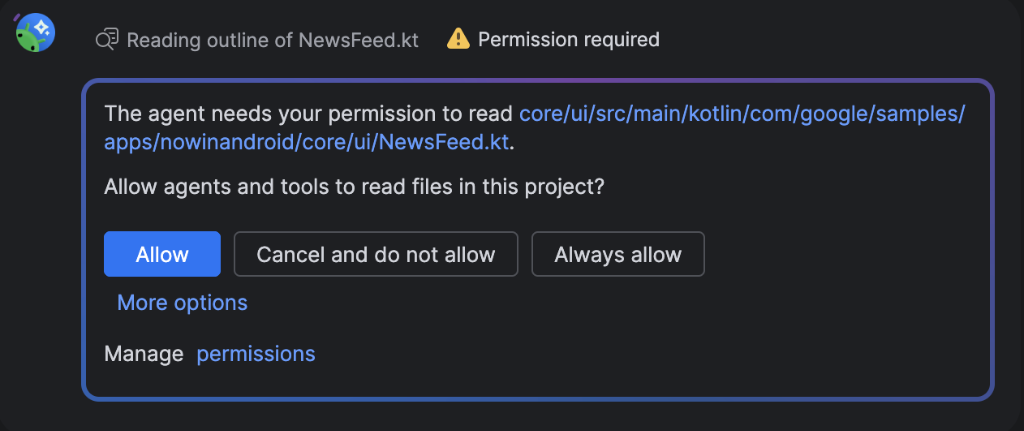
You can choose Allow for one-time tasks or Always allow for trusted,
repeated workflows. Gemini uses an intelligent request system, so granting a
high-level permission (such as writing files) automatically authorizes all
related sub-tools. Common commands like ls or grep are approved silently based
on your existing read access, letting you stay in the flow without redundant
prompts. The new permissions model balances security and productivity so you can
have the agent work without interruption on operations you trust, and still do
manual review for other operations.
You can audit your permissions manually at File > Settings > Tools > AI > Agent Permissions (or Android Studio > Settings > Tools > AI > Agent Permissions on macOS).
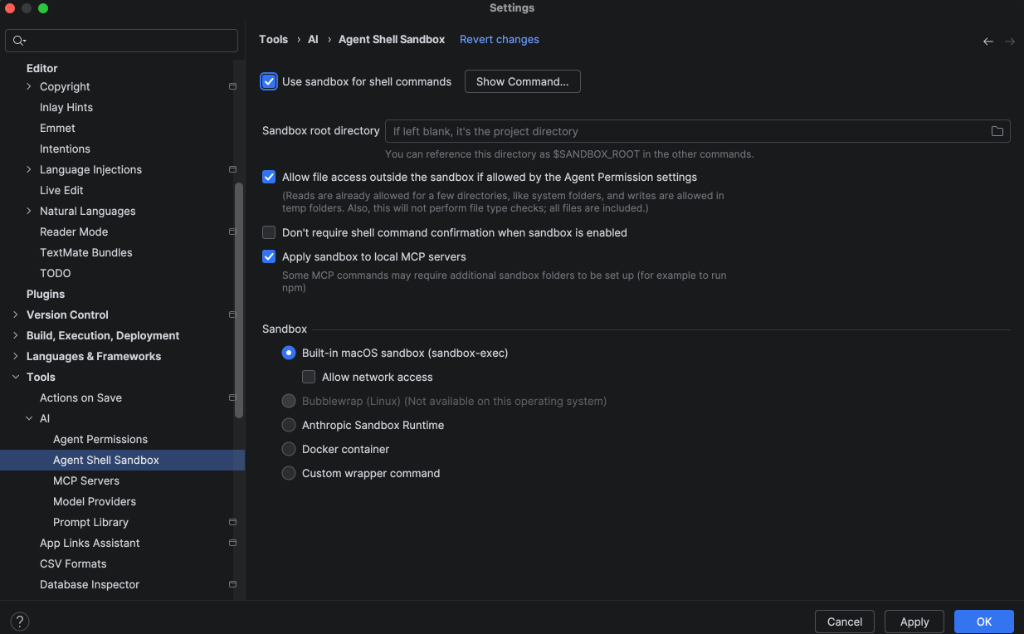
Sandboxing
Sandboxing limits unauthorized network access and file-system writes unless you provide explicit consent. To configure sandboxing, go to File > Settings > Tools > AI > Agent Shell Sandbox (or Android Studio > Settings > Tools > AI > Agent Shell Sandbox on macOS).